

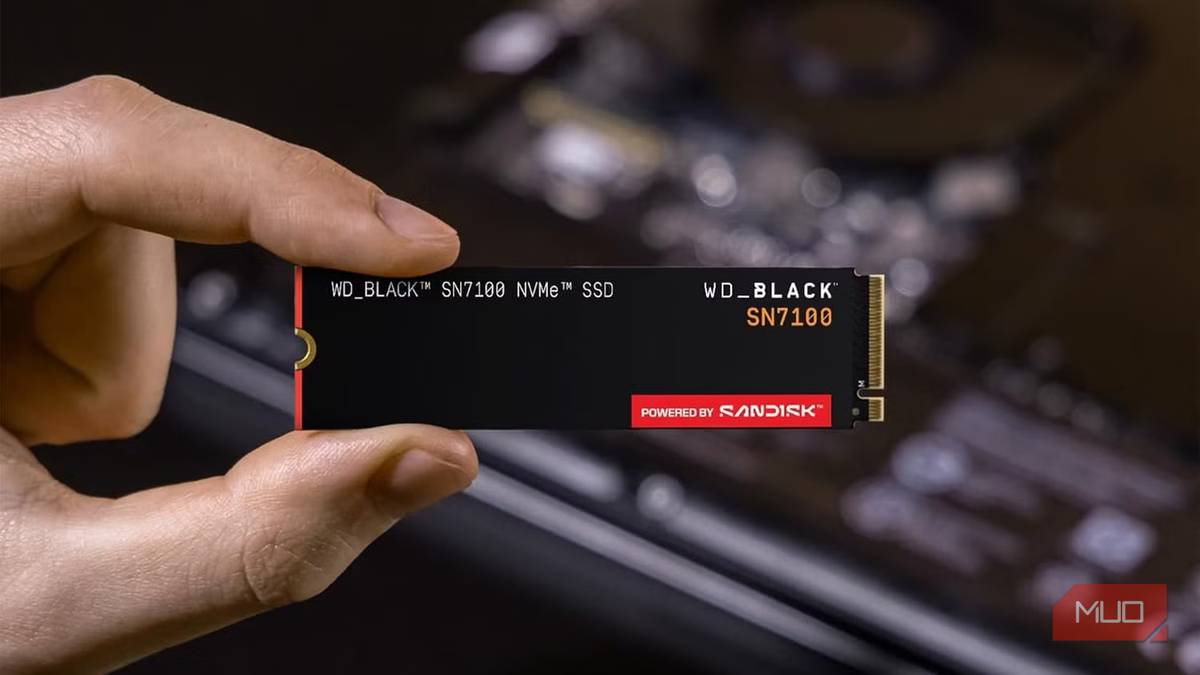

Every device, whether mechanical or electronic, eventually suffers from wear and tear, and SSDs are no exception. The more you use one, the more its memory cells are eventually subjected to wear.
SSDs store data using tiny memory cells. Every time you write or read data, those cells go through an electrical process that gradually wears down the insulating layers inside them. SSDs are designed to handle a lot of this activity, but they won’t last forever. Because of that, I’ve developed a habit of checking the health of my SSD every now and then. Luckily for me, Windows already has a built-in section that lets me check some information about my SSD’s health.
The built-in SSD health checker only works with NVMe SSDs. If you’re using a SATA SSD or an HDD, you’ll need to rely on a third-party monitoring tool to get similar health information.
Windows has been tracking my SSD’s health all along
I didn’t realize Windows was already collecting information about the condition of my drive
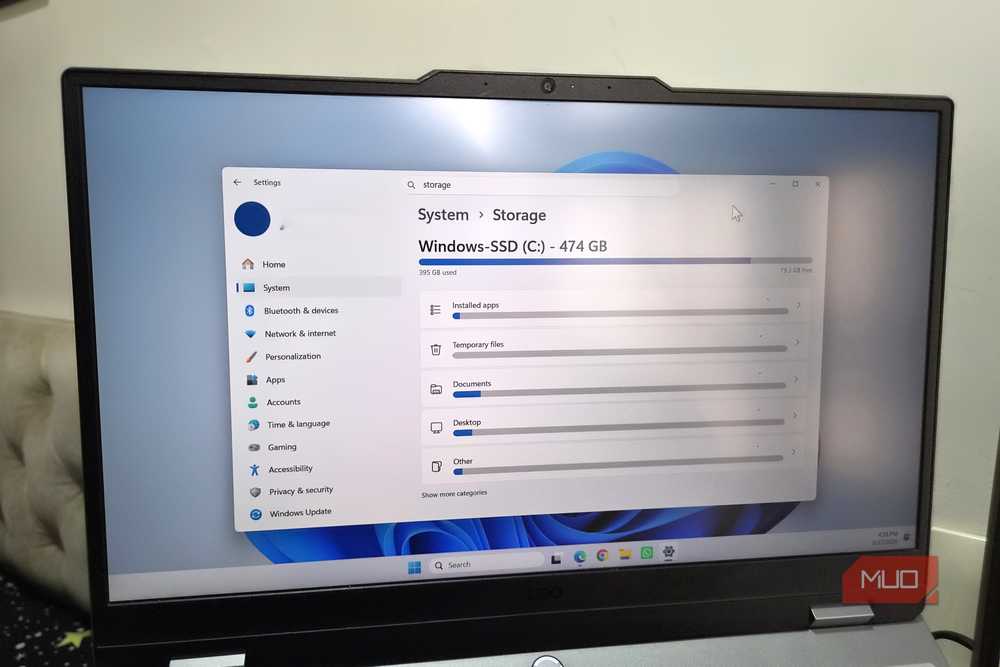
I’ve always associated storage health monitoring with third-party tools like CrystalDiskInfo. If I wanted to know how my drive was doing, my first instinct was to install something designed to read S.M.A.R.T. (Self-Monitoring, Analysis, and Reporting Technology) data. But Windows actually does some of this work.
For supported NVMe drives, Windows can access health information reported by the SSD and surface some of it directly through the Settings app. Sure, I won’t get every technical detail the drive is capable of reporting, but I can see a few important indicators without installing anything.
Obviously, you shouldn’t treat the Windows storage health page as a complete diagnosis of your SSD. A proper S.M.A.R.T. monitoring application can give you more information, including detailed drive attributes and error data. For a quick check, though, Windows gives me enough information to know when I should start thinking about backing up my files.
Finding my SSD’s health information takes a few clicks
Windows puts the basic drive health information inside the Storage settings
The SSD health information page in the Settings app isn’t really obvious because, in typical Windows fashion, the best features are often hidden. To find it, though, just open Settings -> System -> Storage, then select Advanced storage settings. From there, go to Disks & volumes and select Properties for your NVMe SSD.
After opening the drive’s Properties, Windows shows the available health information for supported drives. This is also where I can see whether Windows has detected a problem with the drive.
The exact information displayed can vary depending on the SSD and what health data its firmware makes available. That’s another reason I wouldn’t expect every NVMe drive to show exactly the same values.
Still, the fact that I can get this information without downloading another application is pretty convenient. For something as important as the health of the drive holding my operating system, applications, documents, and other files, I think it’s worth checking occasionally.
Three numbers tell me more than I expected
Estimated remaining life, available spare, and temperature give me a quick picture of my SSD’s condition

The health page doesn’t just give me a vague “good” or “bad” rating. Depending on the drive, Windows can show information such as Estimated remaining life, Available spare, and Temperature.
Here’s what those numbers actually mean:
- Estimated remaining life: This is an estimate of how much usable life the SSD has left. As you would expect, a higher value is better. But it’s important to remember that this is only an estimate based on the manufacturer’s specifications and the drive’s reported wear. It doesn’t mean my SSD will suddenly stop working when the number reaches 0. In fact, this value can even go into the negative, and my SSD will still be working. It’s more of an indication of the drive’s estimated endurance rather than a countdown timer to failure.
- Available spare: SSD manufacturers set aside a portion of the drive’s storage as reserve space that’s hidden from the operating system. As NAND cells wear out, the SSD can use this reserved space to replace cells that are no longer reliable. A higher available spare value is usually a good sign because it means the drive still has plenty of its reserved capacity available. If that number starts dropping significantly, I’d pay closer attention to the drive’s overall health and make sure my important files are backed up.
- Temperature: This one is probably the easiest to understand. It shows the current operating temperature of the SSD. The temperature can change depending on what I’m doing. Copying a huge amount of data, installing a large game, or performing other storage-heavy tasks can push the temperature higher than it would be when the PC is sitting idle. For NVMe SSDs, temperatures around 50°C to 70°C under load are within a reasonable range, although the ideal temperature varies between drives and manufacturers. If I see unusually high temperatures regularly, that’s something I’d investigate rather than simply ignore.
Windows gives me enough information to know when to act
I don’t think the SSD health information on Windows is meant to replace a proper S.M.A.R.T. monitoring application. If I wanted a complete report of my drive’s health, I’d still use a dedicated tool. But Windows gives me just enough information to not require one.
I can check the estimated remaining life, available spare capacity, and current temperature of a supported NVMe SSD directly from Settings. Those aren’t enough to predict exactly when a drive will fail, but they can give me an early indication that something deserves attention. After all, an SSD can fail without much warning. The least I can do is pay attention to the signs Windows is already giving me.
- Storage capacity
-
2TB
- Hardware Interface
-
PCIe 4.0
- Brand
-
Western Digital/SanDisk
- Transfer rate
-
7,250MB/s Read, 6,900MB/s Write
- TBW
-
1,200
