

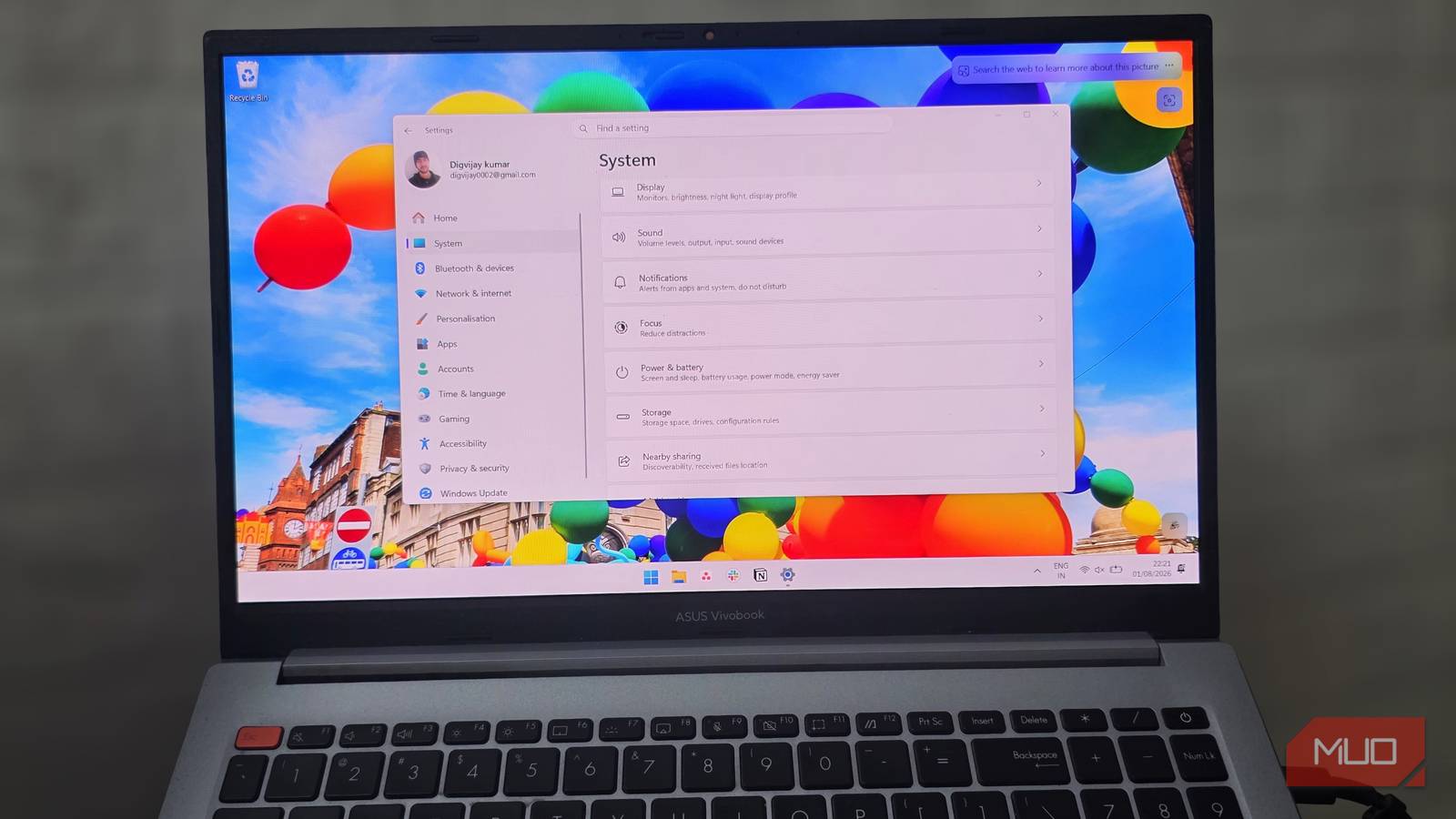

Windows doesn’t slow down only because of the apps you install. Some of the drag is built in from the start. A fresh install can already have well over a hundred processes running at idle, including some background services and features you may never use. I used to assume Windows simply got slower with age until I noticed the sluggishness showing up on a fresh setup too.
Now I have a short list of changes I make before anything else goes on the machine.
Uninstall bloatware and unused apps
Get rid of pre-loaded apps cluttering your system

The first thing I do is go through the app list. On a fresh install, you’ll find apps such as Clipchamp, Outlook, or Spotify already installed or promoted in the Start menu. Head to Settings -> Apps -> Installed apps and go through the full list. Click the three dots next to any app you don’t need and hit Uninstall. Not all of them will let you, though. Some have the button grayed out or missing entirely.

Open PowerShell as admin and run Get-AppxPackage *AppName* | Remove-AppxPackage, where AppName is the app you want to remove. Just avoid removing core system apps like Microsoft Store or Windows Security. If you’re unsure about something, leave it.
Lock down privacy and ad settings
Disable the toggles Microsoft leaves on by default
By default, Windows has several privacy and advertising options turned on. They can track the apps you launch to tailor Start and Search, give apps access to serve you personalized ads, and push product recommendations. I turn them off straight away. I don’t need Windows nudging me toward features, apps, or offers I never asked for.
Head to Settings -> Privacy & security -> Recommendations & offers. The wording can vary slightly by Windows version, but I switch off these options:
- Personalized offers
- Advertising ID
- Improve Start and search results
- Show notifications in Settings
- Recommendations and offers in Settings
You can also disable Allow websites to access my language list if you don’t want websites using your preferred languages to tailor their content. On older Windows 11 builds, these controls may appear under Privacy & security -> General.
Then open Diagnostics & feedback under the same section. Turn off Send optional diagnostic data and Improve inking and typing, then change Feedback frequency from Automatically to Never. While you’re here, you can hit Delete under Delete diagnostic data to clear what’s already been collected.
There’s also Settings > System > Notifications. Scroll to the bottom, and expand Additional settings. Uncheck Suggest ways to get the most out of Windows and finish setting up this device and Get tips and suggestions when using Windows. That gets rid of the setup reminders and tips Windows keeps sending after a fresh install.
Audit and disable startup apps
Stop unnecessary apps from launching at sign-in

Windows already has several apps set to launch every time you sign in. Each one loads into memory at boot, and some stay running in the background long after you’ve signed in. The more you have enabled, the longer your boot takes and the less you have left for what you actually want to run.
Open Settings -> Apps -> Startup and go through the list. If you don’t need an app running every time you sign in, turn its toggle off. Disabling it does not uninstall it, so you can still open the app whenever you need it. You can also open Task Manager and select the Startup apps tab to right-click any app and hit Disable.
Be selective, though. Leave security software enabled, and think twice before disabling hardware utilities for your touchpad, audio, or graphics. If you don’t recognize an entry, right-click it in Task Manager and select Search online. Check the publisher and what the app does before deciding whether to disable it.
Turn on Storage Sense
Automate cleanup for temp files and the Recycle Bin

Storage Sense is one of those Windows features that should be on by default but isn’t. It automatically cleans up temporary files, empties your Recycle Bin, and can clear out old downloads over time.
Go to Settings -> System -> Storage and click on Storage Sense. Toggle on Automatic User content cleanup and set how often you want it to run. The default is “During low free disk space,” but I changed mine to Every week.
I also set the Recycle Bin to empty after 30 days. The Downloads folder has a similar option, but I’d leave that set to Never unless you’re sure there’s nothing important sitting in there.
Worth knowing for next time
If you reinstall often and want to skip the manual work, tools like Winhance and BloatyNosy let you apply these tweaks through a visual interface instead of digging through menus one by one. Just create a restore point before running either, in case you need to undo something.
