

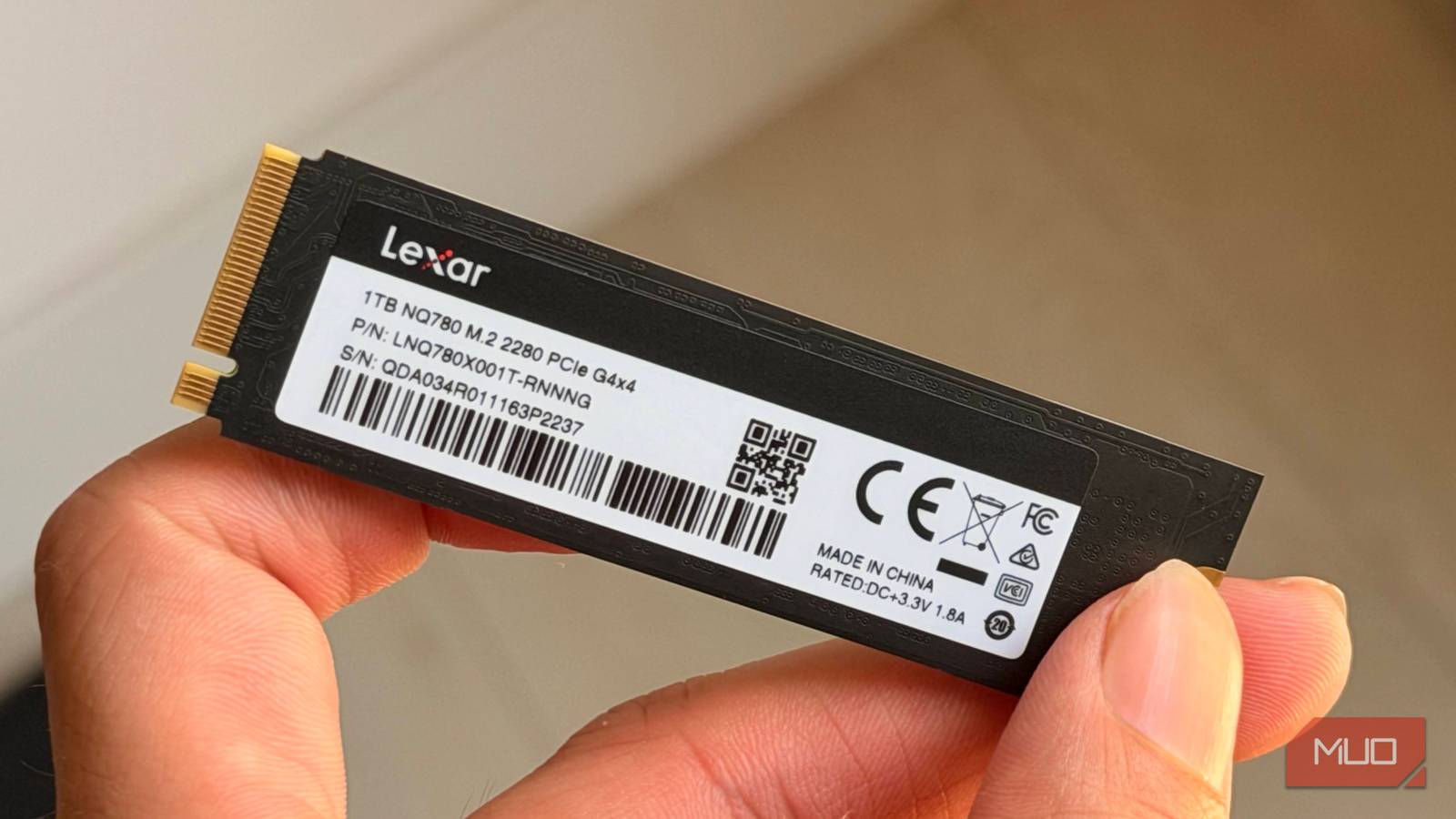

SSDs fail differently than the good old mechanical drives. Like many people, I used to think that an S.M.A.R.T. (Self-Monitoring, Analysis, and Reporting Technology) report was enough to predict when a drive would die, but I was wrong.
A drive’s S.M.A.R.T. is a built-in monitoring system that logs errors and other attributes to estimate the drive’s health.
While this helps predict whether a drive is nearing its end of life, SSDs work a bit differently. A perfectly good drive can fail at any time, and beyond the S.M.A.R.T. report, there are other signs you should look for.
What S.M.A.R.T. actually measures
Attributes, thresholds, and a pass or fail verdict

By default, Windows doesn’t expose a drive’s S.M.A.R.T. attributes, even though the drive records them. For that, you’ll need a utility like CrystalDiskInfo.
Depending on the drive, S.M.A.R.T. usually reveals values like NAND blocks, available spare, media errors, uncorrectable errors, temperature, power-on hours, total data written, and more.
The drive then compares each attribute against its manufacturer-set threshold to determine overall health. The status can be Caution, Bad, or Good, depending on the attribute values and whether they’ve crossed the drive’s failure thresholds.
However, this doesn’t necessarily mean that a drive will stop working once it reaches the failure threshold. You might see performance gradually deteriorate before the drive eventually succumbs to failure.
How it misses SSD failures
Firmware bugs and power loss leave no trail
Although an SSD has no moving parts and is less fragile than an HDD, it still isn’t immune to other risks. For starters, an SSD running hot can throttle the drive and cause weakened NAND data retention.
At times, an SSD might become read-only or vanish from the system completely. Then, power-loss failures can also corrupt firmware tables and data. Other problems, however, may be hard to control or catch. For instance, a firmware bug can render an SSD useless, in which case the controller cannot access the NAND.
These failures are hard to predict because they don’t build up gradually, so no attribute tracks them. This becomes a limitation of the S.M.A.R.T. report, not a flaw.
Where it falls short on HDDs
Mechanical faults can strike without warning

S.M.A.R.T. has limitations on HDDs, too, but they differ because of mechanical parts. With so many moving parts in an HDD, there’s a higher risk of sudden failure due to physical damage.
For instance, a spindle motor might fail at any time, even early in an HDD’s life, or the spindle head might stop working, damaging the platters and the data on them. Most of the time, these issues come from physical damage, but that’s not always the case.
To back this up, Backblaze recently tested over 400,000 HDDs (via IEEE Xplore) from different manufacturers and found that one out of four drives failed suddenly without any warning, even if their S.M.A.R.T. reports looked right.
The SSD warning signs I watch
Odd behavior, noises, and files that won’t open

Before giving out, a drive may give signs of dying, but oftentimes, they go unnoticed. You might think an application or a specific photo on the drive won’t open and not think much of it, but that’s a red flag and a sign your drive might bite the dust soon.
For SSDs, the symptoms of a drive on its deathbed are on the software end and might be glitches, sudden crashes, or certain files not opening. These problems can come and go and are easy to mistake for Windows problems.
On the other hand, signs of a dying HDD are more conspicuous. The drive may click, grind, or repeatedly disconnect.
To confirm any of these symptoms, you can still rely on S.M.A.R.T., but you’ll need to combine it with other tests. First, back up your data and check the S.M.A.R.T. report.
Then you can use GSmartControl, a drive app for Windows, with self-tests that run diagnostics to spot the underlying issues with your drive. To check your drive for any errors via this tool, follow these steps:
- Select the desired drive in GSmartControl.
- Open the Perform Test tab.
- Select Short Self-test under Test Type and hit Execute.
If the test doesn’t fail, the drive likely has no problems. If it does, it will show either “complete: read failure” when a sector or portion of the NAND goes bad, or “interrupted” or “failed” when the test fails.
A backup is still the safest bet
A drive can fail randomly, at the end of its lifespan, or after showing signs of deterioration. No one can predict when it’ll fail, so the best safety net is a proper backup of your data in case the drive dies. That said, S.M.A.R.T. reports aren’t entirely useless; they still give a rough indicator of whether the drive is approaching the end of its lifespan or is good to go for a while.
