

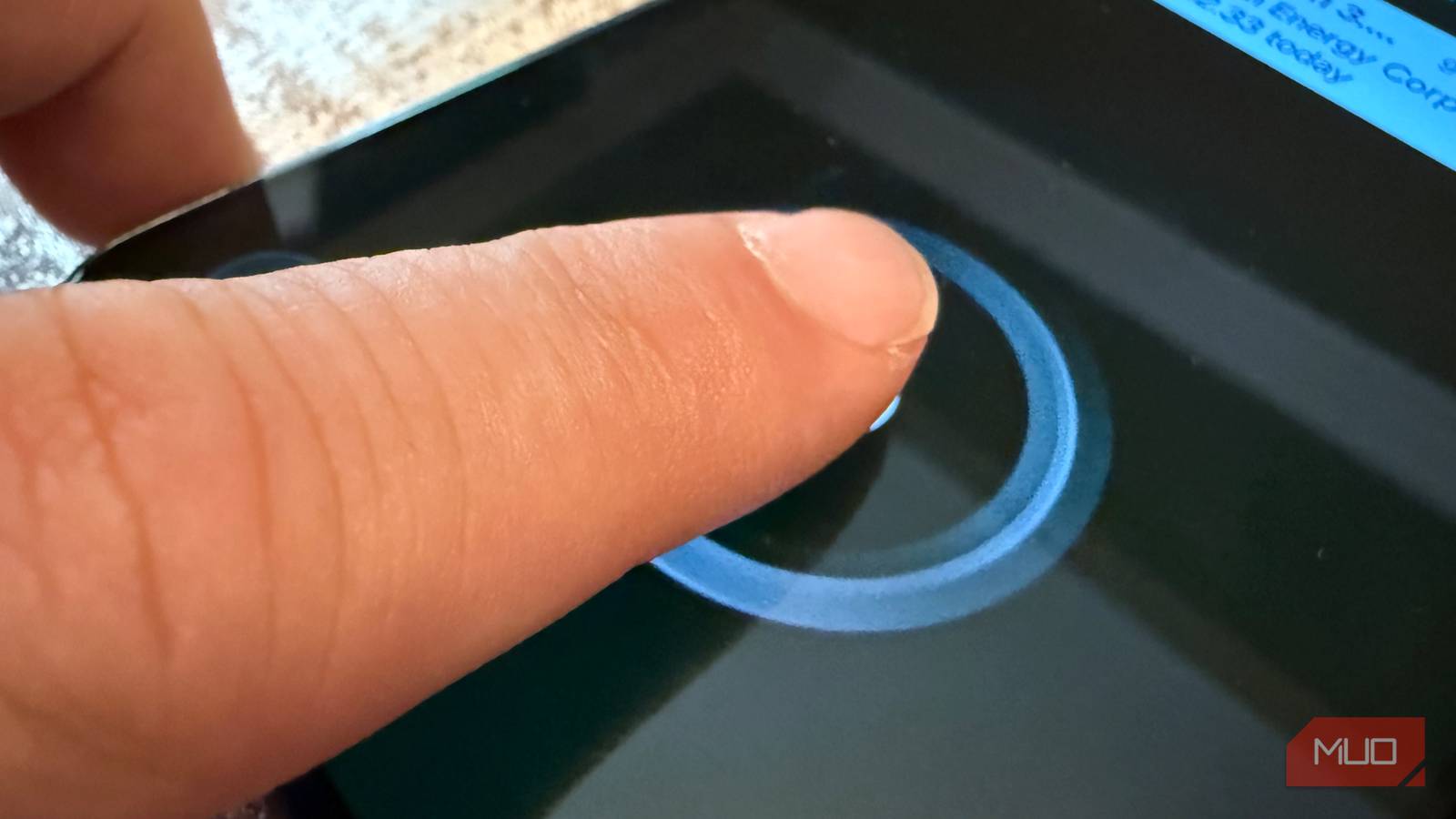

Fingerprint unlock is the best: it’s fast and it’s secure. Since phone makers have moved the fingerprint sensor under the screen, whether via optical sensor (which uses light to scan your unique fingerprint) or ultrasonic (which uses sound waves to scan your unique fingerprint), these sensors have gotten very convenient.
What you might not know is that Samsung devices (which do a lot of tracking) have the built-in ability to launch different apps, and even perform different app actions (like launch camera and take selfie, or open Google Maps and navigate home) simply by using a different finger. That’s right: one finger unlocks, but you can have up to three more unlock AND perform an action.
This saves a lot of time and lets you bypass your homescreen and go directly into the task that you want to do. Here’s how to set up this useful feature on your Samsung Galaxy.
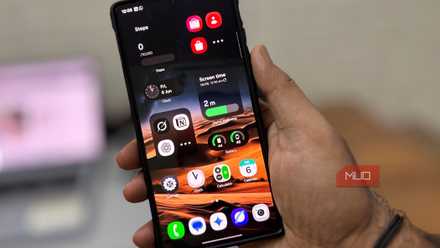
First, register multiple fingerprints
You can have up to four

Samsung lets you register up to four different fingers. I recommend doing this with your dominant hand (so for me, since I’m right-handed, I mapped all four fingers of my right hand, but not my pinky).
Then, you can have one finger (most likely your thumb) be the default finger that just unlocks your phone (meaning, you won’t set up a routine to run when you use your thumb), but your other three fingers (pointer, middle, and ring) can be set up as shown below to perform a routine that launches a particular app or does an action.
To set up multiple fingerprints on your Galaxy, go to Settings > Lock screen and AOD > Screen lock and biometrics > Fingerprints. From here, you can click Add fingerprint, and proceed to scan each finger you want to perform an action.
You must also turn on Fingerprint unlock if you haven’t done so already, so that your phone uses the fingerprint for security, and not something else like pattern or PIN. You can have up to four fingerprints registered here. For sanity, since you can’t name your fingerprints (and so they show up as “Fingerprint 1” and “Fingerprint 2” etc), I suggest having your default finger, your thumb, be Fingerprint 1. Then, your next finger, Fingerprint 2, is your index finger, and so on, all the way down to your ring finger which can be Fingerprint 4.
Then, set up a new routine
If [fingerprint is scanned, then [open app/perform action]

Every Samsung devices comes with the Modes and Routines app, which is a powerful tool you can set up to automate your phone in many different ways. For launching different apps with different fingers, we’re going to set up a simple If/Then routine that will tell your phone “If I unlock with X finger, launch Y app”.
To get started, just open Settings > Modes and Routines > tap the Routines icon on the bottom.
Now, think about which fingers you want to launch which apps.
Personally, I like to set up routines based on apps I need often, usually as tools: for me, that’s weather, calculator, calendar and email, which I assigned to middle, pinky (though I regret using my pinky because it feels like a stretch, so I would change this), index, and ring finger, respectively. You can obviously assign any finger you want to any app, but again, just think about the apps you open frequently or the tools you constantly need (calculator, flashlight, camera) and work from there.
Then, to link a finger to an app, tap the plus button > under “If” tap add trigger > Unlock with fingerprint > pick the fingerprint you want to use.
After that, we need to set up the “Then” action. Tap “Add what this routine will do” > Apps > Open an app > Pick the app you want.
Give each routine a name

After you set up a routine, you’ll have the chance to name your routines. For sanity, give each a descriptive name (like “Open calendar with index finger”) and save it.
And that’s it — now, if you lock your phone and try to unlock it with your fingerprint, your Galaxy will open the app you picked based on the finger you selected within the routine.
Use different fingers to do different app actions
You’re not only limited to opening apps

You’ll notice that within the selection screen for the routine, you’ll also see app actions that you can trigger. You can get really creative with these, like perhaps you frequently use Google Maps to navigate home from school or work. You can set up an app action under Google Maps to navigate home so that your pointer finger immediately starts your phone navigating home. Or perhaps you want to link a fingerprint to launch the camera AND take a selfie (make sure you change these camera defaults though). You can do that within this screen.
There’s a lot more you can do with this function that I didn’t cover. For example, you can different fingers do any of the following: turn on dark mode, set screen brightness to a particular level, start a timer or set up an alarm, or even text or call specific people. The possibilities are nearly endless, and you can really set up your Galaxy, along with your fingers, to do many things.
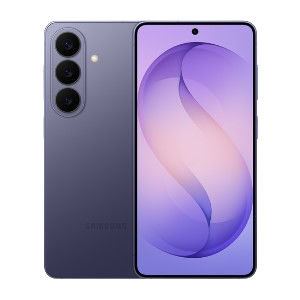
- SoC
-
Snapdragon 8 Elite Gen 5
- Display
-
6.3-inch Dynamic AMOLED 2x
