


Gaming is a common use for personal laptops. If you have a good number of resources and a good system configuration, you can play a lot of games and pass the time on your laptop. If the system configuration does not match the required configuration, or if resources are used by another process or program in the background, it is common to see games lag or other related issues. However, some users are seeing their Windows laptop hibernate when gaming. This is not a common issue, and it needs to be fixed immediately to play games without issues and unlock new levels. Let’s see how to fix it.
Windows laptop randomly hibernates when gaming
When you find your laptop hibernating randomly while you play games on it, it could be due to overheating or misconfigured power settings. Follow the methods below to fix the issue.
- Disable Hibernate options
- Check battery health and adjust options
- Check for updates to update drivers
- End background processes that cause overheating
- Inspect the laptop vents
- Update or reinstall the game
- Check Task Scheduler
- Perform System Restore
Let’s dive deep into each method and see how we can use them to fix the issue.
1] Disable Hibernate options
The simplest way to fix it when you find your laptop hibernating while gaming is to disable the hibernate option entirely. You can do this as an administrator using the Command Prompt. Open the Command Prompt as an administrator and type the following command, and press Enter.
powercfg /hibernate off
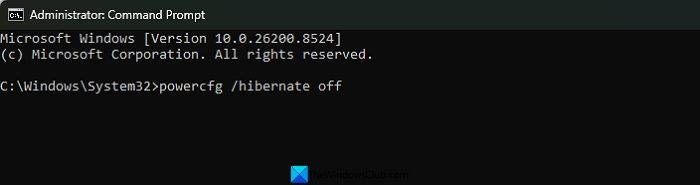
After the command runs successfully, hibernation will be disabled completely on your PC. You can enable hibernation again easily using the Command Prompt.
2] Check battery health and adjust options
When there are any issues with the battery, and it is rapidly draining, and hibernating without even showing you the low battery notification, you can see this issue. To check the health of your laptop battery, open Command Prompt as an administrator, type the following command, and press Enter.
powercfg /batteryreport
Then, go to C:/Windows/System32/ in the File Explorer and find the file named “battery-report.html”. Check the report to see how long the battery lasts. If it shows below an hour or even lower, your battery is outdated. You must replace the battery for better performance.
Until then, you can adjust settings to show you a low-battery notification when the battery level reaches a certain percentage. Open Control Panel, and select Small icons in the View by options. Click Power Options. Then, click Change plan settings. Select Change advanced power settings. It opens Power Options. Expand Battery.
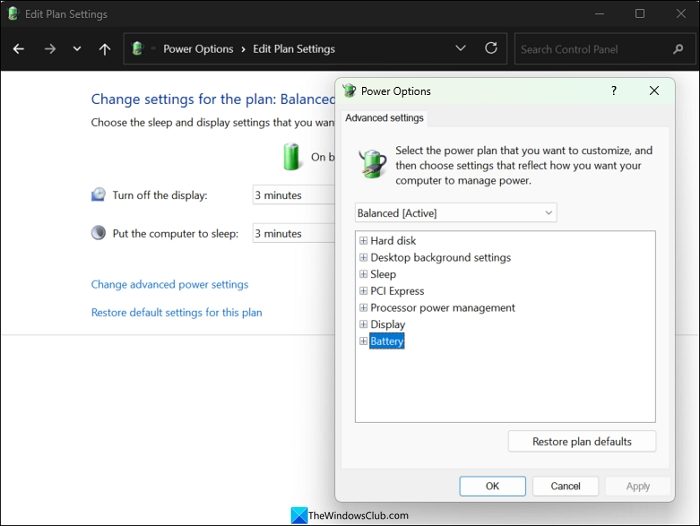
Then, expand Critical battery action and Low battery level, and tweak the options. Change the Low battery level percentage to a higher level, like 50% or 60%, that makes you time to connect to a power source. Save the changes and restart your laptop.
3] Check for updates to update drivers
If there are any issues with the drivers on your PC, you might see your laptop randomly hibernate. When you are gaming, it might be mainly due to the graphics driver. Open the Settings app, click Windows Update, and then Check for updates. Install the pending updates shown there. It will install the drivers and fix issues.
If there are no updates available, click Advanced options in Windows Update settings. Then, select Optional updates and install the pending updates.
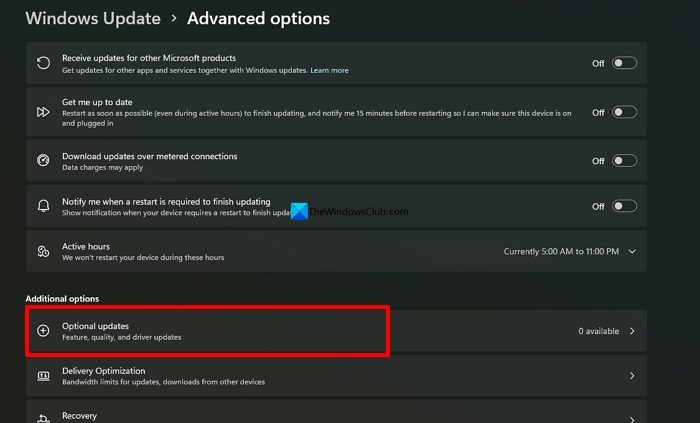
If you still cannot see any pending updates, open the Device Manager on your PC and expand Display adapters. Right-click on the graphics driver you find there and select Uninstall device.
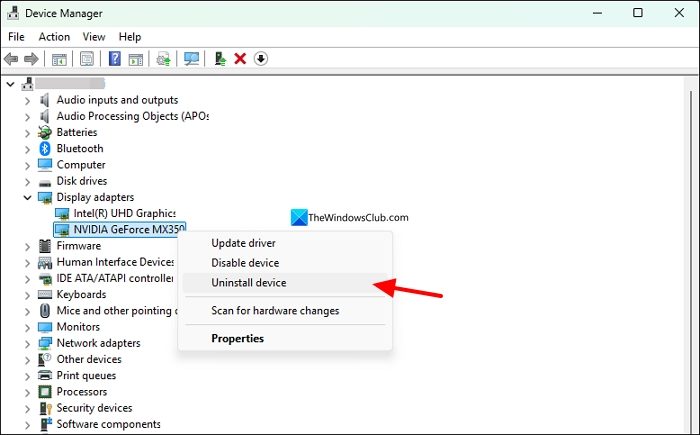
After successfully uninstalling the graphics driver, restart your PC to let Windows reinstall the missing drivers automatically.
Read: How to update Graphics drivers on PC
4] End background processes that cause overheating
If many programs or processes unrelated to gaming run on your laptop, they put a lot of pressure on your system resources and can cause overheating. Overheating may automatically trigger hibernation to cool off the pressure. Open the Task Manager on your PC, and inspect the running programs and processes. Find high CPU or memory-using programs and processes, then right-click them. Select End task.
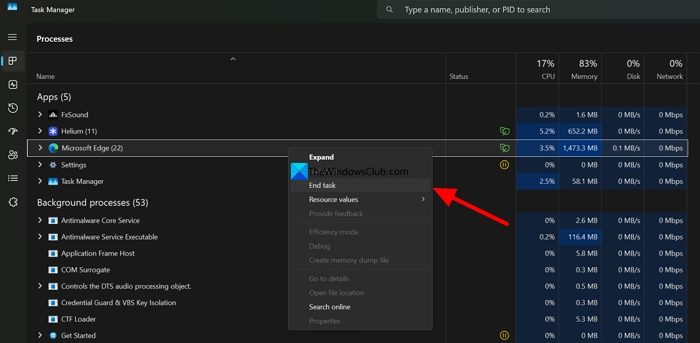
End all programs or processes unrelated to gaming that consume significant resources. It will optimize your laptop’s performance and fix hibernation issues while gaming.
5] Inspect the laptop vents
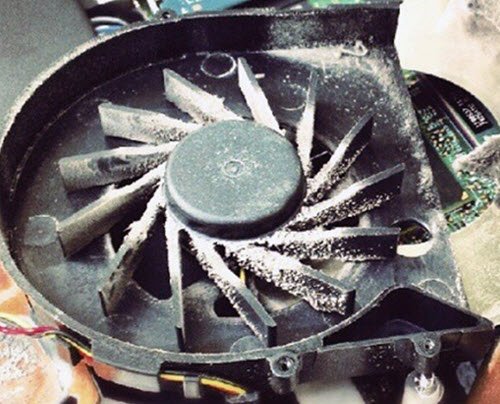
Check the vents on your laptop to see if it is pumping hot air out, and check for any dust or debris. Mute the sounds, listen to the sounds coming from the laptop vents, and see if the fan is making any noise or always running even when there is no gameplay. If the laptop fan runs all the time, take it to a service center to have it checked and cleaned to improve performance and resolve any associated issues.
You may install HWMonitor or MSI Afterburner to track CPU/GPU temperatures in real time.
6] Update or reinstall the game
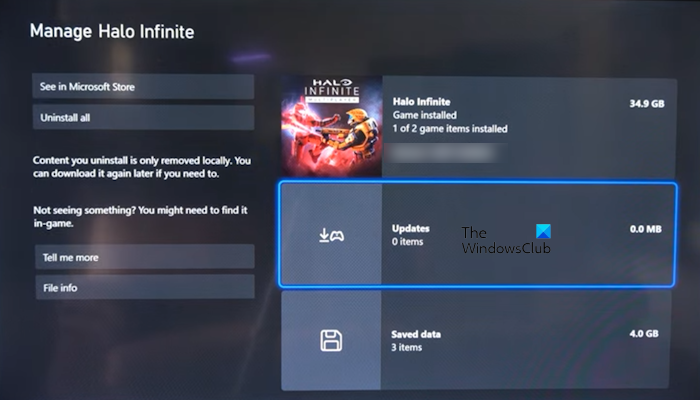
If there are any corruptions or issues with the game files, you might see your laptop randomly hibernating while gaming. To fix that, you need to update or reinstall the game from the official sources. If you are using any pirated version of the game, uninstall it immediately and run an antivirus, as the malware it may spread might be causing the issue.
7] Check Task Scheduler
It is possible that the laptop randomly hibernates while gaming due to a scheduled task in Task Scheduler. Click the Start menu and search for Task Scheduler, and open it. Expand Task Scheduler Library and check tasks in each folder. If any task causes the laptop to hibernate, right-click it and select Delete.
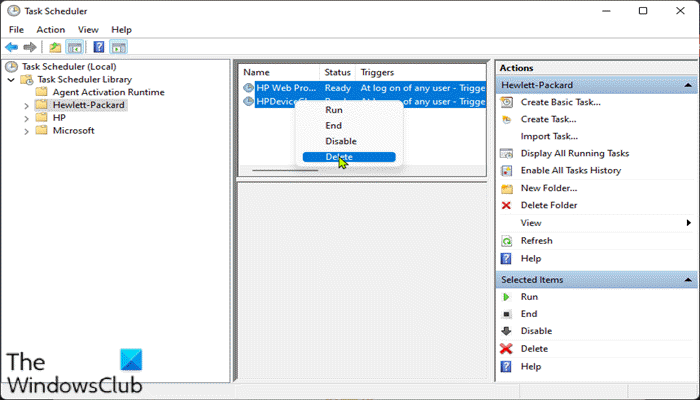
It will fix your issue.
8] Perform System Restore
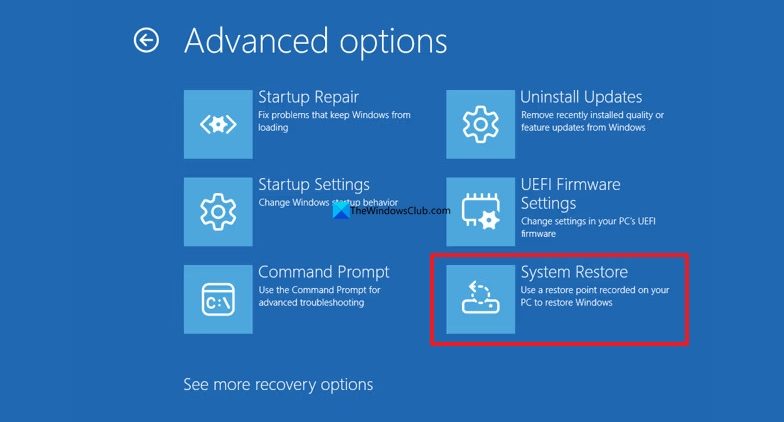
If you are experiencing the issue in recent times, and the above methods do not help you fix it, you need to perform a System restore on your laptop to the time when it was working fine. Open the Settings app, click System, and go to Recovery. Under the Recovery options, click Restart now beside Advanced startup. It opens the Windows Recovery Environment. Go to Troubleshoot > Advanced options > System Restore. Then, select a restore point where everything was working fine.
Read: Windows computer freezes, hangs, or crashes randomly
Why does my laptop go into hibernation while gaming?
If your laptop goes into hibernation while gaming, it might be due to battery issues, driver issues, scheduled tasks, corrupted game files, or overheating caused by high pressure on system resources. Even if you install a pirated game, you can see this issue.
Windows laptop hibernates with Fan sound when gaming
When your laptop hibernates, and you hear a loud noise or a fan noise, it could be due to a blocked vent. The programs and processes running on your laptop while gaming are putting a lot of pressure on system resources, causing significant overheating and fan activity. If the heat fails to vent out from the vents, the laptop hibernates to cool down.
Related read: Game Mode missing in Windows 11.
