


For some users, the M.2 SSD is not showing in their Windows 11 computers. When they checked in the BIOS, they found that the M.2 SSD was there. However, when they boot into Windows, the SSD disappears. If you encounter this issue, the solutions provided in this article will help you fix it.
M.2 SSD is not showing in Windows 11
Use the following suggestions if the M.2 SSD is not showing on your Windows 11 computer:
- Format the SSD properly
- Insert it in the right slot
- Initialize your SSD
- Install the SSD firmware
- Install the right driver
- Check your motherboard manual
- Check the Storage Pool
- Update BIOS
- Perform the clean installation of Windows
All these fixes are explained in detail below.
1] Format the SSD properly
Your SSD might require formatting. If you have another computer, connect the SSD to it. If it shows on that computer, format it. While formatting the SSD, select NTFS as the File System. After formatting the SSD, connect it to your system and see if the issue is fixed.
2] Insert it in the right slot
You might be inserting it in the wrong slot. Carefully check whether you have a SATA SSD or an NVMe SSD. If you have a SATA SSD and connect it to the NVMe port, it won’t appear in your system. Visit the official support website of your SSD manufacturer to know its specifications. Or, you can read its user manual.
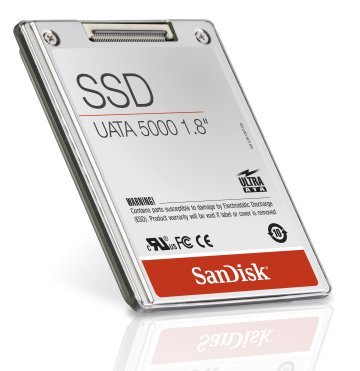
Sometimes, the issue is associated with a particular slot. The slot might not be working. Connect the SSD to another available slot. If it works, the issue is with the SSD slot.
3] Initialize your SSD
If your SSD is showing in Disk Management but not in File Explorer, it might not have been initialized yet. This issue usually occurs with newly installed SSDs.
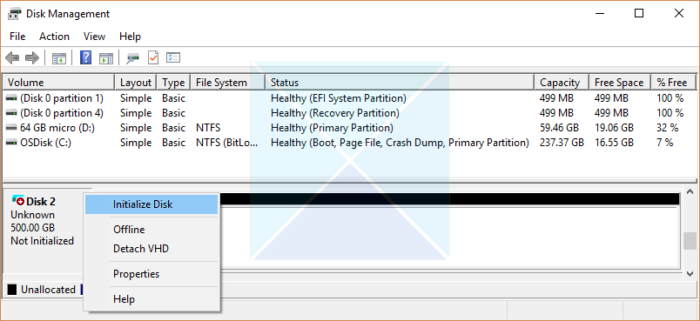
Follow these steps:
- Open the Disk Management.
- Right-click on your SSD and select Initialize.
- A pop-up will appear asking you to select a partition table for your SSD. Select the GUID and click OK. An unallocated space will be created on your disk.
- Now, right-click on the unallocated space and select New Simple Volume.
- Follow the on-screen prompts to create a volume on your SSD.
After correctly performing the above steps, your SSD will appear in the File Explorer.
4] Install the SSD firmware
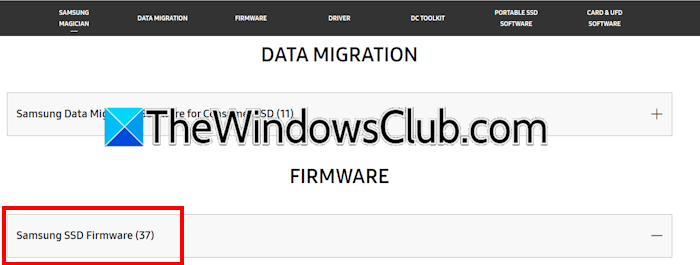
Windows does not detect your SSD if its firmware is not installed. If you have installed a new SSD, the first step is to install its firmware. Visit the official website of your SSD manufacturer and search for the correct SSD model. Now, download the SSD firmware and install it on your system.
5] Install the right driver
Windows might be using the RAID driver for your SSD. That’s why it is not showing on your system. Check this and install the right driver. The following instructions will help you. Use these instructions if you have not configured RAID on your system.
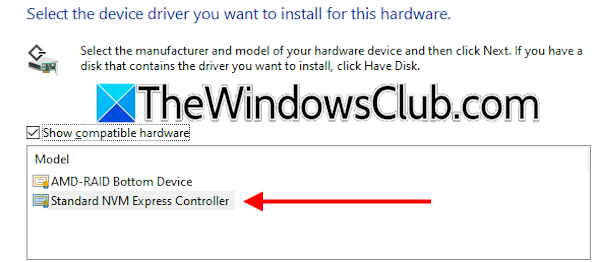
- Open the Device Manager.
- Expand the Storage Controllers branch.
- If you see a driver related to RAID configuration, such as AMD-RAID Bottom Device, right-click on it and select Update driver.
- Click Browse my computer for drivers.
- Click Let me pick from a list of available drivers on my computer.
- Select the Show compatible hardware checkbox.
- Now, select the Standard NVM Express Controller driver and click Next.
- Follow the on-screen instructions to install the driver.
- Restart your computer when you are done.
6] Check your motherboard manual
Some motherboards have a finite number of PCIe lanes. Such motherboards deactivate specific SATA ports when you install an NVMe drive. This limitation works vice versa as well. If you have connected your hard drives to those specific shared SATA ports, your motherboard will prioritize them and shut down the corresponding M.2 slot. Not all motherboards have this limitation. Refer to your motherboard’s user manual to see if it has this limitation.
7] Check the Storage Pool
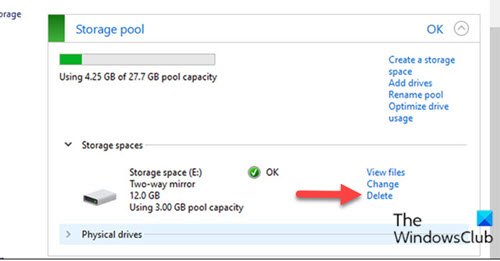
Your SSD might have been used as a Storage Pool. That’s why it is not displayed in Windows. You can check this in Windows 11 Settings or the Control Panel. If you find a Storage Space is configured, delete it to make your SSD visible in the File Explorer.
8] Update BIOS

You can also try to update your BIOS (if the latest version is available). Open System Information and look for the currently installed BIOS version. Once you note down the current BIOS version, visit your computer manufacturer’s official website and check if an updated version of BIOS is available. If so, download and install it.
During a BIOS update, the power supply should not be interrupted, as this can damage your motherboard.
9] Perform the clean installation of Windows
If none of the above-mentioned fixes worked, the last resort is to perform a clean installation of Windows. Prepare a bootable USB flash drive with the Windows ISO, then proceed with a clean installation.
That’s it. I hope this helps.
Why is NVMe SSD not showing up in Windows 11?
There can be multiple reasons an NVMe SSD may not appear in Windows 11. The primary cause is the SSD initialization. If you have installed a new SSD, it might not have initialized yet. Check this in Disk Management. Other reasons include motherboard limitations, outdated BIOS firmware and incorrect drivers.
How to know if my M.2 SSD is failing?
An SSD has no moving parts. Therefore, you cannot hear the clicking sound of a failing HDD. When an SSD is failing, you will notice signs such as frequent file corruption, slow read and write speeds, or boot failures (if Windows is installed on it).
Read next: How to check SSD and HDD temperatures on Windows.
