


If Task Manager crashes when opening the Performance tab in Windows 11, here is how you can fix the issue. As it may cause due to various reasons, here we have consolidated some of the most common causes along with the solutions to get rid of this problem.
Why does Task Manager crash when opening the Performance tab?
If Task Manager crashes when opening the Performance tab, one of these could be the reason:
- The Windows Performance Counters are broken.
- You have installed more than one third-party resource monitoring tool.
- There are some issues with the WMI repository.
- Your PC has some corrupt drivers.
- You have mistakenly turned off the Diagnostic Policy Service.
Task Manager crashes when opening Performance tab in Windows 11
If Task Manager crashes when opening the Performance tab in Windows 11, follow the solutions:
- Reset Task Manager
- Rebuild Windows Performance Counters
- Rebuild WMI repository
- Restart Diagnostic Policy Service
- Temporarily disable third-party resource monitoring tools
- Reinstall graphics driver
- Run SFC and DISM
- Try in Clean Boot State
- Scan for malware and adware
To learn more about these solutions, continue reading.
1] Reset Task Manager
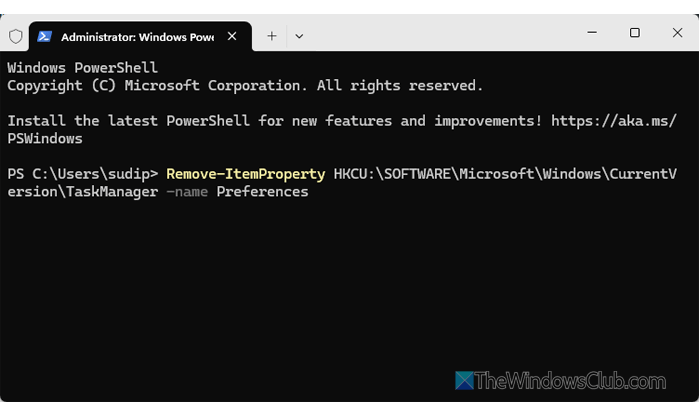
If you have made many changes in Task Manager, it may fail to fetch them all at once when you are low on resources. That is when you must reset the Task Manager to the factory defaults.
You can use the Windows PowerShell method to get the job done. For that, open the PowerShell instance of Terminal with administrator permissions and execute this command:
Remove-ItemProperty HKCU:\SOFTWARE\Microsoft\Windows\CurrentVersion\TaskManager -name Preferences
In other words, it deletes the TaskManager registry key from the HKEY_CURRENT_USER of Registry Editor.
2] Rebuild Windows Performance Counters
To rebuild Windows Performance Counters, follow these steps:
First, open the Command Prompt instance of Terminal with administrator privileges and enter these commands one after another:
cd c:\windows\system32

lodctr /R

cd c:\windows\sysWOW64

lodctr /R
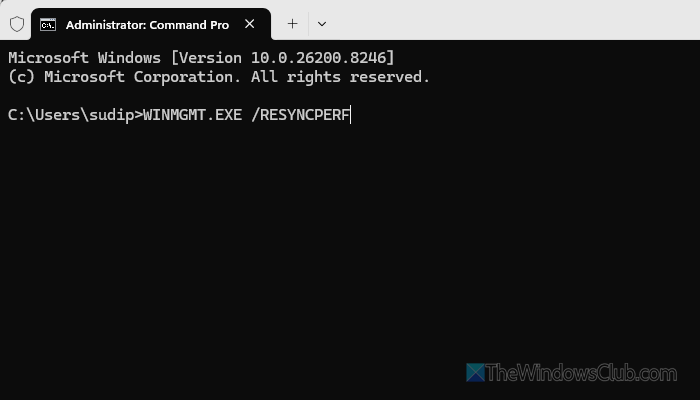
After that, enter the following command to resynchronize the counters with WMI.
WINMGMT.EXE /RESYNCPERF
After that, you must restart the Performance Logs and Alerts service. For that, the following command is needed:
Get-Service -Name "pla" | Restart-Service -Verbose
Finally, you must restart the WMI or Windows Management Instrumentation:
Get-Service -Name "winmgmt" | Restart-Service -Force -Verbose
Once done, create a new data collector set using Performance Monitor in Windows 11.
3] Rebuild WMI repository
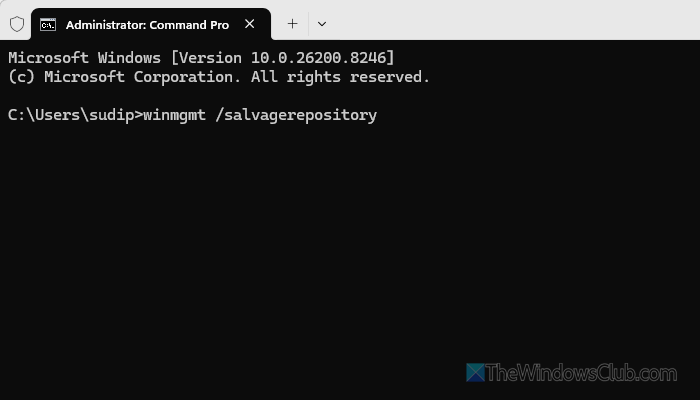
WMI, or Windows Management Instrumentation, lets you manage and view system resources in a graphical form. If the WMI repository is corrupt, there is a chance of getting the aforementioned error. That is why it is suggested to use this guide to repair or rebuild WMI repository in Windows 11.
4] Restart Diagnostic Policy Service
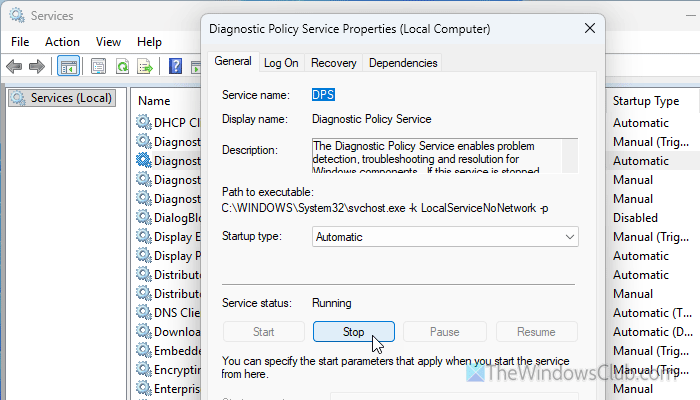
Although this service is responsible for diagnostics, it is also responsible for this error in Windows 11. As Task Manager often helps you diagnose various system issues, a blockage in the Diagnostic Policy Service could cause this problem.
To verify or restart the Diagnostic Policy Service, follow these steps:
First, press Win+R to open the Run prompt, type services.msc, and hit the Enter button. Next, double-click on the Diagnostic Policy Service and click the Stop button.
Choose Automatic from the Startup type drop-down menu and click on the Start button.
Read: The Diagnostics Policy Service is not running on Windows 11
5] Temporarily disable third-party resource monitoring tools
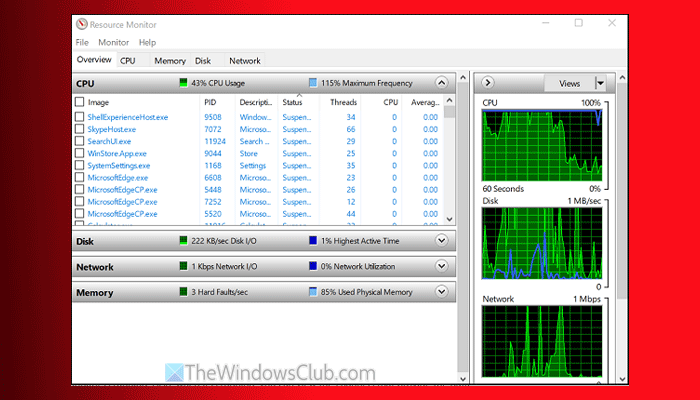
There are so many third-party resource monitoring tools available in the market that you can use to find more details than Task Manager provides. If you have installed multiple programs to find more accurate details of your resources, this is the time to disable them temporarily. At times, those programs may create conflict and that is why it is suggested to terminate all the background processes of those programs and check the Task Manager.
6] Reinstall graphics driver
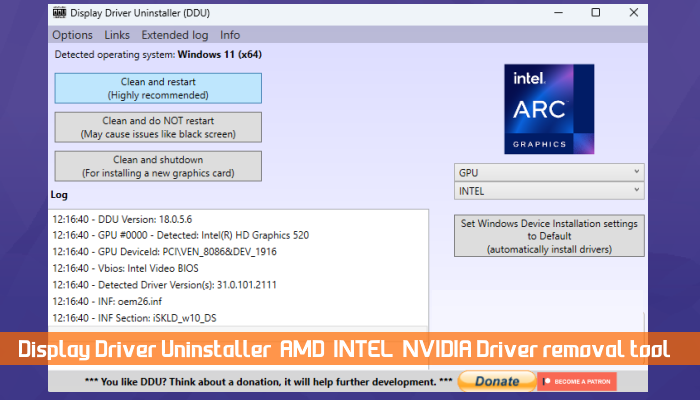
This problem may arise when there are issues with your computer’s graphics driver. That is why it is recommended to use Display Driver Uninstaller to uninstall the graphics driver in a matter of moments.
Once done, go to your graphics card manufacturer’s official website and download the latest Graphics driver version.
7] Run SFC
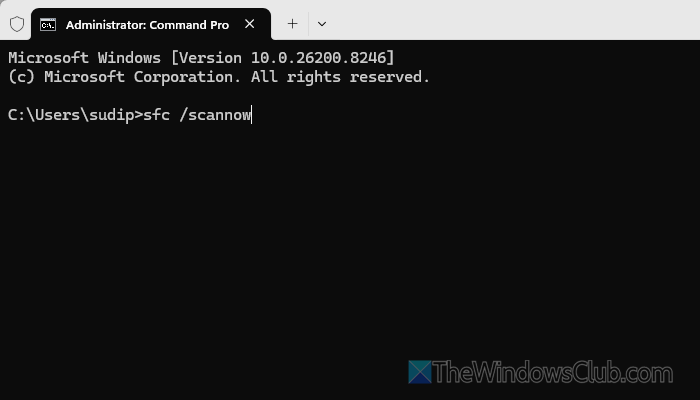
To run System File Checker or DISM tool, open the Terminal with administrator permission and enter this command:
sfc /scannow
This should repair potentially corrupted system files.
8] Try in Clean Boot State
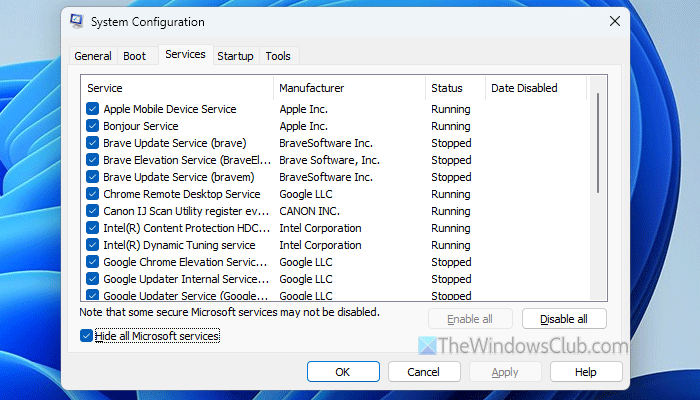
If this problem occurs due to different programs and drivers, you can confirm this by opening Task Manager in Clean Boot State. As this state doesn’t have any additional drivers, you can check whether the problem is caused by a third-party driver or an in-built one.
9] Scan for malware and adware
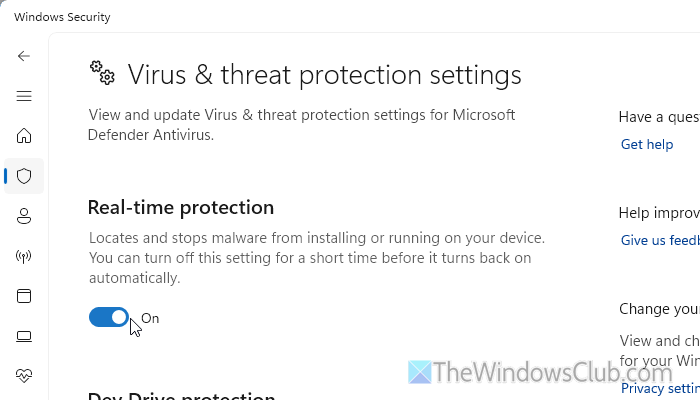
If you haven’t scanned your computer for viruses and adware in a long time, itis recommended to do so. At times, computers are attacked, and as a result, you won’t be able to open certain utilities, such as Task Manager.
You can use the built-in Windows Security, which is one of the best options so far.
All the best.
Read: Task Manager crashes or freezes on startup in Windows 11
Why does my Task Manager keep crashing?
If there are some issues with the internal system files, you will find this error in Windows 11. Apart from this, it could happen if your PC has adware or malware, or if WMI and Windows Performance Counters are broken, etc.
How do I open the Performance tab in Task Manager?
To open the Performance tab in Task Manager, press Ctrl+Shift+Esc to open Task Manager first. Or you can right-click on the Taskbar and select Task Manager. Then, find the Performance tab on the left-hand side.
