


For some people, broken formulas feel like a normal part of using Excel. Once a formula in their Excel spreadsheet stops working when dragged across a spreadsheet, they just resort to entering formulas row by row instead. That’s such a pain, though, especially since your formulas don’t have to break the moment you move them.
In many cases, the difference between a formula working perfectly in one row and breaking in another comes down to whether you added the $ sign. This symbol tells Excel exactly which values you want it to calculate. More often than not, the problem is that you’ve unintentionally told it to calculate the wrong values.
3 Excel formulas you’re still wasting too much time on
You don’t need more effort; you need better formulas.
Your formulas aren’t really breaking
Excel just moved your references because that’s what it thought you wanted

When you write a formula like =A1+B1 in cell C1, Excel does not necessarily interpret it as “add A1 and B1.” Instead, it reads the formula relatively: add the cell two columns to the left and the cell one column to the left. That is why, if you drag the formula down from row 1 to row 2 (from C1 to C2), Excel automatically changes it to =A2+B2. If you drag the formula to the right to D1, it becomes =B1+C1.
In many cases, this behavior is useful because Excel assumes you want the same calculation pattern applied elsewhere in your spreadsheet. However, that won’t be the case when your formula depends on a single fixed value, such as a tax rate, exchange rate, commission percentage, or benchmark number stored in cell Z1. Once you drag the formula down, Excel shifts the reference to Z2, Z3, and so on, which often leads to errors or blank results because those cells are empty.
So, the formula itself isn’t really the issue. The real problem is that the reference moved when you don’t want it to, and the $ sign is what tells Excel to stop moving it.
The logic of the $ sign
A tiny symbol doing an absurd amount of work in your spreadsheet

The $ sign in the formula bar creates absolute references, a type of cell reference in Excel which locks a specific cell, row, or column in place within a formula. Without it, Excel defaults to relative references, meaning the formula adjusts based on its new position whenever you copy or drag it. You can think of the $ sign as telling Excel: no matter where this formula moves, leave this reference alone.
The way the lock works is simple. The dollar sign anchors whichever part of the cell address it precedes:
|
A1 |
Relative reference |
Neither the row nor the column is locked. If you move or copy the formula, both parts can change depending on the new position. |
|
$A$1 |
Absolute reference |
Both the column (A) and row (1) stay fixed, so no matter where you copy the formula, Excel will always point back to cell A1. |
|
A$1 |
Mixed reference – Row locked |
The formula can move across columns, but row 1 stays fixed. If you drag the formula sideways, the column changes; if you drag it down, the row remains the same. |
|
$A1 |
Mixed reference – Column locked |
The column stays fixed, but the row can change. If you drag the formula down, the row updates; if you drag it sideways, Excel continues referencing column A. |
If you want the fastest way to switch between these reference types, place your cursor on a cell reference in the formula bar and press F4. The first press makes the reference absolute ($A$1); the second locks only the row (A$1); the third locks only the column ($A1); and the fourth returns it to a relative reference (A1).
This locking behavior mainly applies when you copy or drag formulas. If you cut and paste a formula instead, or move the cell manually with your mouse, Excel keeps the original references intact as though they were absolute. Excel Tables also behave differently because they rely on structured references, so the $ sign logic doesn’t work in the same way.
What this looks like in real life
From tax calculations to lookups

Imagine you need to calculate the local tax compliance cost for every order in your dataset. Your Total Profit is in Column N, and elsewhere in your spreadsheet, you have a Tax Registry table that lists tax rates by region. Let’s say Sub-Saharan Africa has a flat tax rate of 12%, stored in cell Q3. To calculate the tax amount for your first order in row 2, your first instinct might be to write this formula:
=N2 * Q3
For the first row, the formula works perfectly. Excel takes the Total Revenue from N2 and multiplies it by the 12% rate in Q3. The problem starts when you drag the formula down to the next few rows.
Row 3 becomes: =N3 * Q4
Row 4 becomes: =N4 * Q5
Instead of continuing to use the tax rate in Q3, Excel shifts the reference downward because it assumes you want the same relative movement. Before long, the formula starts multiplying revenue by empty cells in Column Q, leaving you with zeros or #VALUE! errors, one of Excel’s peskiest errors. To stop Excel from moving away from that tax rate, you need to convert the reference into an absolute one:
=N2 * $Q$3
Those dollar signs tell Excel: “As I copy this formula across 100 rows, update the revenue reference as needed, but never move away from cell Q3.” That means N2 can become N3, N4, and N5 as the formula moves, while $Q$3 remains fixed throughout.
Of course, if you’re working with a global dataset, the chances of using a single flat tax rate are slim. You’re more likely to deal with multiple regions, perhaps listed in Column A, each with its own tax percentage. Suppose you have a lookup table in cells P3:Q9 that maps regions to their tax rates. In that case, you can calculate the tax dynamically by nesting a VLOOKUP inside your formula.

You would enter this formula in an empty column on row 2 and drag it down:
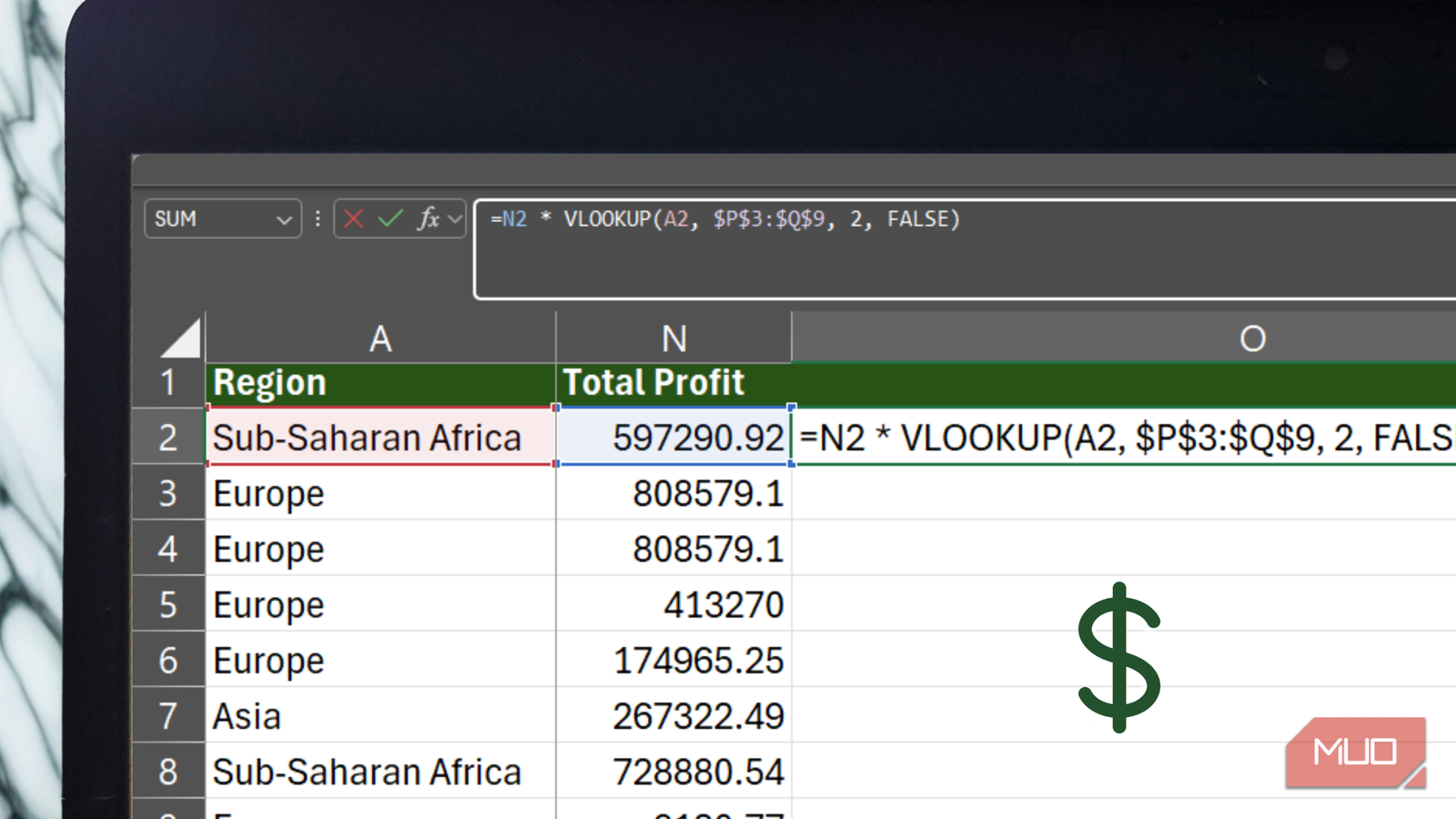
=N2 * VLOOKUP(A2, $P$3:$Q$9, 2, FALSE)
Here, N2 and A2 do not use dollar signs because they should update as the formula moves down the spreadsheet. For each row, Excel will automatically reference the revenue and region for that specific row. The lookup range, however, is completely locked with dollar signs: $P$3:$Q$9. Without those locked references, the lookup range would shift downward every time you dragged the formula, changing from P4:Q10 to P5:Q11, then P6:Q12, and so on. Eventually, Excel would start missing your tax table entirely, leading to incorrect results or #N/A errors.
However, thanks to the $ sign, you can keep the parts of your spreadsheet that should stay fixed exactly where they are, while the rest of your formula updates dynamically.
Yes, the tiny $ sign matters more than you think
Since almost every formula you write across multiple cells depends on references, it’s worth understanding when to use the $ sign and exactly where to place it. Once you know what should stay fixed and what should move, Excel becomes much easier to work with.
After that, you can drag, copy, and move formulas across your spreadsheet without worrying about everything or anything breaking.

- OS
-
Windows, macOS
- Supported Desktop Browsers
-
All via web app
- Developer(s)
-
Microsoft
- Free trial
-
One month
- Price model
-
Subscription
- iOS compatible
-
Yes
Microsoft Excel is a powerful spreadsheet application used for data organization, analysis, and visualization. It supports formulas, functions, pivot tables, and charts to process complex datasets efficiently. Widely used in business and education, Excel also integrates with other Microsoft 365 apps for collaboration, automation, and real-time data insights.
