

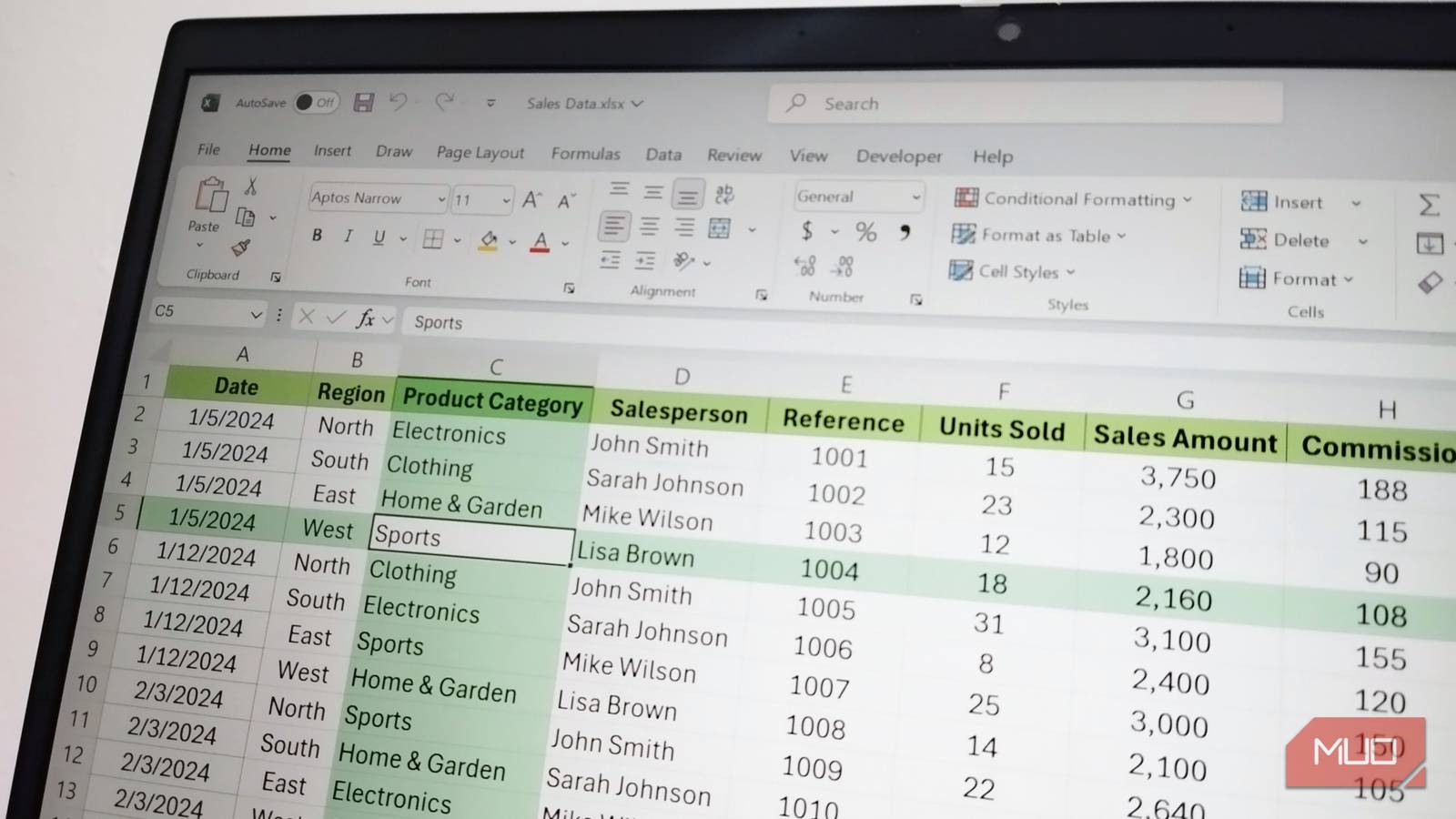

A few months ago, I opened one of the formulas in my sales sheet and stared at it for a second too long. It read =G15*0.05. The 0.05 could’ve been a tax rate, a commission, or a number I’d typed in by mistake, and the cell reference told me nothing.
Leaning on raw references like that is one of the Excel habits worth unlearning before formulas start breaking on you. Naming the cell changes that. With a single rename, every formula touching it reads in plain words, and the workbook stops feeling like other people’s code.
Naming a cell takes seconds with the Name Box
Click, type, enter, and you’re done
The Name Box is the small field to the left of the formula bar. Most people use it to read the current cell address, but it works just as well the other way around. Type a name in it, hit Enter, and that name belongs to whatever cell you have selected.
Say I drop the 5% commission rate into a single cell in my sales sheet, somewhere out of the way, like N2. Click that cell, type CommissionRate in the Name Box, and press Enter. Done. From that point on, the cell can be called by name anywhere in the workbook.
The rules are tight but easy to follow:
- No spaces (use an underscore or PascalCase).
- Can’t start with a number.
- Can’t conflict with a real cell address: A1 is off the table, but Tax_A1 is fine.
For more control, Formulas > Define Name opens a dialog that lets you set the scope to a single sheet or the whole workbook, add a comment, or paste in an exact range reference. Sheet-level scope matters when you reuse the same name across multiple sheets — each version stays independent.

- OS
-
Windows, macOS
- Supported Desktop Browsers
-
All via web app
- Developer(s)
-
Microsoft
- Free trial
-
One month
- Price model
-
Subscription
- iOS compatible
-
Yes
Formulas read like English once cells have names
Trade =G15*0.05 for something easy and never go back

This is where naming earns its keep. When you compare a typical commission line without names such as =G15*0.05, it works, but six months later, no one can tell what 0.05 represents without checking adjacent cells.
However, the named version, =SalesAmount*CommissionRate, reads itself. The intent is sitting right there in the formula. You don’t need to scroll up to the header row, hover over neighboring cells, or guess what the multiplier was for.
Names also work within a single formula — naming variables on the fly with LET is the same idea applied to one cell, and the two techniques pair well. A named cell for a workbook-wide constant like a commission rate, plus LET for intermediate calculations inside a formula, is hard to beat for readability.
When you rename a defined name, say from CommissionRate to CommissionRate2025, every formula referencing it updates in place. So you don’t need find-and-replace, or chase dollar signs through 60 rows.
Name Manager keeps every name in one place
Edit, delete, and audit without hunting through sheets

Once you have more than five or six names in a workbook, the Name Manager is the only sensible way to keep them straight. Open it with Ctrl + F3 or through Formulas > Name Manager.
The dialog shows everything, including the name, the current value, the cell or range it refers to, the scope (workbook or a specific sheet), and any comment you’ve added. It’s one of those small Excel features that quietly save hours once you commit to them.
I run a Name Manager pass before sharing any workbook. I look for the following things:
- Names with broken references, usually leftovers from columns I’ve deleted, marked with #REF!.
- Duplicates that crept in when I named something twice with slight variations.
- Names that no longer match the data they point to (Q1_2024_Sales referencing 2025 figures).
The filter dropdown at the top lets you isolate names with errors, names scoped to a single sheet, or table names Excel created automatically. It’s the cleanup pass that prevents a future you from chasing ghost references through three tabs.
Named ranges work the same way as named cells
Sum an entire column in a single word

The same trick scales to entire columns. I selected the Sales Amount column in my sales sheet, typed SalesAmount in the Name Box, hit Enter, and the whole column had a name.
The payoff shows up in aggregate formulas. =SUM(SalesAmount) reads cleaner than =SUM(G2:G33), and =AVERAGEIF(Region, "North", SalesAmount) reads cleaner still than the all-letter version. The Region and Sales Amount columns both get names, and the formula reads like a sentence.
There’s also a faster way to name several columns at once. Select the headers and the data underneath, then go to Formulas > Create from Selection and check Top row. Excel names each column using its header — Date, Region, Product_Category, Units_Sold, and so on — in a single move. Spaces in headers are automatically replaced with underscores.
Where named cells take me next
From data validation lists to LET, the same pattern keeps paying off
The same names that clean up your formulas plug into the rest of Excel without extra setup. The next thing I’m pulling them into is feeding named ranges into data validation rules that enforce more than just dropdown lists — point a dropdown at the Region name, and any region I add to the source list shows up in the dropdown automatically. And pairing workbook-level names with LET’s in-formula names is where readability really stacks up.
