

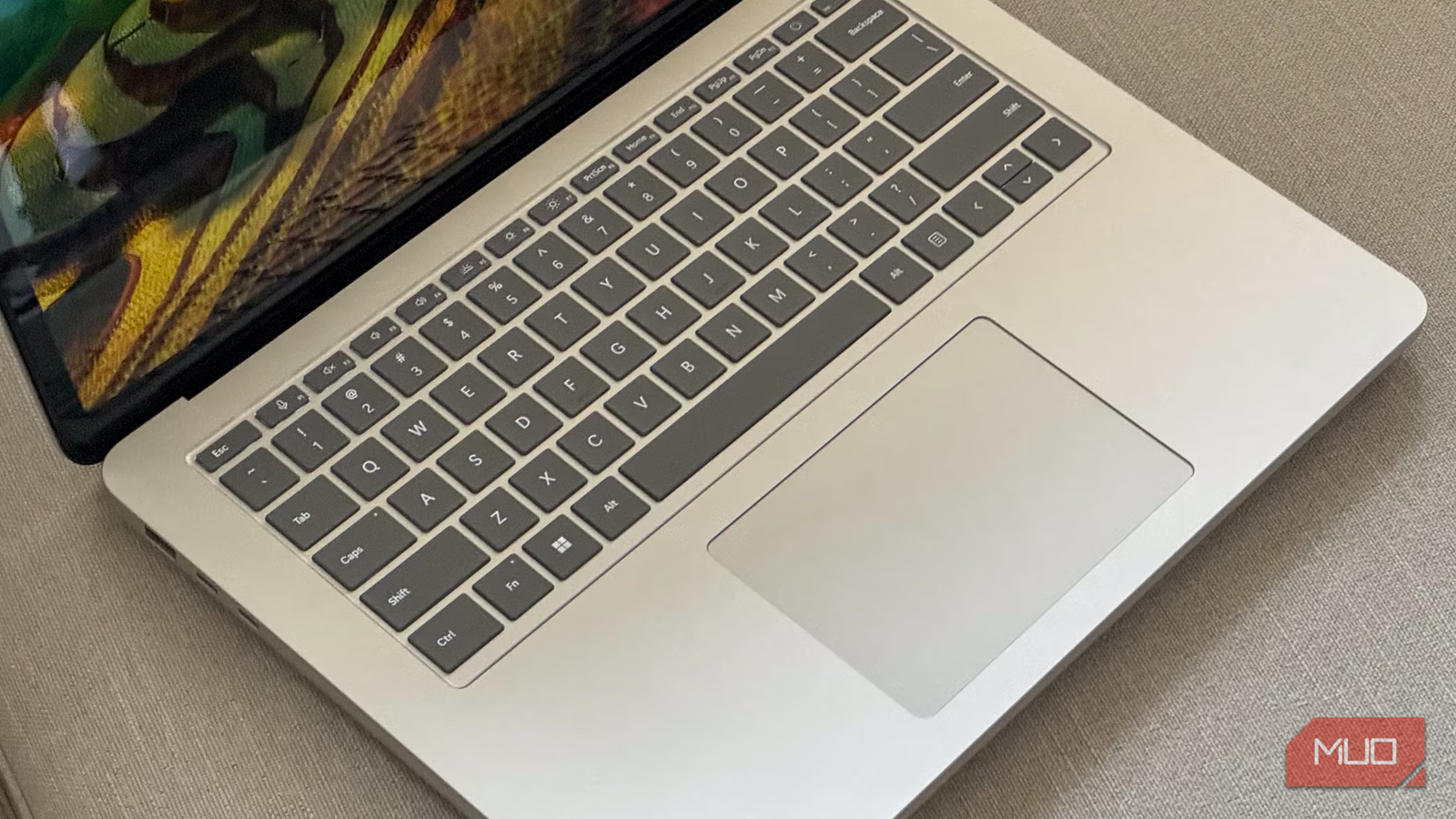

After spending years using Quick Look on my MacBook, I had grown completely accustomed to the convenience of pressing the spacebar to instantly preview files. It became second nature. Whether it was checking images, skimming documents, or confirming the contents of a folder, that single shortcut saved time and removed unnecessary steps. Switching to Windows made me realize just how much I relied on that feature, because its absence stuck with me.
I found myself missing that effortless workflow and decided to search for an alternative that could replicate the same experience on my Windows laptop. Fortunately, the hunt paid off. Installing the right app brought spacebar-based previews to Windows 11. Now, I can glance through files without having to open them individually. At this point, it is difficult to imagine going back to working without it.
A smarter way to peek at files on Windows (and it’s free)
The lazy genius way to check files

If you’ve ever used a Mac, you’ll know how addictive the spacebar preview feature is. On Windows, though, pressing the spacebar does absolutely nothing. That’s where QuickLook steps in. It’s a free, open-source app that brings instant file previews to Windows. Once installed, you simply select a file and tap the Spacebar to see what’s inside.
It works with a wide range of file types, including images, videos, PDFs, and common document formats. Instead of opening a photo in File Explorer or launching a bulky PDF reader just to check one page, you get a clean, quick preview in a lightweight pop-up window. Closing the preview is just as simple. Press the Escape key or the spacebar again, and you’re back to browsing your files.
It’s not limited to basic viewing either. You can zoom into images, control video playback, adjust volume, and even open the file directly in its default app if needed. The best part is that it quietly runs in the background and integrates smoothly into the Windows experience.
Getting going in a few clicks
Open files without opening apps

To start using QuickLook on your Windows 11 PC, open the Microsoft Store app first. In the search bar, type QuickLook and press Enter. When the app appears, click Get to begin downloading. The download may take a few minutes depending on your internet speed, so give it a moment to finish.
Once the download completes, click Open. A small pop-up will appear saying, QuickLook is already running. This is normal. It means that the app is active in the background, ready to provide instant previews. QuickLook allows you to press the spacebar to preview files without fully opening them. Click OK on the prompt to continue.

Next, open File Explorer and locate the file you want to preview. Click once to highlight it, then simply press the spacebar. Instantly, a clean, lightweight preview will appear, letting you glance at images, videos, PDFs, or documents without launching separate programs. When you’re done, press Escape or Spacebar again to close the preview and return to browsing.
And just like that, QuickLook is up and running. A smooth, intuitive way to peek at your files in seconds. It’s just one simple key to make file browsing faster and more convenient.
A few things to keep in mind
The catch behind the convenience

While QuickLook is incredibly useful, it is not without its limitations, and it is worth knowing them so you know what you’re getting yourself into.
To begin with, the app can be somewhat resource-intensive. On some machines, especially older or lower-powered ones, it may consume noticeable CPU power and memory while running in the background. Since it stays active at all times to enable instant previews, the constant background activity can feel difficult if your PC already struggles with performance.
Another limitation is file compatibility. Although it supports many common formats, it still does not handle certain media types, such as .avi or .wmv files. If you frequently work with those formats, you may find yourself falling back to your regular media player. Lastly, QuickLook does not function on devices running Windows 10 or Windows 11 in S mode. Because the S mode restricts apps to tighter security and platform limitations, this utility cannot operate there.
So, while QuickLook adds a genuinely convenient feature to Windows, it is best suited for systems with enough resources to handle it comfortably and for users who primarily work with widely supported file formats.
The final word on the spacebar
Windows has no shortage of clever open-source utilities that improve the everyday experience, and QuickLook is one of those tools. It adds a small feature, but the impact feels surprisingly big. That said, it is not perfect. Like many lightweight background apps, it has a few limitations and may not run equally smoothly on every system. Performance can vary depending on your hardware, and certain file formats are still unsupported. It is important to know that before installing it.
In my case, though, it runs exactly as intended. Since I use a system that can comfortably handle it, the app feels seamless and unobtrusive. What makes it even more impressive is how simple it is. It does not overwhelm you with settings or complicated setup steps. It just works. And despite being such a small utility, it genuinely improves how you interact with files on Windows. If you spend a lot of time browsing documents, images, or videos, it is definitely worth trying at least once.

- OS
-
Windows
- Price model
-
Free
QuickLook provides instant, full-size file previews for images, documents, and videos. It gives you access to the previews when you press the spacebar.
