

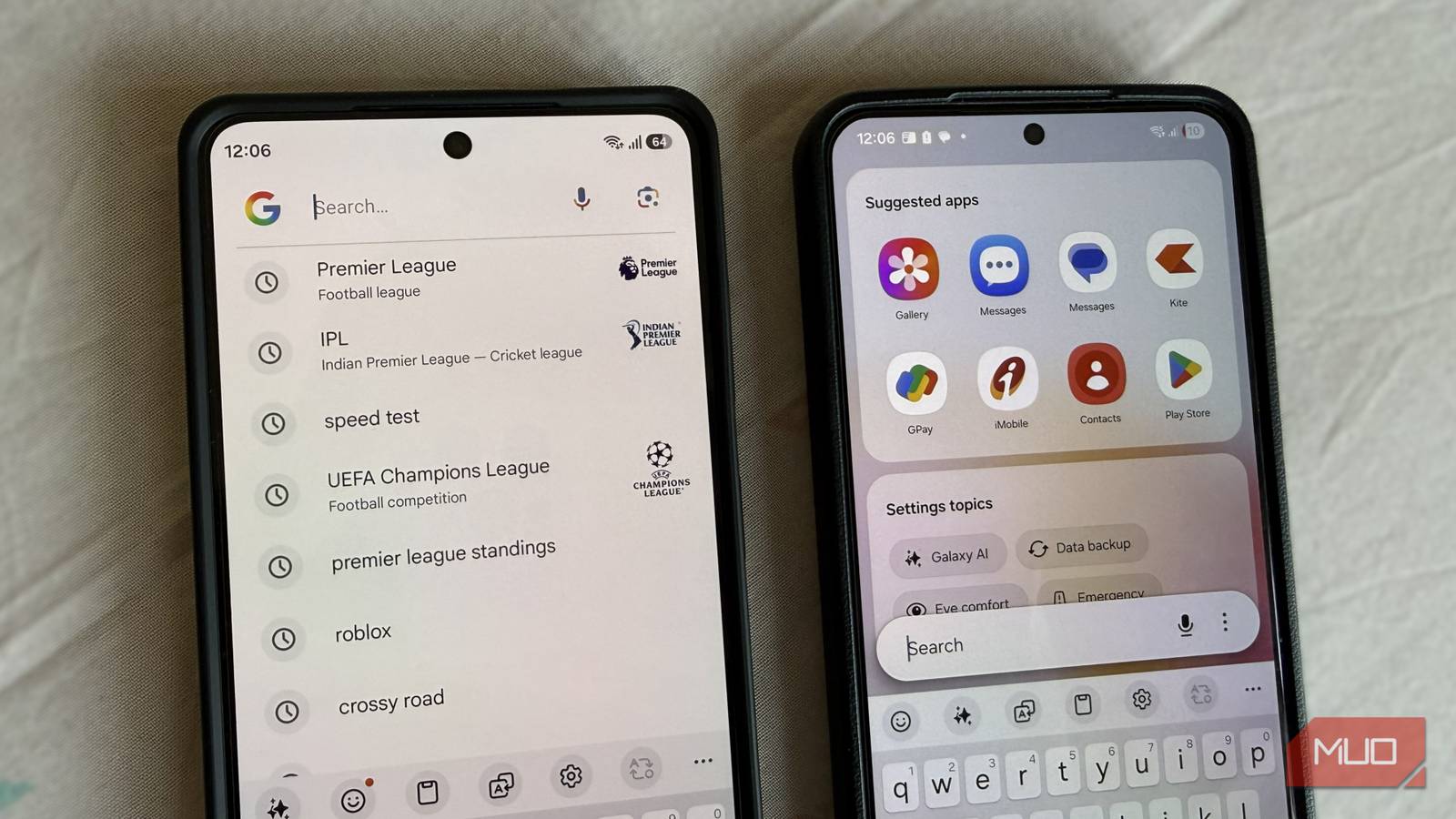

The Google search bar is a staple of Android phones, so when I got my S26, I never really questioned it. I could open apps without digging through the app drawer, run quick web searches, and even jump into Google Lens when needed. But once I swapped it out for Samsung’s Finder, I realized how much I’d been missing.
Finder doesn’t limit me to just apps and web searches. I can look up content inside apps, pull up contacts, jump straight into settings, and even find documents directly. Having used it for a week, it’s hard to believe this isn’t the default experience.

5 features I disable on Samsung phones before I do anything else
Stop your Galaxy phone from tracking, interrupting, and slowing you down.
The Google search bar is pretty limited
It lacks depth

For something that sits front and center on your home screen, the Google search bar feels quite basic. It looks clean and familiar, sure, but it doesn’t do all that much. You can use it to find your apps and do web searches, but that’s about where its usefulness ends.
Yes, it also has the Google Lens shortcut that lets you identify things and translate text, but the problem is, it doesn’t let you search for anything on your phone, like settings or contacts.
And while it lets you open apps, it doesn’t feel particularly smart about it. There are no helpful suggestions based on what you use most. Instead, it only shows recent web searches, which isn’t always what you’re looking for when you tap the bar. It gets the job done, no doubt. But for something you interact with multiple times a day, “just fine” doesn’t really cut it.
Finder goes deeper than just app icons
By default, Finder doesn’t show up on the home screen on Galaxy phones. You can access it from the app drawer, but that adds an extra step every time. To bring it to your home screen, open the app drawer settings and turn on Show Finder on Home screen. Now, you can access it by tapping the Finder option at the bottom of the home screen.
When you open Finder, you’ll see a few suggestions and recent searches at the top. The real magic, though, happens when you start typing. When you search for an app, Finder also digs into what’s inside them. For instance, when you search for WhatsApp, you’ll also see some of your recent chats and shortcuts to WhatsApp Status and Meta AI. Similarly, search for Google Drives, and you’ll see shortcuts for Search, Scan, and Upload. Search for the Clock app, and you’ll see quick actions like setting an alarm and starting a stopwatch.
And it works seamlessly with all the popular apps. You can search Google, YouTube, Maps, Spotify, or Play Store directly from Finder. Type what you’re looking for like you normally would, and pick the result from the list. You can jump into a YouTube video, browse a Spotify playlist, start navigation in Maps, or even open an app’s download page without manually opening each app first. It even works with the Gallery app, which means you can find photos, videos, and albums directly.
The fastest way to find anything on your phone
Finder is not just about apps or even what’s inside them. It makes your entire device searchable. For instance, you can type the name of the person you want to call, and Finder will pull up that contact, along with recent call logs. Tap the contact, and you get full details with options to call, text, or even jump straight into a WhatsApp chat.
Finder also works with system settings. Instead of opening the Settings app and then searching, you can jump directly to things like Wi-Fi, security, or accessibility straight from Finder. Even better, features like Adaptive Battery and Eye Comfort Shield even show quick toggles, so you can adjust them without opening the Settings app at all.
Tracking down specific files and folders is just as easy. Start typing and Finder shows results from the Files app. This way, you can search for documents, downloads, or just about any file within seconds.
Control what shows up when you search
Filter out the noise
The best part about Finder is that you can tweak it based on your preference. Open Finder settings, and you’ll see a bunch of options that let you fine-tune how it works.
For instance, Finder shows your recent searches by default. But if you don’t want that, you can disable them completely. Similarly, you can turn off suggested content if you don’t want Finder to guess what you’re looking for.
Web search suggestions are another thing you can control. If you want Finder to act more like a local search tool, you can stop it from mixing in internet results. And if there are certain apps you don’t want Finder digging into, you can stop it from searching inside them altogether.
The Google search bar isn’t bad. It’s just limited. Once you start using Finder, you realize what’s possible when search is designed around your entire device, not just the web. It’s a small tweak, but one that saves me so much time throughout the day.


8.5/10
- SoC
-
Snapdragon 8 Elite Gen 5
- Display
-
6.9-inch Dynamic Super AMOLED 2X
- RAM
-
12 or 16 GB
- Storage
-
256GB, 512GB, or 1TB
