


I’ve always believed that an app store’s catalog should never decide what a phone can do. Genuinely useful software can disappear for various reasons, including political, regional, and commercial ones. When that happens, being able to sideload apps manually gives me another way to install them. It also makes me feel like I still own the device I actually bought.
That’s precisely why Google’s recent developer-verification changes caught my attention, and not in a good way. Essentially, Google is extending developer identity checks beyond the Play Store, so installing apps from unregistered developers is potentially about to get much harder.
Fortunately, Google has allowed us a small escape hatch. I tried it on my old Android device running version 13 to see how much control I’d actually retain.
I wanted to separate the restrictions from clickbait
The path to Google’s end goal is just as important as the rule itself
Google’s planned developer verification will link a developer’s real-world identity to apps they’ve registered, including software distributed outside the Google Play Store. It’s not a requirement for every single app to appear in Google’s store, and there’s no review process of the app’s code itself.
What is changing, though, is that the identity verification requirement extends well past its own storefront.
The path Google wants us to travel to arrive at this point is just as important. The September rollout covered participating stores in Brazil, Indonesia, Singapore, and Thailand, and direct APK sideloading was excluded. The US isn’t among those first four countries, but broader global expansion planned for 2027 will affect all certified Android devices.
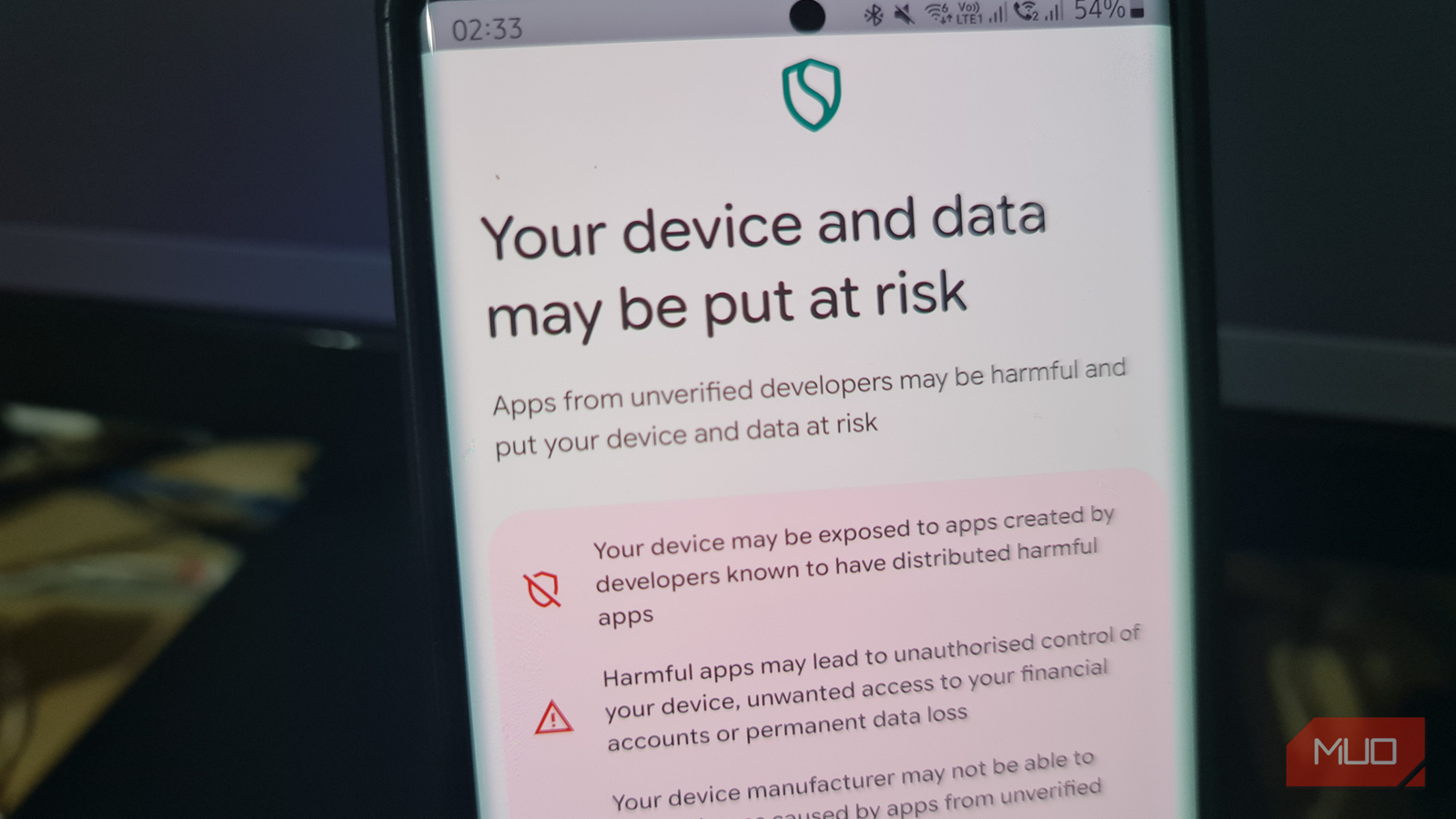
Google has documented two routes for installing unregistered apps. Advanced Flow will let me enable permissions through my phone’s settings, but this comes with a 24-hour wait period and an onslaught of warning messages. Android Debug Bridge, or ADB, will also retain its installation route without the 24-hour wait.
I wanted to find out what was involved in using both of these escape hatch options well ahead of time.
I waited an entire day to change one setting
The warnings were full on, but at least I could keep the setting enabled

Like all seasoned Android tinkerers, I had enabled developer options on my old Samsung Note for years. Naturally, this was the best place to start. The setting in question was called Allow apps from unverified developers. Turning it on, however, wasn’t quite as simple as tapping its toggle and watching it turn green.
Here’s the sequence I went through:
- I opened the setting and selected No one asked me when it asked whether someone was coercing or directing me to enable it.
- I reached a screen explaining the reasons for the 24-hour delay, then restarted my phone to begin the countdown.
- I patiently waited for 24 hours, with a good-sized nap in between. The phone was still usable the entire time.
- I returned to find a status of Security Delay complete, along with a deadline for continuing.
- I accepted yet another warning about risks to my device and data.
- I chose between Turn on for 7 days and Keep turned on, opted to keep it enabled indefinitely, and tapped on Done.
Back at the settings page, the toggle had finally turned green.
Thankfully, I could leave the permission enabled, but getting to that point meant waiting a full day to change a setting on a phone I bought, paid for, and owned.
Google has explained itself well enough when it comes to the delay. Scammers often pressure people into disabling protections, and a compulsory pause interrupts pressure tactics like FOMO and removes the urgency. I can definitely see how such a long delay could help someone who is being coached through an installation.
What annoyed me was having no quicker route through this setting when I’d initiated it myself. Thankfully, once the 24-hour waiting period is up, the toggle can stay enabled for as long as I please.
My apps installed without another verification warning
It’s not 2027 yet, so three working routes didn’t prove I’d bypassed the block

With the setting now enabled, I tried the installation routes I’d actually use. After what seemed like endless warnings, this part was rather uneventful:
- Using the browser, I downloaded F-Droid from its official website, authorized it, and accepted the normal installation prompts. Nothing else interrupted it.
- I installed Fossify Calculator from the third-party store, which required another authorization for F-Droid itself. It installed without issue, and I tested it by performing the calculation 24 x 60 (Get it? Because I waited 1,440 minutes to enable installation of unverified apps).
- I disabled Advanced Flow using the toggle switch I enabled earlier, connected my phone to my Windows PC, enabled USB debugging, and authorized an ADB connection.
With the F-Droid APK handy in the same directory as adb.exe, I ran this in PowerShell:
.\adb.exe install -r .\F-Droid.apkThe terminal returned Success. The -r option reinstalled F-Droid while leaving its data intact.

These were successful installations that had produced a normal browser and F-Droid install permissions request. Neither installation gave me a developer-verification warning, either.
Using another store doesn’t mean I was exempted from Google’s broader policies. Google’s own FAQs on the subject explicitly exempt ADB installations from needing verification, with no Advanced Flow 24-hour waiting period required.

- OS
-
Android
- Price model
-
Free (open-source)
F-Droid is a free and open-source app repository for Android, offering privacy-respecting apps with no trackers, no Google Play dependency, and full transparency through publicly audited source code.
Before calling it a day, I checked what I had downloaded
An authentic APK and a Google-verified developer are two very different things

If I’m all for control over what I install on my Android, then checking the download seems like the responsible thing to do. I followed F-Droid’s verification instructions, though best practice dictates that this should be done before and not after installation.
On Windows, I installed Gpg4win, downloaded the APK’s separate signature file, and imported F-Droid’s public signing key. With both files sitting in the same folder, I ran:
& "C:\Program Files\GnuPG\bin\gpg.exe" --verify .\F-Droid.apk.asc .\F-Droid.apkGPG reported a good signature, and the key fingerprints matched F-Droid’s published documentation. That confirmed my APK did indeed match the file signed with that key. Now, this, of course, doesn’t verify the developer has registered with Google, and it can’t guarantee harmless software.
It does, however, provide some authenticity about the download itself, which is just necessary due diligence when it comes to installing software outside the Play Store.
I’m happy the escape hatch exists, but I’m still resenting the wait
Keeping control should never be dependent on a concession Google can just take away

Don’t get me wrong, I’m glad I could leave the permission enabled, and I completely understand why a delay can give someone a chance to understand they’re getting scammed. But the experience has left me feeling uneasy about Google actually keeping these routes available.
I haven’t seen any evidence that it plans on removing the escape hatch. Still, I worry it could tighten the rules again.
I own this device, and it should be mine to do with as I wish. I really want installing software outside official channels to remain a dependable choice, not a concession I have to hope survives the next time Google decides open-source needs to come with bubble wrap and red tape.
