


Modern Windows 11 is bloated and ships with some questionable defaults that most certainly affect your overall performance. Simply put, there’s a lot more you’re leaving on the table with Microsoft’s proprietary operating system, at least in its stock configuration.
Which is where “optimization” software comes into play. There are a seemingly infinite number of these scripts floating around, but there has never been a decent all-encompassing, universal solution.
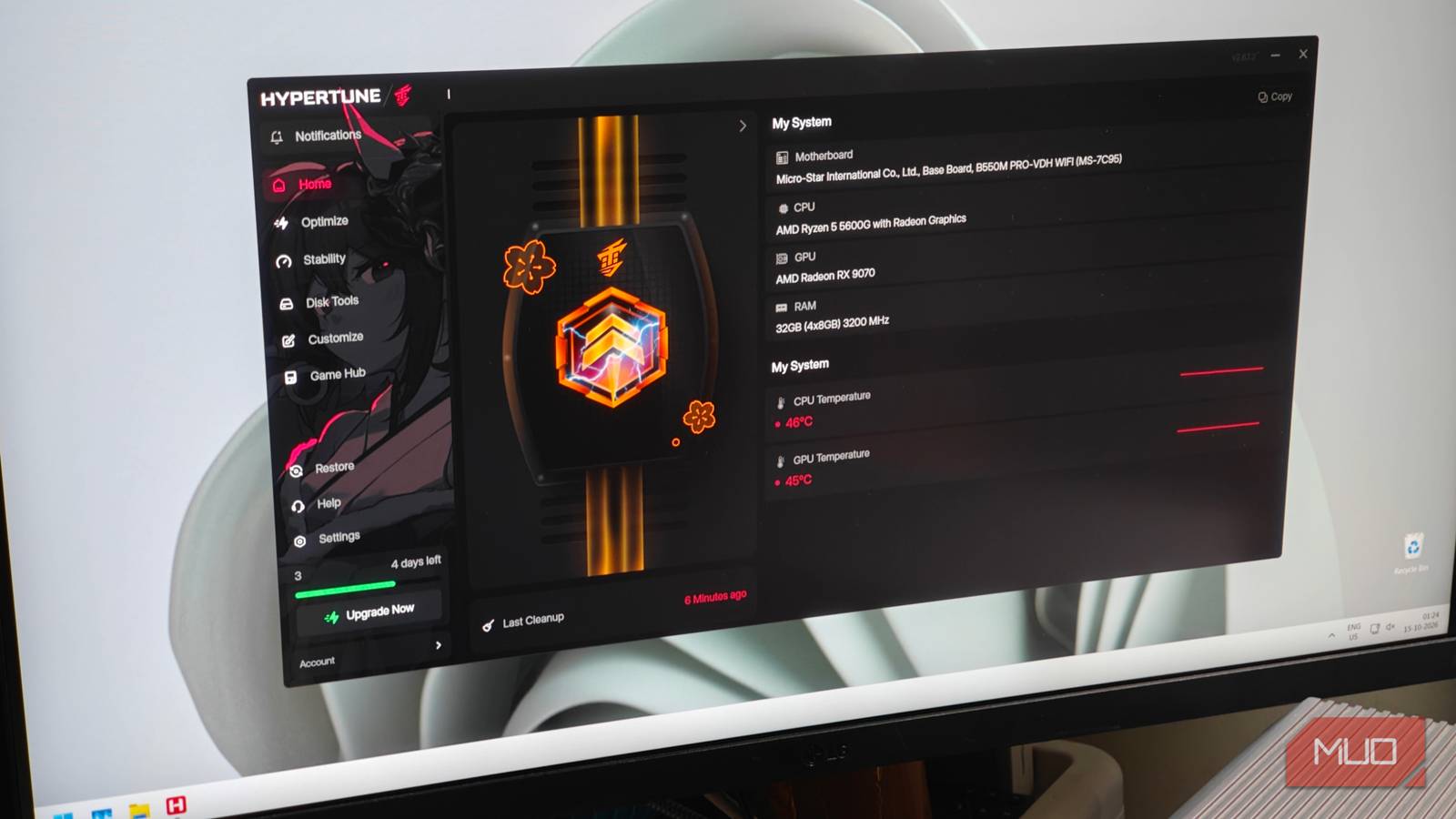
Until now, that is. I recently tried out Hypertune, a piece of tuning software that promises to do everything in one app. It’s also officially supported by multiple anti-cheat software (including the pesky ones like Vanguard). And what I found was interesting, to say the least.
Installing and trying out Hypertune
A fairly straightforward process, but why do you need an account?
So what exactly is Hypertune? In short, it’s optimization software that also happens to be backed by Intel and most major anti-cheat solutions. As an optimization kit, it tunes your PC to remove any unnecessary bottlenecks and theoretically boost performance.
All of which sounds pretty great, and almost too good to be true. I signed up for the 7-day free trial (yes, this is paid software), and one download later, I was ready for the races.
Installing Hypertune was pretty straightforward. That is to say, there weren’t any weird installation quirks to note. Once installed, it prompted me to log in, which I did, although I don’t see a reason for it to have an account. With everything ready, it was finally time to optimize.
Testing out the overclocked profile in games
Stock versus overclock

Hypertune has a LOT of options to tweak. These include traditional CPU and GPU overclocks, plus niceties like a built-in Windows 11 debloater. I applied a bunch of these settings, leaving most of them enabled, with the exception of a few Windows 11 tweaks that might have made the whole experience a bit more unstable.
I also couldn’t get the Auto CPU overclock to work under any circumstances for my Ryzen 5 5600G, so I left it disabled for the rest of the test. With these settings in place, it was finally time to put Hypertune’s claims to the test. I chose three relatively recent games to test from, with both ray tracing and non-ray tracing presets:
- The Witcher 3: Wild Hunt Remastered
- Hogwarts Legacy
- The Blood of Dawnwalker
For the tests, each game was pushed to ultra-fidelity settings, with a static resolution of 2440×1440. FSR upscaling was used, but only at the Native AA setting — more as an antialiasing solution than a traditional upscaler, as and where applicable or supported.

As for the hardware being used, it was an AM4 test bench with a fresh copy of Windows 11 LTSC and all the latest drivers, with the following specifications:
- 32GB DDR4 RAM running at 3200 MHz
- AMD Ryzen 5 5600G as the CPU
- 1TB NVMe SSD as the boot and game drive
- An ASRock RX 9070 (non-XT) GPU
The games all ran at the same settings for each run, which led us to the inevitable conclusion: Hypertune has a measurable, positive impact on game performance. While average FPS stays mostly within the margin of error, a small bump in minimum FPS helps keep things smoother. More data on the graph below.

Despite these improvements, some things stuck out as rather odd, and I’d rather not pay for this kind of software, if I’m being perfectly honest.
Some things stand out as being strange coincidences
You can replicate the same thing with free programs

Ignoring the promising results, Hypertune does seem to be feature-packed with a ton of things to customize. And here is where we come to the first strange coincidence. A lot of these “tweaks” seem directly analogous to existing open-source alternatives (much like the CTT Windows debloat utility). I’d assume they work similarly too, and that’s not just the end of it.
Hypertune also features GPU and CPU “auto” overclocks, and while the utility is appreciated, you could very easily replicate this function with a free tool like MSI Afterburner.
Sure, it’s a fair deal more involved, and you’ll have to juggle multiple programs to do what Hypertune does in a single application. But it’s also a free alternative, and one that I’d argue is more useful in the long run.
Knowing the ins and outs of your hardware is infinitely better than relying on some magical auto-tuning kit, and it helps you diagnose issues faster. To Hypertune’s credit, they do include system restore points for easy rollbacks.
For around $48 yearly, it’s a bit of an oddball. Free programs do the same job just as well, and I’m not particularly fond of subscription models, especially for something that shouldn’t require service updates in the slightest. And as you might have seen in the benchmarks above, the performance uplift is certainly nothing remarkable.
Sure, Hypertune does integrate well into existing anti-cheat software (avoiding you from being falsely flagged in the process), but at that point you really have to ask yourself, is this really worth shelling a subscription for?
The subscription model isn’t the weirdest part about it
If you thought that the subscription model was strange, boy, do I have news for you. Hypertune also carries an “Expert Optimization” option that has experts custom-tune your PC to reach its full potential.
That sounds great — until you realize it’s an additional $80 not included with the subscription. It’s a ridiculous charge and one that promises many things, including two months of “priority” support, all of which sounds vague and evasive.
I’d rather learn to tweak my PC from scratch and be wary of any auto-tuning programs. It’s a lot more involved, but you do learn a lot from the process, instead of relying on something that costs you quite a lot more.
