

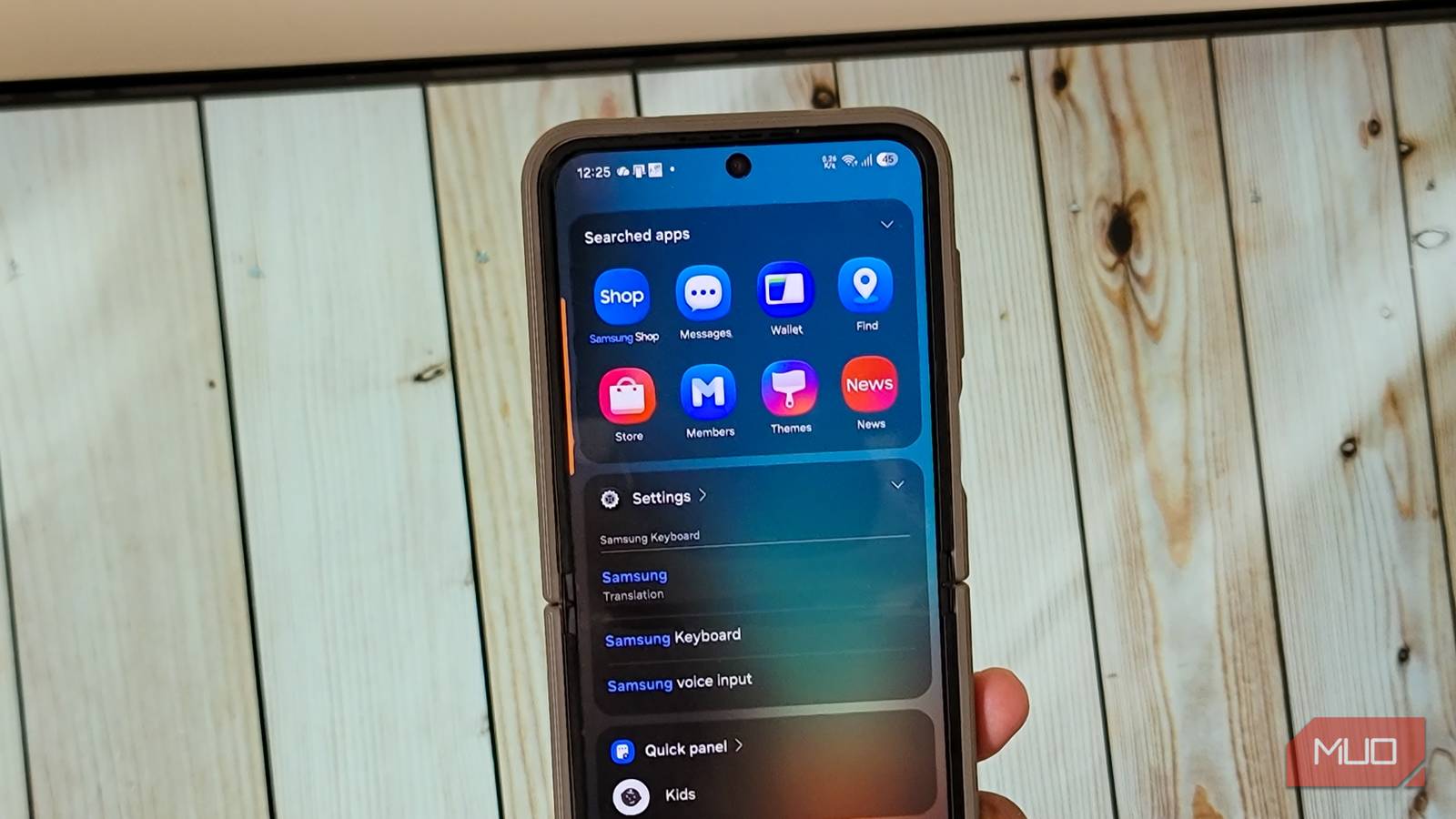

Samsung has plenty of default apps that are better than their Google alternatives or even third-party options. However, this is not true for all of them. While I like Samsung Notes, Reminders, SmartThings, Good Lock, and the Gallery app, Samsung’s keyboard, browser, and password management don’t hold up against the competition. I tested and replaced Samsung’s default apps one by one with better alternatives, and my Galaxy phone finally works the way I want.
Samsung Keyboard
SwiftKey offers a better typing experience with smarter predictions
Samsung’s default keyboard comes installed out of the box and works fine for everyday typing. However, it’s not the most accurate when it comes to predictions, and the typing experience leaves much to be desired. After trying a bunch of Android keyboards, I settled on Microsoft SwiftKey. It has a similar layout to the Samsung Keyboard, but offers a far better typing experience with more accurate predictions.
One feature that won me over is Flow, which lets you type continuously from one letter to the next without lifting your finger. For better navigation, I can also place the arrow keys under the keyboard so they’re always visible, which makes it easy to put my cursor exactly where I want it.
Multi-word suggestion is another useful feature that brings up two words at once, so typing “having” brings up “having to,” which has made typing noticeably faster. Then there’s cross-device copy and paste, which lets you sync the keyboard with your Windows PC. On your PC, sign in with your Microsoft Account, then go to Settings > System > Clipboard and turn on Clipboard history and Sync across your devices. You also need to sign in with your Microsoft account in SwiftKey and enable Clipboard sync to make it work.
Voice dictation in SwiftKey is on par with Gboard, and you can opt out of Microsoft account, Copilot, and Rewards to tighten privacy while keeping most of what makes SwiftKey better.
Samsung Internet
Vivaldi gives me the same browser on my phone and PC

Samsung’s built-in browser has less to complain about, and while it’s now available for Windows, I use Vivaldi as the primary browser on my PC. So naturally, I’d rather have the same experience on my phone as well.
Compared to Samsung Internet’s clean tab grid with groups, Vivaldi offers a more conventional PC-like tab strip along with tab stacks where you can group related tabs together. You can also customize every bit of the browser by arranging the toolbar, tweaking the menu, and placing the address bar at the top or bottom. It also offers Speed Dials (shortcuts) that can go into folders, and custom theme colors.
Then there are some productivity extras like built-in Notes, private translation, full-page screenshots, reader mode for distraction-free reading, and the ability to clone tabs. Much like Samsung Internet, Vivaldi blocks ads by default with a built-in filter list, and if you need more, it also supports extensions from the Chrome Web Store. Vivaldi syncs without issues across my PC and phone, whereas Samsung Internet felt more hit or miss while doing the same.
Samsung Pass
Bitwarden works everywhere, not just on Galaxy devices

Samsung Pass is Samsung’s built-in password manager that helps you manage your passwords, payment cards, addresses, notes, and more. While it works well on a Samsung phone, it’s not cross-platform compatible unless you have a Samsung Galaxy Book. Instead, I use Bitwarden. It’s been my go-to password manager for everything from passwords to passkeys, and it works everywhere. It should also work if I choose to go with a different Android phone maker for my next upgrade.
Bitwarden offers a generous free plan that works on unlimited devices, has end-to-end, zero-knowledge encryption, and a password generator along with password history in case you need to go back to an old password. You can also share encrypted text or files up to 1GB, even with someone who doesn’t use Bitwarden. It supports biometric unlock and passkeys too. While the free plan doesn’t offer the built-in authenticator and may not have the most polished UI, I’ve had no issues with it over the years as far as security and reliability go.
Samsung Find
Google Find Hub works with all my Android devices

Samsung Find is an offline and online device finding feature available on all Samsung Galaxy phones. However, it only works with Samsung devices, whether that’s phones, tags, or laptops. Since I also use devices from other Android manufacturers like Xiaomi and Motorola, I replaced Samsung Find with Google’s Find Hub.
Google’s offering works with almost any Android device, including phones, smartwatches, and earbuds. Google also has the advantage of its massive, multi-brand network of active Android devices around the world to ping and locate lost items when the devices can’t be reached by Wi-Fi or cellular. Samsung, on the other hand, has to rely on its dedicated network of Galaxy phones to do the same. Sure, Samsung has an edge here, as you can even configure it with Routines to find your devices by sending a text to turn on Bluetooth and Wi-Fi. But that’s still limited to Samsung devices only. Google Find Hub is also easier to use, and in my testing, it has been as accurate as Samsung Find in locating my devices, if not more.
Samsung Notes
OneNote fits my cross-platform workflow better

Samsung has improved its Notes app with new AI tools to clean up your messy thoughts, as well as auto-format, summarize, and fix spelling and grammar issues. However, for someone who also extensively uses note-taking apps on PC, I needed a cross-platform option, and that turned out to be Microsoft OneNote.
But it’s not just the cross-platform bit that won me over. OneNote is better for organizing large collections. You can use Notebooks as top-level containers to separate personal and work notes; then there are Sections, which work like tabbed dividers within a project, and finally Pages and subpages inside each section that can be rearranged with drag-and-drop. You can also interlink a notebook, page, or section to build a knowledge base.
Samsung Notes might work better if I only used Samsung devices and had a simpler setup. But OneNote fits my workflow better with its nested structure.
Best Samsung apps replacement for your Galaxy phone
Samsung packs an excellent set of apps on its Galaxy phones, and some of them are among the best in class. However, for someone who uses devices across brands and platforms, the gaps in cross-platform support become hard to ignore. If you’re fully in on Samsung hardware, the defaults might serve you just fine. But if you, like me, mix and match, swapping a few apps can make your Galaxy phone feel much more at home in a mixed-device setup.
