

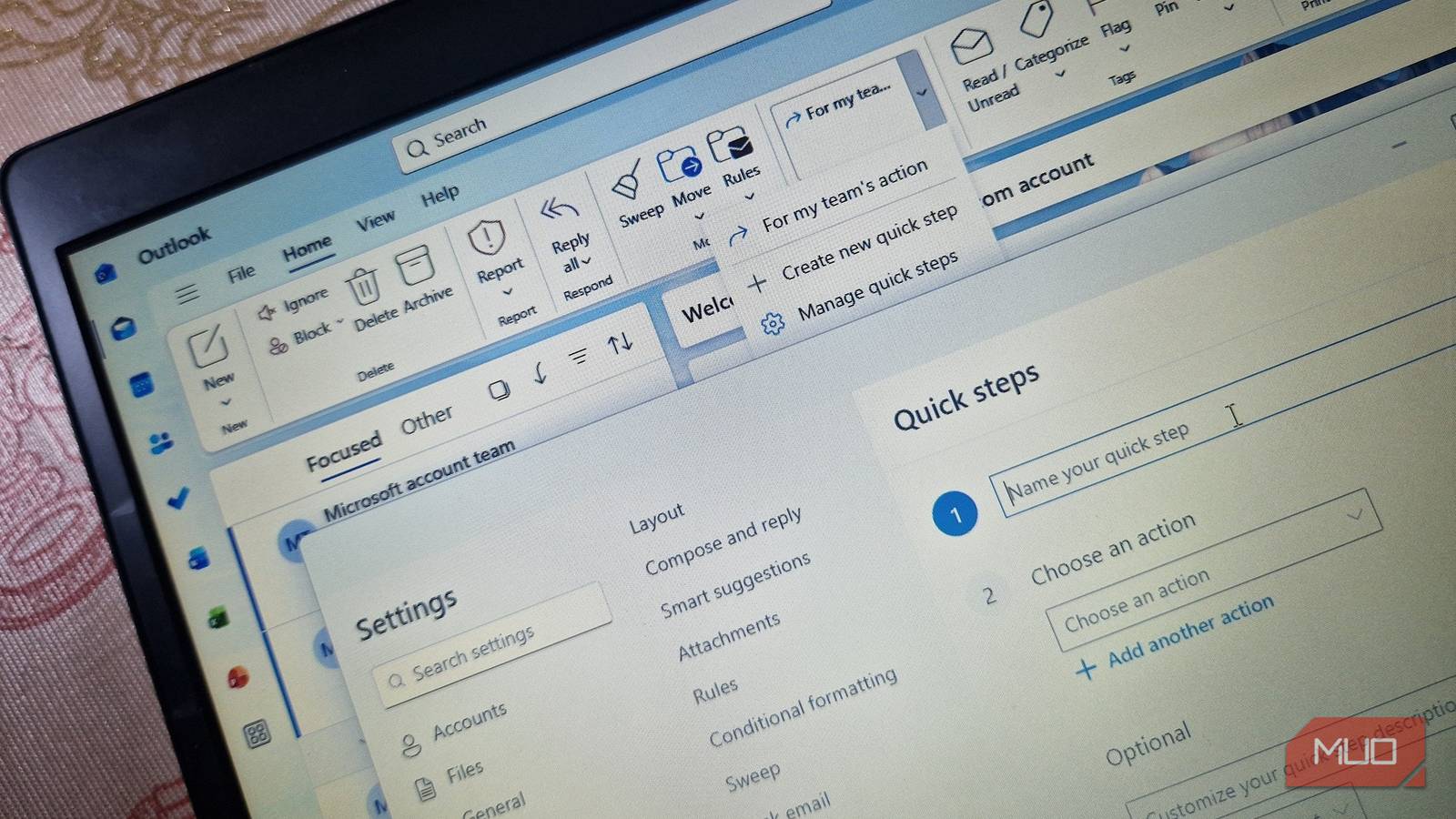

Managing your emails in Outlook often feels like a choice between manually dragging your messages into folders and relying on automated Outlook rules for your inbox that may not behave exactly the way you expect. However, there’s a feature that solves both problems, and you’ve probably scrolled past it dozens of times without giving it a second thought.
Microsoft Outlook’s Quick Steps allow you to bundle several actions into a single click or keyboard shortcut that you trigger when it actually makes sense to do so. After using it consistently, I’ve found Quick Steps to be one of the smartest and most flexible ways to keep a busy inbox under control.
What exactly are Quick Steps, and why do they matter?
A smarter way to batch actions, stay in control, and keep your inbox clean at scale

Using Outlook, one of the best email clients for Windows 11, often means that you’re dealing with repetitive, manual tasks, such as flagging messages or filing them into specific project folders, forwarding tons of requests to your manager, or sending identical documents to your team. Performing these three- or four-step processes hundreds of times a day will eventually drain your productivity. Rules can help, but because they run automatically in the background, they are not ideal for situations where you need to read an email first and decide how to handle it.
A Quick Step is a custom, macro-like workflow that applies multiple actions to a message simultaneously. And they only run when you trigger them. This manual activation gives you one-click efficiency without taking decision-making away from you, which is often exactly what inbox management requires.
In Outlook Classic, you’ll find a few default Quick Steps, including Done and Reply & Delete. Done marks the selected email as complete, moves it to a designated folder, and marks it as read. Reply & Delete, on the other hand, sends a prewritten response to the sender — building on the existing subject line — and then deletes the original message. These are just a starting point, because you can create your own Quick Steps with custom actions, text, recipients, subject lines, and keyboard shortcuts tailored to your workflow.

I Finally Mastered Outlook Shortcuts—Here Are the Ones I Use Every Day
My inbox finally listens to me.
How to access, create, and customize Quick Steps in Outlook
Setting up Quick Steps the right way
Quick Steps are available in Outlook Classic, Outlook on the web, and the New Outlook for Windows, and you’ll find them on the Home tab under the Quick Steps group. If you can’t see Quick Steps in the New Outlook, you’re likely using a personal email account such as Outlook.com, Gmail, Yahoo, iCloud Mail, or other free email accounts without an attached Microsoft 365 subscription. I ran into this myself while using a personal Outlook account, but I was able to fix it by adding my Yahoo account, which holds my Microsoft 365 subscription, as a subscription in the New Outlook. To do this, navigate to Settings -> Accounts -> Add subscription and enter the email address associated with your Microsoft 365 plan. That email will not be added to your inbox; it simply shares the subscription benefits.
Outlook on the web works a little differently, and unfortunately, the same workaround does not apply. You must sign in directly with an email address that has an active Microsoft 365 subscription, as subscription sharing is not supported there. If all of this sounds like more effort than it is worth, Outlook Classic remains the simplest option, since Quick Steps are available to all accounts without any extra configuration.

My Microsoft 365 Subscription Pays for Itself: Here’s Why
Microsoft 365 is an investment in your productivity that keeps giving back.
As mentioned earlier, Outlook Classic comes with a few preconfigured Quick Steps, but creating your own is straightforward in any version of Outlook. From the Home tab, click the downward-facing arrow in the Quick Steps menu to choose to create a new quick step. In Classic Outlook, selecting Custom lets you bypass preset templates and build something from scratch. From there, you name the Quick Step, choose an icon if you are using Classic, and start stacking actions, such as categorizing a message, moving it to a folder, or replying with a predefined response.
You can also assign keyboard shortcuts from Ctrl + Shift + 5 to Ctrl + Shift + 9 to your most-used quick steps, allowing you to process an entire inbox without touching your mouse. As a final step, you can add a short note that appears when you hover over the Quick Step button. This note is labeled as Tooltip text in Classic and a quick step description in newer versions.
It’s worth being cautious before applying a Quick Step, since you cannot undo its actions with Ctrl + Z. This is especially important if your workflow includes permanent deletion. It’s also important to note that Quick Steps created in Outlook Classic cannot be transferred to the New Outlook or Outlook on the web. Outside these limitations, however, I’ve not run into any issues accessing or setting up Quick Steps, and they’ve been consistently reliable once configured.
One small setup that pays off every day
With just a few minutes of setup, you can turn a repetitive, multistep email routine into a single keystroke. That means you save time without giving up control over how you manage your inbox.
If rules are like an automated thermostat that works in the background, Quick Steps are more like the defrost mode button on your microwave. Nothing happens until you decide it’s time, but when you do, everything you need kicks in at once. Once you start using Quick Steps, managing a steady flow of messages becomes far simpler, and the feeling of inbox chaos fades.
