



One of the first apps I think to install on a new device is a video player, since the default one is usually subpar. But you rarely find an app that works smoothly across devices and ecosystems without glitches. Enter VLC.
For over a decade, this has been my go-to video player. Whether I’m at my workstation, swiping on my smartphone on a flight, or using my tablet in bed, this is the only media player that works the same way every time.
A video player app that works well across devices and ecosystems
VLC handles everything you throw at it
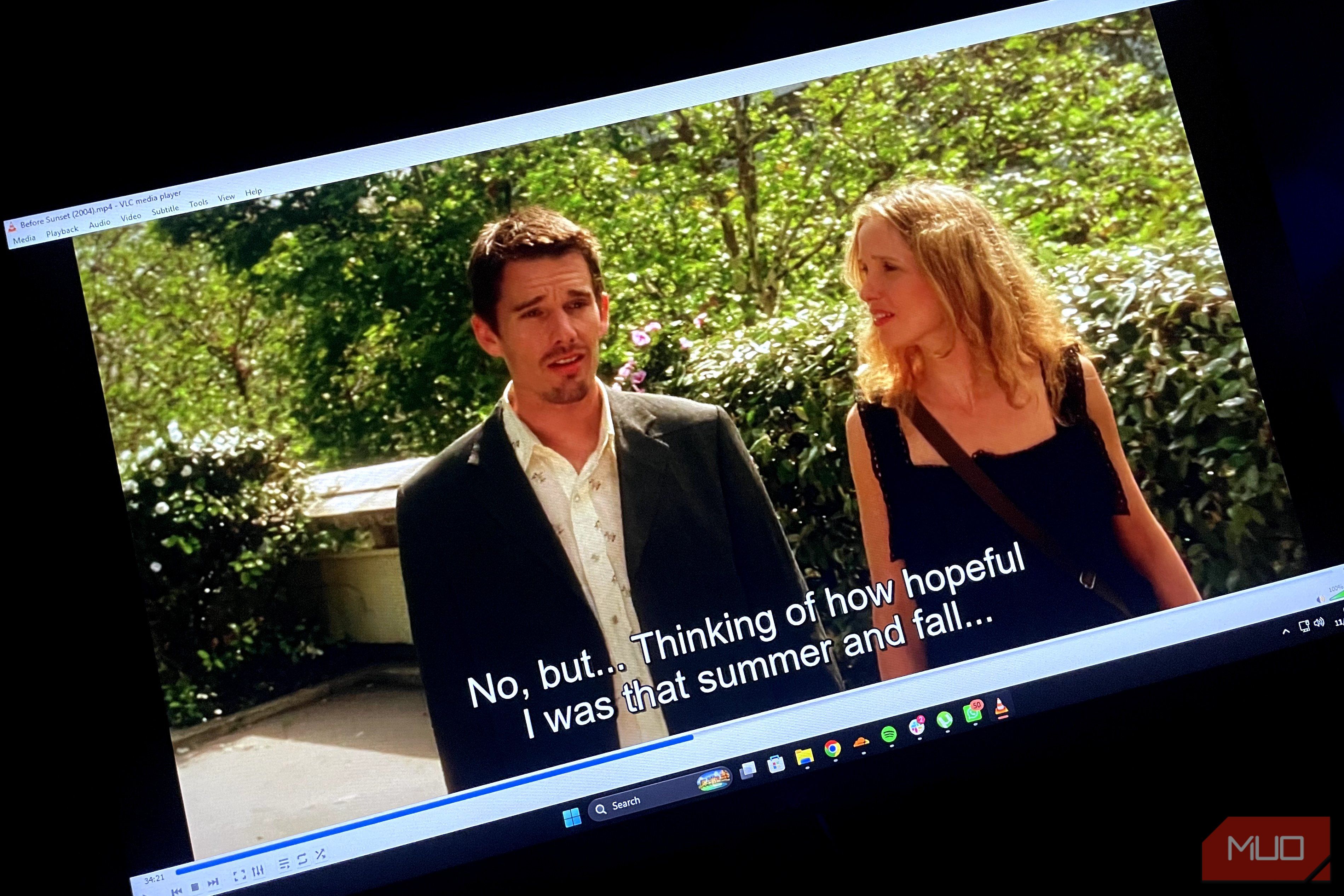
One of VLC’s biggest perks is its ability to play almost any video or music file, thanks to its legendary codec support. MP4, MKV, AVI, MOV, FLV, WebM, and even ancient formats you thought were lost to time. The platform makes use of its own internal hardware and software decoders instead of relying on the operating system’s built-in libraries.
What this means is that if a file plays on my tablet, I can be confident it will play the same way on my smartphone or MacBook. I don’t need to waste time converting files just to make them compatible with a specific device.
That is why it performs reliably whether you are using an Android smartphone or a MacBook. It doesn’t ask the device for permission to play your file; it’s doing the heavy lifting itself.
Cross-platform controls that become second nature
The user interface is extremely intuitive
Normally, when you switch between different devices, you need to remember how to access the different options in the interface. VLC standardizes its core controls across every ecosystem. On the desktop version of the app, the keyboard shortcuts are now hardwired into my brain. The space bar pauses, V cycles through subtitles, and G and H adjust the subtitle delay when the text is slightly out of sync with the audio.
On a smartphone, these precise controls are accessed via intuitive touch gestures that stay the same whether you are on iOS or Android. Swiping up vertically adjusts the volume button, a vertical swipe on the left edge adjusts the screen brightness, and a horizontal swipe across the center seeks backward or forward in the video timeline.
Suppose a video file’s audio track is slightly out of sync; I don’t have to dig through complex menus. The audio/subtitle tool is located in the same pop-up menu on both the Android and iOS apps. This uniform design philosophy means I never have to re-learn the software when I buy a new device.
VLC allows you to boost the volume to double the default limit
Poor audio can be salvaged to a degree

I’ve encountered loads of instances where the video file’s volume is too low, and the dialogues are barely audible. VLC has a built-in tool that seems to be tailor-made to tackle such issues. Interestingly, I didn’t even know VLC had this tool until recently.
The volume booster lets you crank the sound up to 200 percent, double the normal system limit. It also has a customizable audio equalizer you can use to tweak frequencies and make speech crisp and clear. This lets me watch subpar content without running an alternative version of the media file or converting files to make them work better.
Uncompromised video playback is a given

The best thing about VLC media player is that it is completely free. No matter which device you use, you can access the app without features locked behind a paywall. Plus, it has no banner ads or premium subscriptions, which are the norm for most apps and streaming services today.
Compared to other apps that started out free and got bloated with ads, VLC has held its ground for years and still feels the same as it did years ago.
VLC is the best free platform for video playback
VLC is one of those apps you can install once and stop worrying about finding an alternative later. Yes, it does not have the flashiest interface or some crazy hotshot features, but that is part of what makes it so dependable. It also has heaps of free plugins that extend its functionality.
It knows its job and does it incredibly well. So, if you are looking for a worthy alternative to your device’s media player, you can close your eyes and go with the VLC media player.
