

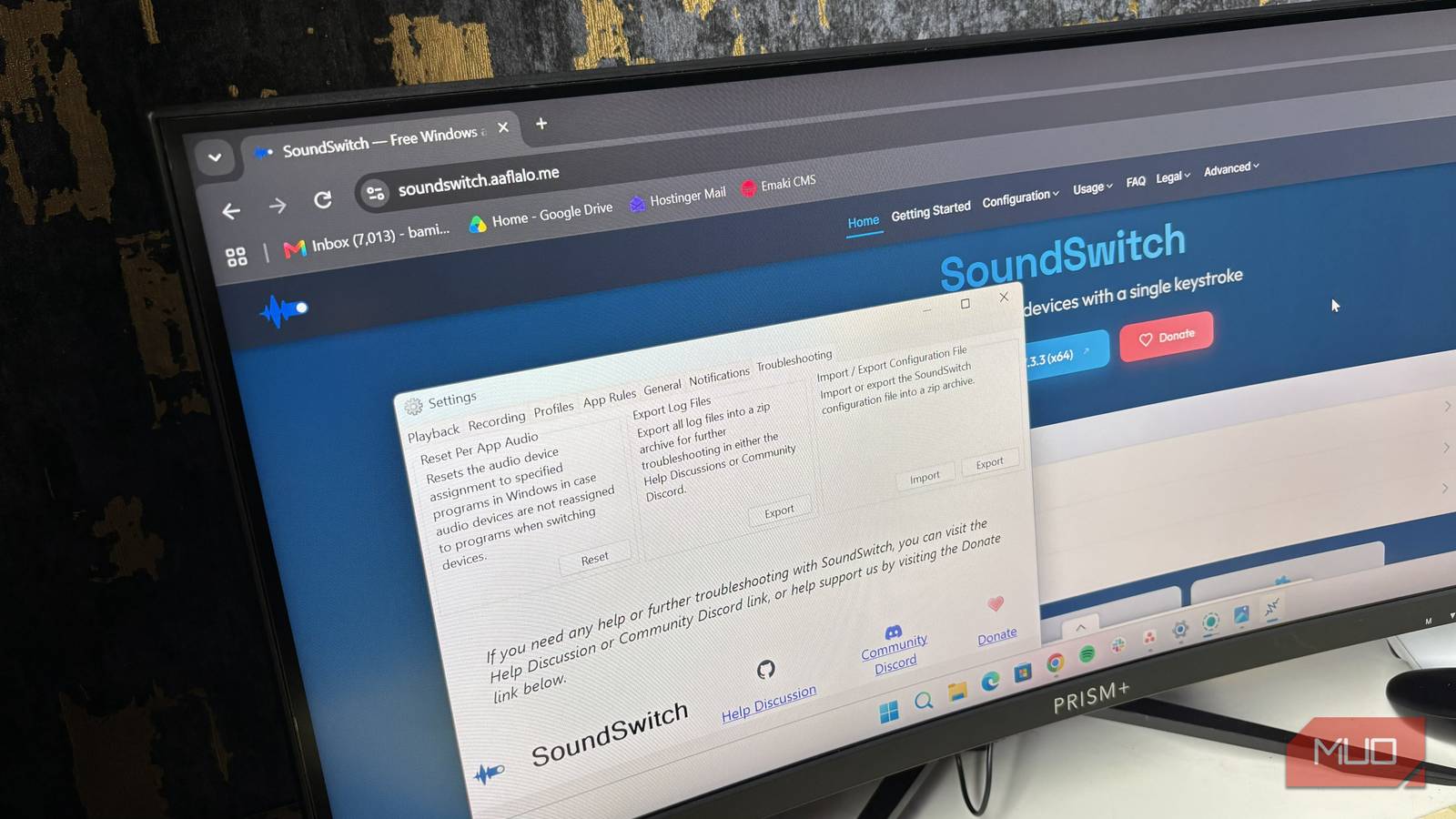

You can connect multiple audio devices to your Windows PC, and they’ll usually work without much fuss. Where people mostly have a problem is switching between those devices. Windows does provide several ways to change your audio output and input, but finding the right options can mean navigating through different settings menus. And the quickest way, which is through the Quick Settings Panel, doesn’t allow you to change input audio devices.
I’m clearly not the only one who finds all these annoying. Otherwise, Jeroen Pelgrims wouldn’t have developed SoundSwitch, a free open-source app that makes switching between audio devices (input and output) much easier.
SoundSwitch lets me switch audio devices with a keyboard shortcut
No more digging through Windows settings just to change my microphone or speakers

It’s all in the name. SoundSwitch lets you switch between your audio playback and recording devices using simple keyboard shortcuts. So, instead of going through several menus every time you want to change your speakers or microphone, you configure the app once and change devices whenever you need to.
For example, you can set up SoundSwitch to cycle between your laptop speakers, external monitor audio, and headphones. You can also configure it to switch between your laptop’s built-in microphone, a headset microphone, and a dedicated USB microphone. By default, you can press Ctrl + Alt + F11 to change output audio devices and Ctrl + Alt + F7 to switch input audio devices.
The app is constantly running in the background when you launch it, but it is very lightweight. So, it uses minimal resources; when I had it running, it was using under 30MB of memory.
Configuration only takes a few seconds
Select your devices, assign hotkeys, and let the app handle the switching
Convenience is the main selling point for a tool like this, so it’s only right that configuration isn’t stressful. To get started, once you launch the app, right-click its icon on the Windows system tray and select Settings. From there, you can choose which devices SoundSwitch should cycle through and configure the keyboard shortcuts you want to use. The Playback tab is where you configure audio output devices, while the Recording tab handles your microphones and other audio input devices.
Then there’s the Profile tab, which is my favorite feature of the app. This allows you to save a combination of audio devices and activate that combination using a trigger or hotkey. For instance, I could create a profile for meetings that selects my preferred speakers and microphone, then another profile for gaming that switches to my headset and its microphone.
You can also configure profiles to activate when you open a particular application, when a matching window appears, or when SoundSwitch starts. That means you don’t always have to remember to switch devices manually.
You can use SoundSwitch in a terminal
Switch devices and manage audio profiles without opening the graphical interface

For the more technical folks and command-line enthusiasts, I have good news. SoundSwitch isn’t limited to its graphical interface. It also includes a command-line interface (CLI) that lets you control the application from a terminal.
For example, if you want to switch to the next available recording device, you can use SoundSwitch.CLI.exe switch --type Recording. To switch playback devices instead, use SoundSwitch.CLI.exe switch --type Playback. The CLI also supports microphone mute controls, profile management, device listing, and checking your current audio status. That makes it useful if you want to automate audio changes or integrate them into your own scripts.
For instance, you can list your configured profiles using SoundSwitch.CLI.exe profile --listor activate a specific profile by name using SoundSwitch.CLI.exe profile --name "Gaming". There’s also JSON support, which can be useful for automation. Just keep in mind that the main SoundSwitch application needs to be running for the CLI to communicate with it.
If you want to explore the available commands and options, you can check the official SoundSwitch CLI documentation on GitHub. I probably wouldn’t use the CLI for everyday audio switching when a keyboard shortcut is already available. Still, it’s great to see that the developer has included this option for people who want to automate their setup or control SoundSwitch from scripts.
SoundSwitch fixes a problem Windows should handle better
I still find it strange that switching between audio devices can sometimes be such a hassle on Windows. When you’re in a meeting or maybe streaming, having to pause and hunt through Settings just to select the right microphone or speakers is the last thing you need. That’s what makes SoundSwitch such a useful little tool.
Once you’ve configured your devices and shortcuts, you can switch audio outputs and inputs in seconds. If you regularly switch between headphones, speakers, USB microphones, and other audio equipment, it’s worth having installed.
