

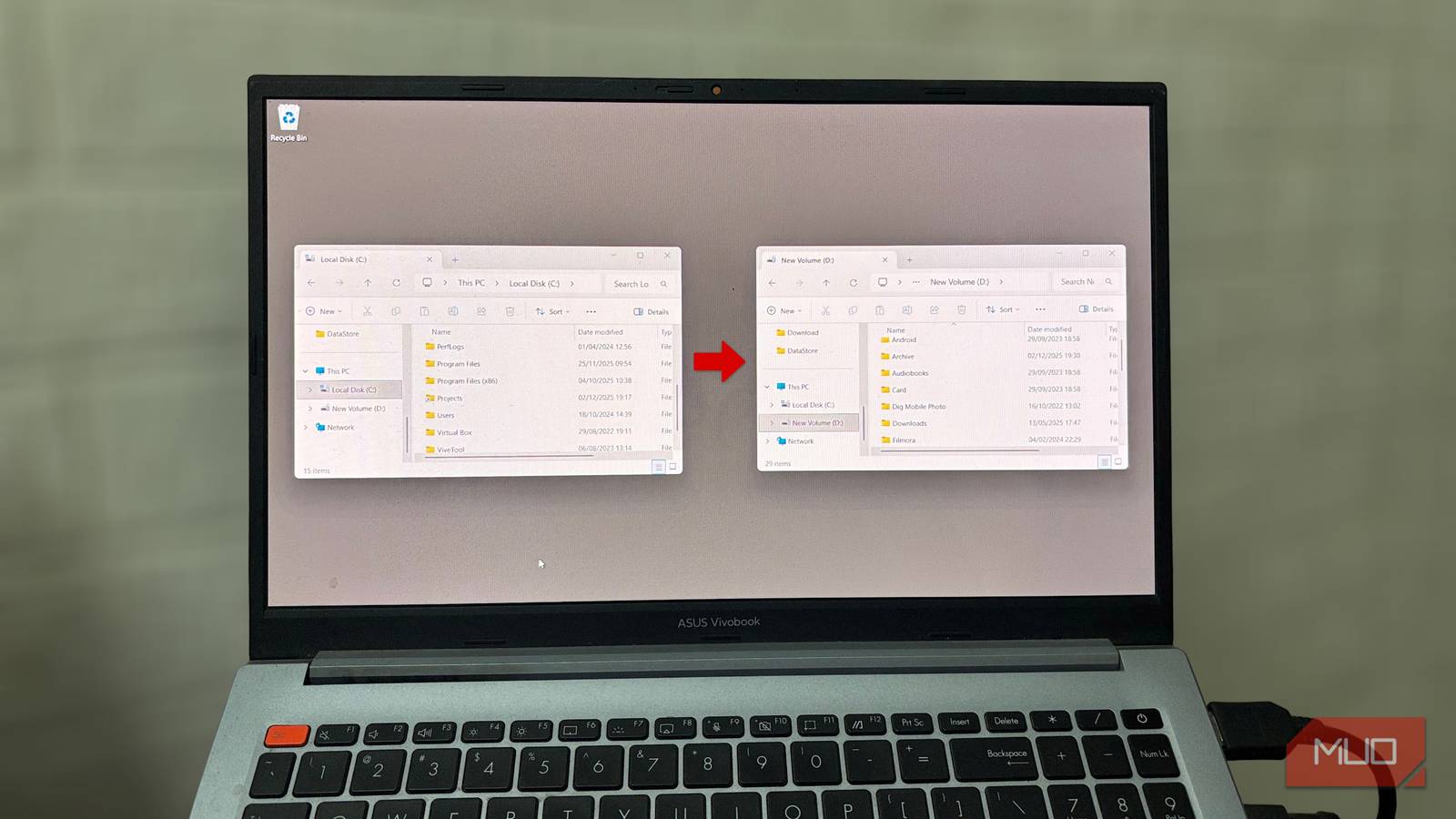


When Windows slows down, reinstalling it often seems like the safest option. It promises a fresh start, with your system running the way it did on day one. More often than not, performance problems begin with cluttered storage rather than a failing operating system. Every day, activity builds up huge photo libraries, project folders, sync services, and app data. When all of that lives on the same drive as Windows, it puts an extra load on that drive.
How symlinks fix it
The system sees paths, not folders
Instead of reinstalling Windows, you can move the heaviest folders to another drive and leave the system exactly where it is. Symbolic links, or symlinks, let Windows keep using the original paths while the data lives on a different drive.
Moving folders to another drive sounds simple in theory, but problems start when programs stop finding them. Most apps depend on fixed file paths, and when those paths change, the software treats the data as missing. Game launchers start asking for reinstallations, while editing software opens empty projects, and media apps lose track of their libraries.
Windows has a built-in workaround for this: symbolic links. It makes a folder appear in its original location, even though the files now sit on another drive. When a program opens that folder, Windows redirects it to the new location without showing any difference in Explorer. From the app’s point of view, nothing has changed. The path looks the same, so the program treats it like the original folder.

This is also where symlinks differ from shortcuts. A shortcut is just a pointer that sends you to another location. A symlink sits within the file system. Windows treats it like a real folder. When an app opens a folder through a symlink, Windows sends the request to the real location automatically. In most cases, the program never sees the new path. It keeps working as if the folder never moved.
That behavior is what makes symlinks effective in this situation. Entire folders can be moved to another drive while every program continues using them in the same way as before. The system drive stops filling up; the data resides on another disk, and Windows continues to run normally.
Set up mklink safely
Redirect folders the correct way
Once you know what a symlink does, setting one up is mainly about running a single command correctly. Windows has a built-in tool for this called mklink, which you use from the Command Prompt. You can point it at a whole folder or at a single file, depending on what you want to move.
First, move the folder to the drive where you actually want the data. For example, if a folder named Projects is on the C drive, move it to the D drive. After the move, C:\Projects will be empty. Delete that empty folder so the symlink can reuse the same path. Then open Command Prompt as an administrator and run a command in this form:
mklink /D "old folder path" "new folder path"
The first path is the original location where programs still look for the folder. The second path is the new location where the files now live. For example, you might run:
mklink /D "C:\Projects" "D:\Projects"
After you run the command, Windows creates a special folder at C:\Projects. When you open it in File Explorer, you see the same files you moved earlier, but they are still stored on D:\Projects. Edit a document, rename a subfolder, or save something new, and the change is written straight to the folder on D. If you delete the link at C:\Projects, the data on D stays where it is.
You can do the same thing for single files. In that case, you leave out the /D switch and give the exact file names.
mklink "C:\Notes\summary.txt" "D:\Archive\summary.txt"
Here, C:\Notes\summary.txt looks like a normal file, but every change goes to D:\Archive\summary.txt on the archive drive. This is useful when one program insists on reading a file from one path, but you prefer to keep that file somewhere else. Symlinks themselves use almost no space. They do not duplicate your data. Instead, they act like a bridge that connects the old path to the new one, so all real storage still comes from the new drive.
Deleting the symlink only removes the link at the old path. The real data stays intact on the new drive. When you delete the link, you are just removing the pointer, not the actual target file or folder. However, when you delete files through the symlink, you are deleting the real files in the target folder, exactly as if you had deleted them directly from their location on the new drive.
Storage was the real issue
Reinstalling Windows is often not the real fix. Many slowdowns result from a full system drive, so moving heavy folders elsewhere can help the system run smoothly. Before wiping your PC, stop and check where your data actually lives. You might find that moving the problem is easier than rebuilding the system.
