


I know I live in a boring rural town, but all four of my Android devices keep showing the same four Wi-Fi networks. Four, really? This is a farming and industrial town, and there’s a whole supermarket right next door.
Surely there’s more going on outside my room than those same four Wi-Fi network names would have me believe.
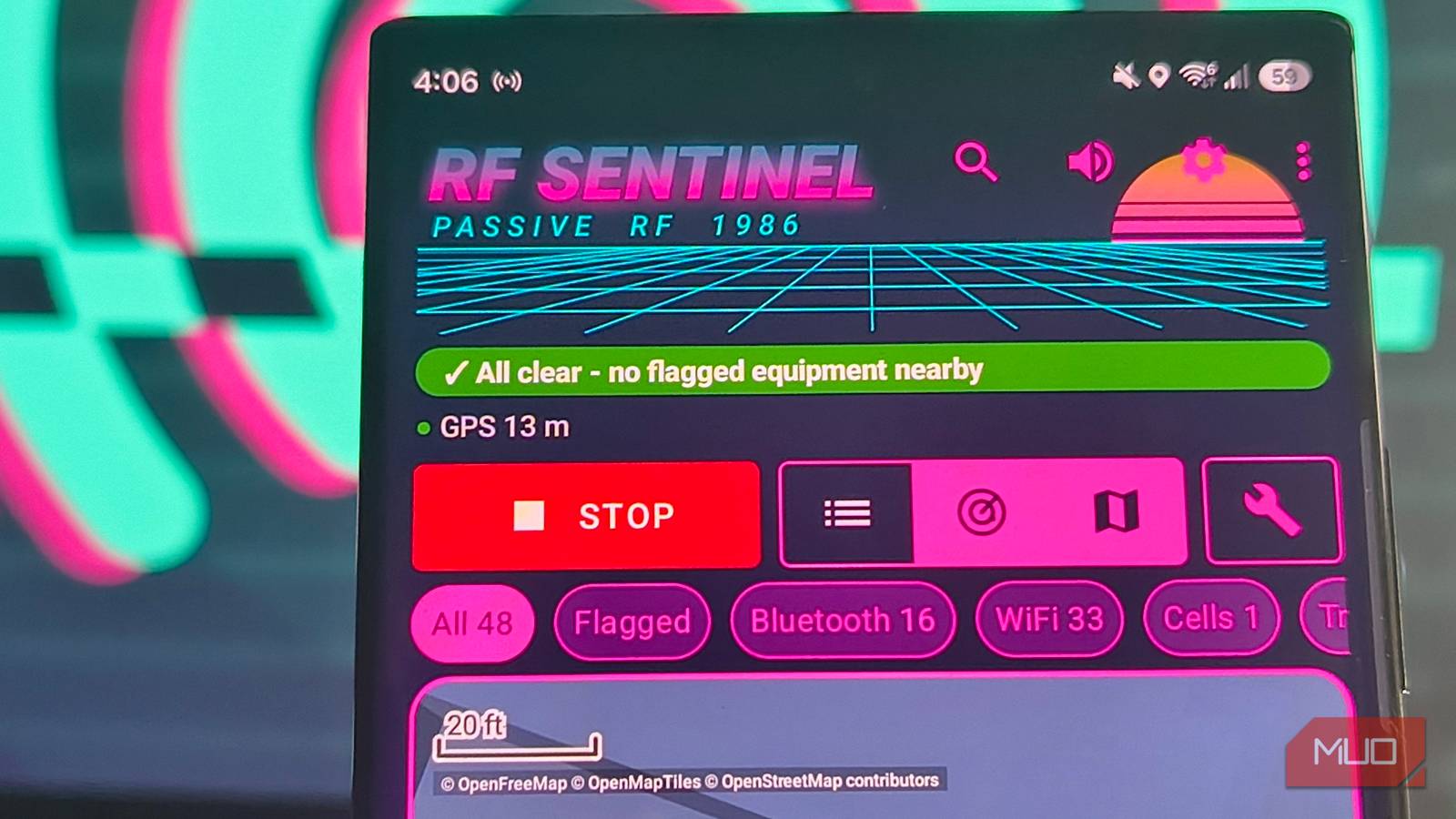
So I downloaded RFSentinel, an app that’s originally designed to pluck devices like Flock cameras and smart glasses out of a sea of wireless signals. Sitting at my desk, I opened it on my Samsung Galaxy and saw a list of hundreds of nearby devices filling my screen. Meanwhile, I hadn’t even stepped foot outside the house yet.
My Wi-Fi list always stopped at four
Three of them were mine

On my stock Galaxy Note, the Wi-Fi list had my home network SSID right up the top, two lab networks, and another one that appeared to belong to an unconfigured wireless printer.
I installed RFSentinel on my Samsung Note 20 running AristanROM, though the app doesn’t actually require a rooted Android phone. The first scan instantly showed 44 Wi-Fi networks. One that caught my eye had a hidden network name, yet RFSentinel had already identified it as an Ubiquiti access point with a faint signal of -90 dBm.
So, how did I go from four to 44? Living next door to a supermarket explains a lot of it. The same network name appeared against eight different addresses, all of which belonged to the shop. In Wi-Fi terms, the name you tap to connect is called the Service Set Identifier (SSID). The address, called a Basic Service Set Identifier (BSSID), lets the scanner work out all the individual broadcasts that share the name.
Several access points can advertise the same SSID, say, throughout a shop, and one physical access point can advertise several networks of its own.
If I were to join the supermarket’s Wi-Fi network, one name would be more than enough. Sitting at my desk, though, I wanted to know what my phone could actually “see,” since even an access point that kept its name to itself had already shown up.
A supermarket printer gave itself away
I wanted to see price tags, but all I got were printers

I regularly visit the supermarket next door when I need groceries. This particular supermarket uses electronic price tags with e-paper and an electrophoretic display to change prices as needed.
Walking down each aisle at 9:00 am, my phone in hand, and running RFSentinel, I honestly expected to see thousands of them fill my screen. Somehow, that didn’t happen, but what I did pick up during the 28-minute walk was just as interesting:
- 129 signals carrying an Apple Find My Signal, which can come from an AirTag, iPhone, or Mac.
- 54 broadcasting the Connected Devices beacon associated with Windows PCs.
- 7 ISP-branded home routers.
-
6 devices marked as
IoT_TV. - 4 labeled as Zebra printers or scanners.
- 1 wireless reversing camera.
- 1 Open Wi-Fi access point belonging to a bakery.
-
1 Water tank level meter advertised as
[IQFLOW]. -
A Kia-branded Wi-Fi signal starting with
Kia_, classified as vehicle Wi-Fi. - A network with “Sprinklers” in its name, attached to Ubiquiti hardware.
- A Samsung Galaxy Watch5.
-
A Samsung robot vacuum advertised as
[RobotVacuum Samsung]. - JBL Sense Lite audio earbuds.
As for the electronic price tags I could see with my own eyes, I couldn’t pick out a single one.
The missing price tags made more sense once I looked up how they actually work. The supermarket uses a system that syncs prices with the checkout. Its SOLUM Newton shelf labels receive their prices by communicating with a gateway using a dedicated protocol.
And there lies the problem. A tag can receive a new price without ever transmitting a Wi-Fi network name or Bluetooth advertisement. I did, however, walk straight past four devices that volunteered a lot more information.
RFSentinel picked up four entries as Zebra printers and scanners. I opened one of these once I returned home and found ZQ610 in the advertised name field. A few minutes on Google later, and I discovered these are hand-held devices used to print out manual price tags.
Now, I know that’s not exactly the most exciting discovery, but I did like how I was able to see just how my phone had worked out what they were. Bluetooth devices let out Low Energy broadcasts so that other nearby Bluetooth devices know what they are.
This one’s broadcast included both its name and 0xFE79, a service identifier assigned to Zebra Technologies. I never paired with it or performed any action beyond passive scanning. But it had given up enough information for my phone to categorize and flag it.
The radar made more sense once I read the small print
Signal strength, crowded channels, and satellites overhead
When I see a target on the right of a radar sweep, I’m going to presume there’s something behind my shoulder. RFSentinel showed me quite a few dots scattered around my bedroom, so I was glad when I read the fine print before I started crawling under the bed.
Turns out, a stronger signal just pops the dot closer to the center. The angle means absolutely nothing.
When I did actually want an accurate direction, I could open a device entry and tap Locate. I then held the phone against my chest and slowly turned on the spot as per its instructions. My body blocked and weakened the signal coming from behind me, and the ring filled with warmer colors and beeped faster as I got closer to the device.
In my testing, I got some really accurate results from my iPad, and I worked out that it was accurate until around the 35-foot mark. Beyond that, it’s fairly useless, so it makes a good detector of hidden camera devices in an Airbnb, for example, but not anything further away.

Beyond Bluetooth devices, RFSentinel also showed me Wi-Fi signal and channel data, connected cell towers, and overhead satellites:
|
View |
What I could see on my phone |
|
Wi-Fi spectrum |
Seven of the 15 entries on 2.4 GHz used channel 1. |
|
Cell towers |
My phone was connected with an LTE cell at -105 dBm, and also listed a neighboring cell. |
|
Satellites |
The sky plot picked out GPS, QZSS, BeiDou, and Galileo in different colors. The GLONASS constellation was strangely absent. |
As soon as you stumble upon an interesting device, tap it. There you can check its advertised name, radio, and service identifier. That’s exactly how I found the Zebra printer/scanner from my supermarket scan.
A passing vehicle made me suspicious
What jammed the GPS? The tin roof, or an inconspicuous van?

Around 11:32 pm, I was sitting in my room playing around with RFSentinel under a metal roof. Out of the corner of my eye, I spotted a van driving past the house. Almost immediately, my Android lit up with a notification from RFSentinel: “GNSS jamming signs.” I’d have put money on the roof being the reason my phone was struggling to get a decent signal.
Then I expanded the notification and saw why the timing had got my attention.
GNSS stands for Global Navigation Satellite System. GPS was only one of several systems my phone was picking up, and RFSentinel reported that signals across all four had suddenly weakened by 14.9 dB.
At the same time, receiver noise had risen by 7.4 dB. The app flagged that combination and even mentioned a GPS blocker in a vehicle as a possible explanation. The GNSS signals returned to normal once the van had passed.
The warning and the timing made the van just a little tempting to blame. All I had, though, was a timestamp and two readings from a phone inside stone walls, sitting under a tin roof. Common sense says the building was the cause and not signal jamming. Still, I don’t know what caused it.
I’m saving RF Sentinel for my next trip to the city
A change of scenery is definitely needed

RFSentinel comes with a few different themes to change the look of its maps, radar, and device lists. I used the grid-lined Blueprint theme because it was the easiest on the eyes. There’s also a DedSec- and Mr. Robot-inspired fsociety theme that adds a bit of personality.
The Night Drive theme would work well on Android Auto, and the Light theme did what all light user interfaces do — it hurt my eyes.
Even with the hacker-themed UIs, scanning my rural town got pretty boring once I’d figured out it was all just home routers and utility infrastructure. What I really enjoyed was just tapping an unfamiliar entry and finding something like a robot vacuum behind it.
I’m keeping RFSentinel for my next trip to the city. Now I’m actually quite curious what I’ll find while waiting for the lights to change.
