


For a long time, I’ve accepted that Windows only stores your most recently-copied thing, and as soon as you copy something else, that original item is bumped out of memory. Sure, there are third party clipboard managers that can save more, but I didn’t want to bother with them.
Then, we finally got native clipboard history in Windows 11, which is off by default (it’s easy to turn on, and I’ll show you how), and now my PC remembers the last 25 things I’ve copied, which makes life so much easier, especially during tasks that require a lot of copy and pasting. You can even set up this feature to act as a “dashboard” of frequently-used content.
While Clipboard manager in Windows is not perfect, it’s a powerful tool that does more than you think.
How to turn on clipboard history and quickly launch it
It’s off by default

Clipboard history in Windows is off by default, most likely because Clipboard history saves up to 25 pieces of content (whether text or graphics), which can eat into system memory if you’re copying a lot of content.
To turn on Clipboard history, just go to Settings > System > Clipboard > turn on Clipboard history. From this same screen, you can also turn on clipboard sync (which we’ll cover later in this article), or clear all of your clipboard data if you want to purge the memory.
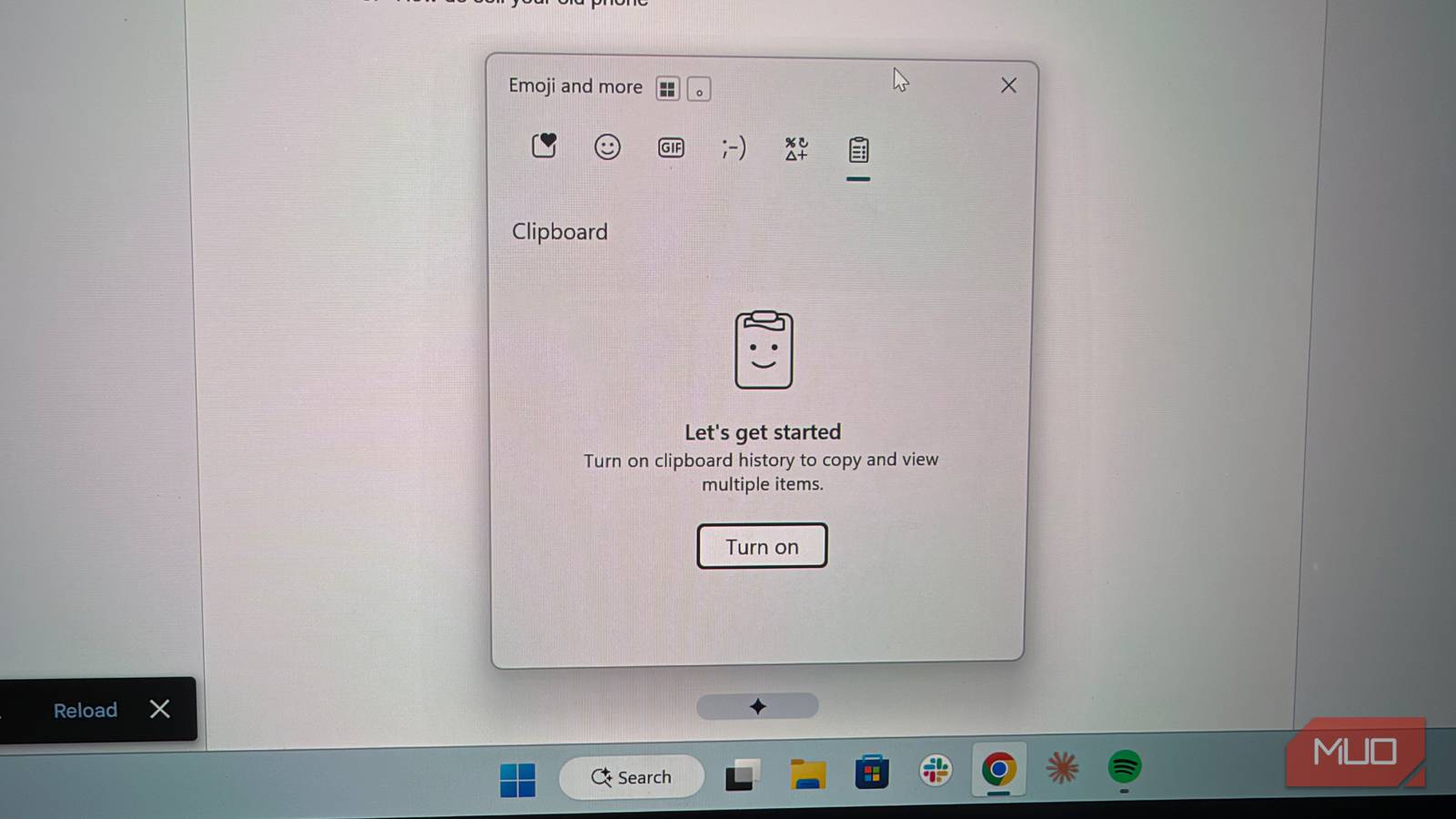
A faster way to turn on Clipboard history is to just press Windows + V to bring up the Clipboard history panel, which will contain a quick link to Clipboard history settings where you can enable it.
Then to access your clipboard history from anywhere, just again use Windows + V.
Next we’ll go over how you might want to organize your clipboard around tasks requiring the same content to be copied.
Use clipboard history pinning for frequent copying
Create a “dashboard” from which to copy

The most efficient way to use Clipboard history is to first preload it with all the things you’ll need to paste for a particular project. If you’re writing a paper for university, perhaps that means loading the Clipboard history with all the sources you need to reference, plus any key data you plan to include in your essay.
Or, if you’re responding to emails for your business, you can preload Clipboard history with the most common email responses so you don’t have to retype them each time.
Then, you just place your cursor where you want to input the data and open the Clipboard history panel and click the content you want to insert.
Unfortunately, Clipboard history does not “stay on top” of other windows, and it closes each time you select from it, which makes it somewhat annoying to have to use repeatedly. There are numerous other Windows clipboard managers that we’ve written about, many of which have the option to have a persistent clipboard panel stay open, such as Ditto and ClipClip, but they require a separate install and setup process, and not all of them are free.
There are some other useful features to try, like pinning and deleting.
Other things to try
Clear history to remove sensitive content, paste as plain text & sync across devices

Windows’ Clipboard history gives you a few tools that are helpful.
First, you can delete individual items from the history just by clicking the three dots and hitting delete. This is helpful if you copy a password or other sensitive info that you don’t want exposed. Along those same lines, you can delete the entire history in one shot by clicking the Clear All button in the upper right of the Clipboard history.
Pinning items on the Clipboard history is especially important. Not only do pinned items survive a reboot (unpinned items are not saved when you reboot), pinned items also survive the Clear All button, if you use it. You can pin items with the little thumbtack icon you see next to each clipboard item.
Unpinned items are not saved when you reboot
There’s also an option to paste things as plaintext, which is especially helpful when copying content from the web which might contain undesired formatting that you want to strip out.
If you turn on Clipboard syncing from the settings panel, your history will be mirrored across devices that are logged into the same Microsoft account. Through the settings panel, you can pick either automatic syncing, which will sync everything, or manual syncing, which will require you to manually sync things you want to send to your device by pressing the sync button within the Windows + V interface. Manual syncing is your best bet if you copy anything sensitive like passwords or tokens that you don’t want reflected across all of your devices. Your clipboard will even sync to your supported Android phone if you’re using Windows Phone Link.
Clipboard history is not perfect and it’s lacking in a few key areas.
Where it’s lacking
No search, history is limited, and clipboard is too small to get a good view

While the Clipboard history is certainly a helpful tool that is seamlessly built into Windows with syncing across multiple devices, the tool itself is bare-bones and lacks some of the more advanced features of other tools we’ve covered, like Ditto. These other clipboard tools introduce more advanced keyboard shortcuts (to be able to precision-paste items based on which items you most frequently paste), they go far beyond the 25 item limit to allow you to almost infinitely store copied content, and they allow for organization and grouping of your clipboard items.
Then there are tools like CopyQ which goes even further by automating certain workflows right from your clipboard, like automatically launching certain apps when certain pieces of info are copied (like it can launch your Calculator app if you copy numbers). All third-party Clipboard managers I’ve seen offer search capability plus offer customization to the manager panel itself, like the ability to set the panel as an easy-to-reference sidebar.
I’m definitely keeping this feature turned on
But even with some of its shortcomings, I now use Windows’ Clipboard history constantly, and I don’t know how I lived without it. It seems almost silly that unless you were willing to install a third party app, for so many years Windows would only remember your last copied singular item. Finally, clipboard works the way it should have all along (if you turn the feature on).
