

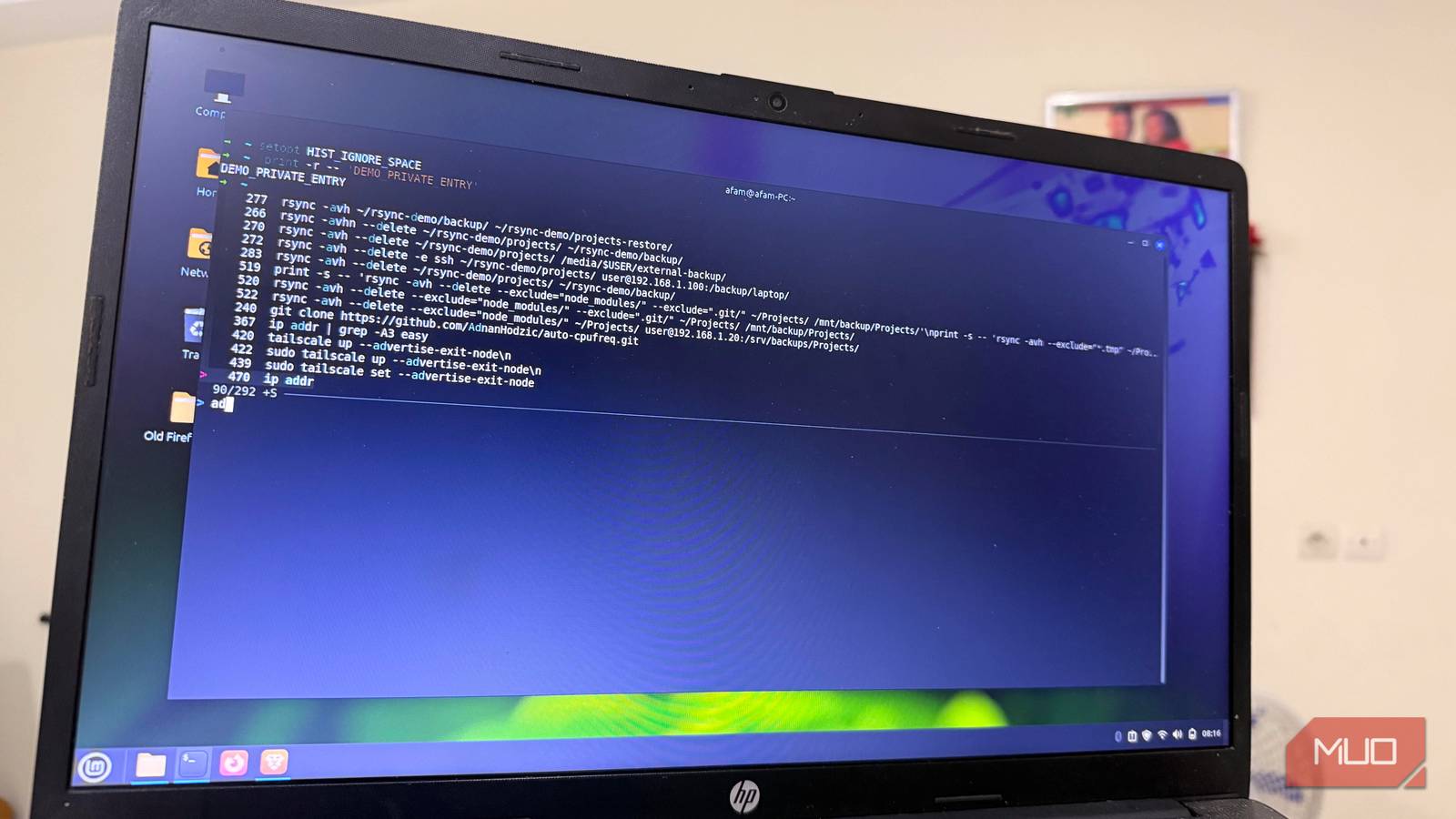

If you use Ctrl+R on the terminal, you probably run into this same vicious circle once in a while: type a few letters, find the wrong command, try the shortcut again, land on the wrong command again, then give up and type the entire command from memory.
I finally let fzf replace that shortcut, and it’s saved me from typing a long command ever since. It’s the perfect fix if you spend time hunting through your shell history.
Half a command is enough
Type the bits you remember, in any order

I built a backup command: a long rsync line that had exclusions, a trailing slash, and a destination. In the past, I would get the trailing slash wrong, and the destination wasn’t easy to remember.
Using Ctrl+R, I only type rsync and projects, and get the full command line close to the top of the list that fzf produces. The good thing about this list is that beneath this very command are a few near-identical commands from other backups.
That’s one way fzf beats the default search. The default requires one exact stretch of text and ends up presenting a single result. With fzf, I use separate words, and regardless of the order I use them, it presents a list of matches. This means I can find the same line using “rsync projects” or “projects rsync.”
What you get at the top of the list is the best match. I was surprised that it didn’t merely place my most recent commands at the top. Pressing Ctrl+R again sorts by newest commands.
But for this to work, fzf must be installed and enabled. Here are the steps:
-
On Linux Mint, Ubuntu, or Debian, run
sudo apt install fzf. -
Verify the installed version using the command:
fzf --version. -
If your version is 0.48.0 or newer, open ~/.bashrc in a terminal editor (for example:
nano ~/.bashrc). - Navigate to the bottom with the arrow keys, then add eval “$(fzf –bash)” on a new line, and save the file (press Ctrl+O, then Enter, then Ctrl+X to exit).
-
Apply the changes by running
source ~/.bashrcin the terminal.
It finds the command, then waits
Nothing runs until you say so

When I used the old Ctrl+R, pressing Enter ran the command immediately. With fzf, selecting a result only pastes it onto the command line, giving me an opportunity to decide what I want to do with it.
This design has mattered a lot to me. One time, the backup I’d recovered pointed at an older machine, 192.168.1.20, and I was able to move the cursor over and swap the address. Only then did I press Enter to run the command. Without this design, I might have ended up syncing my projects to the wrong address. fzf allows me to view and treat recovered commands as templates.
On recent versions of fzf, you can use Alt+R, which keeps the nonmatching commands but dims them. Seeing the surrounding commands allows me to remember what I was doing at the time.
Your shell’s history isn’t always up to date
Why fzf can’t find every command you’ve run
When you run a command in one terminal window and switch to another, Ctrl+R doesn’t always surface the command.
The reason is that each running shell has a history list that it writes to a file after that window closes. If a terminal window is already open, it doesn’t automatically reload what was freshly written to the history file. fzf can only search from the history that its current shell has, and fuzzy matching doesn’t recover commands that do not exist.
|
Situation |
Can it find the command? |
|---|---|
|
If another window is still open |
No |
|
That window closed, you open a new one |
Yes |
|
That window closed, yours was already open |
No, until it reloads |
This is why, even when you’re sure you ran a command, it doesn’t appear on the list.
The modest stock history is a limit. Bash commonly uses a HISTSIZE of 1,000 lines in memory and a HISTFILESIZE of 2,000 lines for the history file on Ubuntu, though these values vary by distribution and configuration. After these numbers are exceeded, Bash discards older commands. Check your own limits by running echo $HISTSIZE and echo $HISTFILESIZE in the terminal.
There’s a fix. You can make every window save as it goes by adding this line to ~/ .bashrc:
PROMPT_COMMAND='history -a; history -c; history -r'However, if you try this fix, all your windows share a single combined history, and the up arrow no longer follows only the current window.
Some commands deserve to be forgotten
It’s great to have fzf always surfacing your commands, but a searchable history can show things you’d rather forget. So a password or an API key you pasted into the command can show up at the moment you least expect. By default, Bash will save commands unless you configure it to exclude them. So even though it may not record everything, it records plenty.
So on my installation, I select certain entries in the picker and use Shift+Del to delete them. I advise this for sensitive things you may have entered in the terminal, but this won’t erase them from the terminal’s scrollback.
If your shell is configured to ignore commands that start with a space, a practical approach is to begin sensitive commands with a space. This way, Bash excludes the command from its saved command history. Run echo $HISTCONTROL to check the setting. “ignorespace” or “ignoreboth” enables excluding space-prefixed commands.
This change to fzf took about a minute to set up, but is still one of the more useful ones I’ve made on my terminal. Instead of remembering the entire command, fzf surfaces what matters from the little I remember.

- OS
-
Linux, macOS, Windows, and BSD operating systems
- Price
-
Free
fzf is a general-purpose command-line fuzzy finder. This interactive terminal toolkit lets you select files, browse command history, and preview data.
