

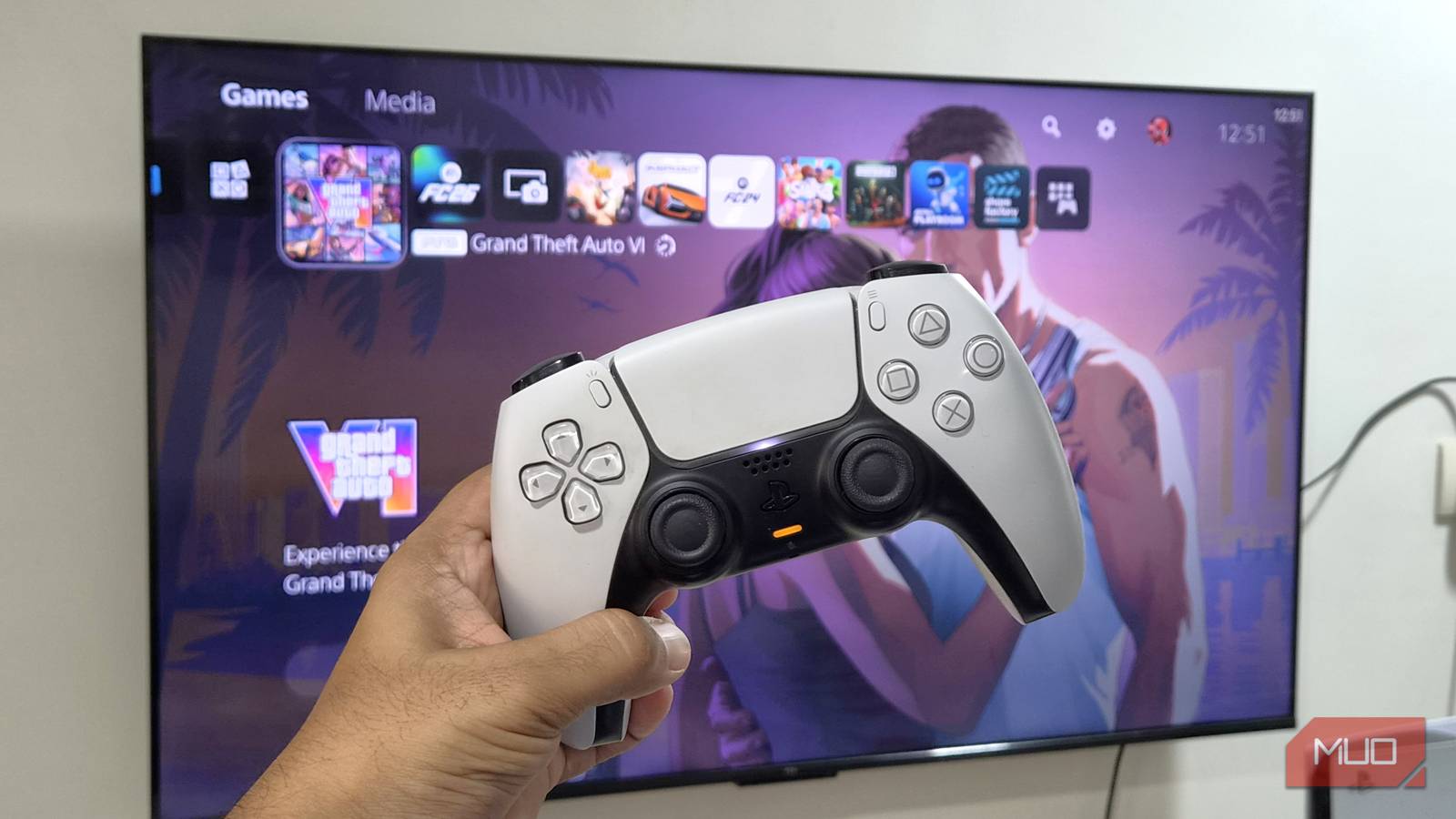

GTA VI is almost here, and you’ve probably pre-booked the game like me, maybe even preloaded it already. But the prep work isn’t done yet. Your TV might not be ready for Vice City the way Rockstar intended it to look. The good news is that a few tweaks is all it takes to make GTA VI look and feel the way it’s supposed to.
Switch to HDMI 2.1 and turn on VRR
The port you use matters the most

Most TVs have multiple HDMI ports, but not all of them are HDMI 2.1, which is what your PS5 or Xbox actually needs. HDMI 2.1 is a huge upgrade over HDMI 2.0. It bumps the refresh rate from 60Hz to 120Hz, bandwidth from 18Gbps to 48Gbps, and adds support for variable refresh rates and eARC for proper high-quality audio. So the first thing you need to do is look for an HDMI port labeled 4K/120 or eARC and plug your console into that.
Once that’s sorted, head into your TV’s settings and enable VRR (or Variable Refresh Rate). Different TVs have this option in different places, but you can generally find it under Display, HDMI, or Game settings. This basically lets your TV sync its refresh rate with whatever the console is outputting in real time. It can make the game look smooth and avoid screen tearing.
Enable Game Mode
A no-brainer
This one’s pretty obvious, but still worth mentioning. Your smart TV comes with several different picture modes, like Standard, Movies, Sports, Vivid, and Game. Picking the right one for what you’re doing actually matters, and for gaming, that means switching to Game Mode.
This tells your TV to stop trying to “improve” the picture and just push the frames as fast as possible, so there’s no input lag. That includes disabling edge sharpening, noise reduction, contrast enhancement, and all the other processing your TV typically applies to make video look nicer. Every bit of processing adds a few milliseconds of delay, which is something you don’t want while playing GTA VI, or any game for that matter.
You’ll find Game Mode under your TV’s picture settings. It may be called Game Optimizer or something similar. Enable it, and you’ll see the difference.
Turn off motion smoothing
Fake frames can cause real lag

Motion smoothing goes by different names depending on the TV manufacturer. Samsung calls it Auto Motion Plus, LG calls it TruMotion, and Sony labels it MotionFlow. It’s a feature that analyzes two consecutive frames and tries to guess what should appear in between them. It then generates that frame and slips it in between the two real ones. The idea is to make low FPS content look like 60 or 120FPS. Since GTA VI is capped at 30FPS, this might sound tempting, but it can actually make things worse.
For one, generating those frames causes an input delay. And yes, those are still fake frames, so they don’t always look great, even for movies. Enabling Game Mode usually takes care of motion smoothing automatically, but it’s still worth double-checking. You can find the Motion Smoothing option under your TV’s Display or Picture settings.
Don’t let power-saving settings ruin your game
Eco-mode and gaming don’t work well together

Most TVs ship with some form of eco or power-saving mode turned on by default. It typically dims the backlight, caps brightness, throttles processing, and limits energy consumption by various means. This can cause dark scenes to look darker and make the game look dull overall.
For a game like GTA VI, you don’t want those night missions or neon-lit city streets looking washed out. More importantly, the energy savings from these adjustments aren’t that huge to begin with, so you’re not really giving up much by turning it off.
To disable it, head to the General or System settings option on your TV and look for something called Eco Mode or Energy Dashboard, then switch it off.
Get HDR right with HGiG
The HDR setting most people never find

Dynamic Tone Mapping is where your TV adjusts brightness and contrast scene by scene based on what it thinks looks best. It’s actually great for movies and TV shows, but not so much for games, because your console is already doing that bit. There’s no point in your TV doing the same thing in its own way, and in fact, it can sometimes make the game look worse.
You can find this inside the Display or Picture settings menu on your TV. Turn it off, and if you see an option called HGiG (HDR Gaming Interest Group), enable it. HGiG is a specific set of guidelines made by console manufacturers, TV makers, and game developers in collaboration. It defines how HDR should be applied to games, and it’s done based on your TV’s actual capabilities, so you get the most accurate picture possible.
