



A cousin of mine recently came to me in a panic because she was locked out of her PC. It wasn’t the regular “I forgot my password” lockout or the “I think I’ve been hacked” kind. It was a device encryption lockout.
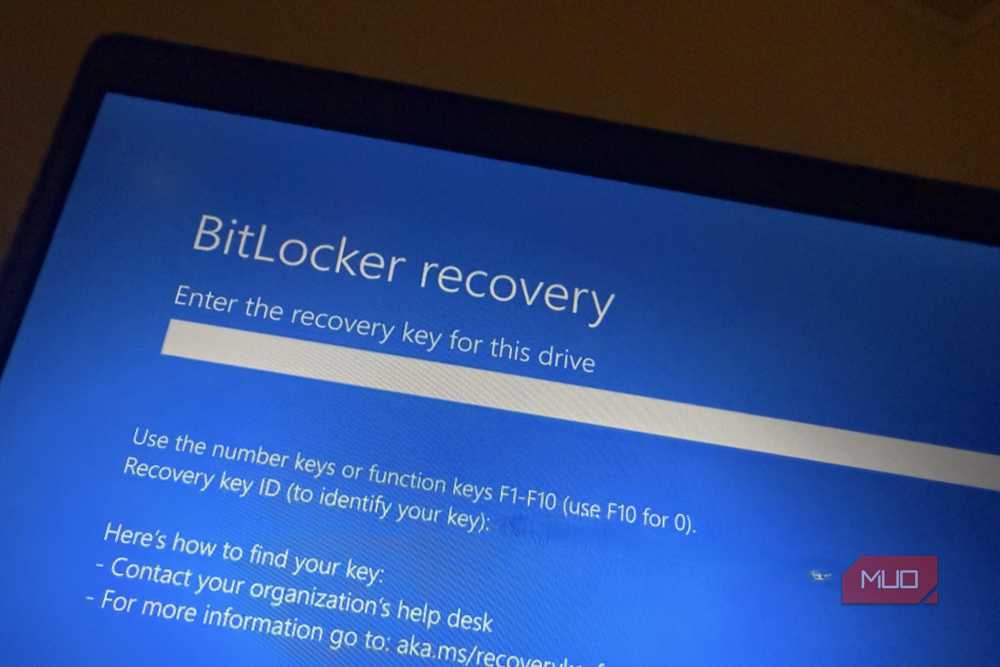
Windows was demanding a BitLocker recovery key she never knew she had. I couldn’t quite relate to her panic because I’d already taken the necessary precautions in case something like that happened to me.
You see, a lot of people don’t realize they’re one BIOS update away from being locked out of their Windows PC, courtesy of BitLocker. And the recovery key they need might already be sitting somewhere they never expected.
Windows Home can encrypt your PC without you realizing it
Device Encryption is a simplified BitLocker
Most people assume BitLocker encryption is something you only get with Windows Pro or Enterprise. That’s not entirely true. Windows Home has always supported a “lite” version called Device Encryption since Windows 8.1. In fact, it’s turned on by default, if your PC met a very strict requirements. However, with the introduction of Windows 11 version 24H2 in 2024, Microsoft relaxed some of those requirements, including removing the need for Modern Standby or HSTI compliance. As a result, many more Windows 11 Home PCs can now enable device encryption.
The device still needs to meet the remaining requirements, including having a supported TPM and Secure Boot configuration. But a lot of PCs nowadays have that. So, once you set up Windows 11 Home on your system and sign in with a Microsoft account, Windows automatically enables the encryption.
A firmware update or Secure Boot change can lock you out
BitLocker can mistake a change to your boot configuration for a security threat

When BitLocker encrypts your device, it protects the key with your hardware’s TPM (Trusted Platform Module). Then, the TPM checks your system’s startup environment, including parts of the firmware and boot configuration during startup. As long as nothing changes, Windows will boot up as usual.
However, a BIOS/UEFI firmware update, changes to Secure Boot settings, adjustments to the TPM, or hardware replacements can cause BitLocker to question whether the PC is still in its trusted state. When that happens, you get locked out, and Windows asks for a 48-digit recovery key.
It is not every BIOS update or Secure Boot change that triggers the recovery key request. The risk depends on what changes during the update or what was changed in Secure Boot. Still, I wouldn’t install a firmware update, change Secure Boot settings, or replace major hardware without first making sure I can access my recovery key.
The key is usually in your Microsoft account
Windows saves it there during setup
If you manually enable BitLocker on a Windows 11 Pro PC, Windows gives you different options to store the recovery key. You could save it to your Microsoft account, to a file, on a USB drive, or print a physical copy. But Windows 11 Home users don’t get that luxury since the encryption happens automatically without their consent.
Due to this, the key is usually stored in the Microsoft account used to set up Windows. So, to find it, open a browser on another device and visit https://aka.ms/myrecoverykey.
Sign in with the Microsoft account associated with the locked PC, and you’ll see any recovery keys backed up to that account. Find the entry matching your device and compare its key ID with the one displayed on the BitLocker recovery screen. Then enter the corresponding 48-digit key to unlock your drive.
If you’d rather save yourself all this stress and not use device encryption, you can turn off the encryption by going to Settings -> Privacy & security -> Device encryption and switching the toggle off. Just remember that doing so removes the protection encryption provides, so I wouldn’t recommend disabling it simply because you don’t understand how it works. I’d much rather keep encryption enabled and make sure I have a recovery key safely backed up.
Check your recovery key today
BitLocker is one of those Windows security features that’s easy to forget about because it usually works in the background. But that convenience can turn into a problem when a firmware update or hardware change suddenly triggers recovery.
My cousin’s experience reminded me that having a recovery key isn’t enough if you don’t know where to find it when Windows won’t start. I recommend checking your recovery key now, even if your PC has never shown a BitLocker screen. Visit your Microsoft account, confirm that the key for your device is there, and keep another secure backup if possible. It takes only a few minutes, but it could save you from losing access to your files when you least expect it.
