

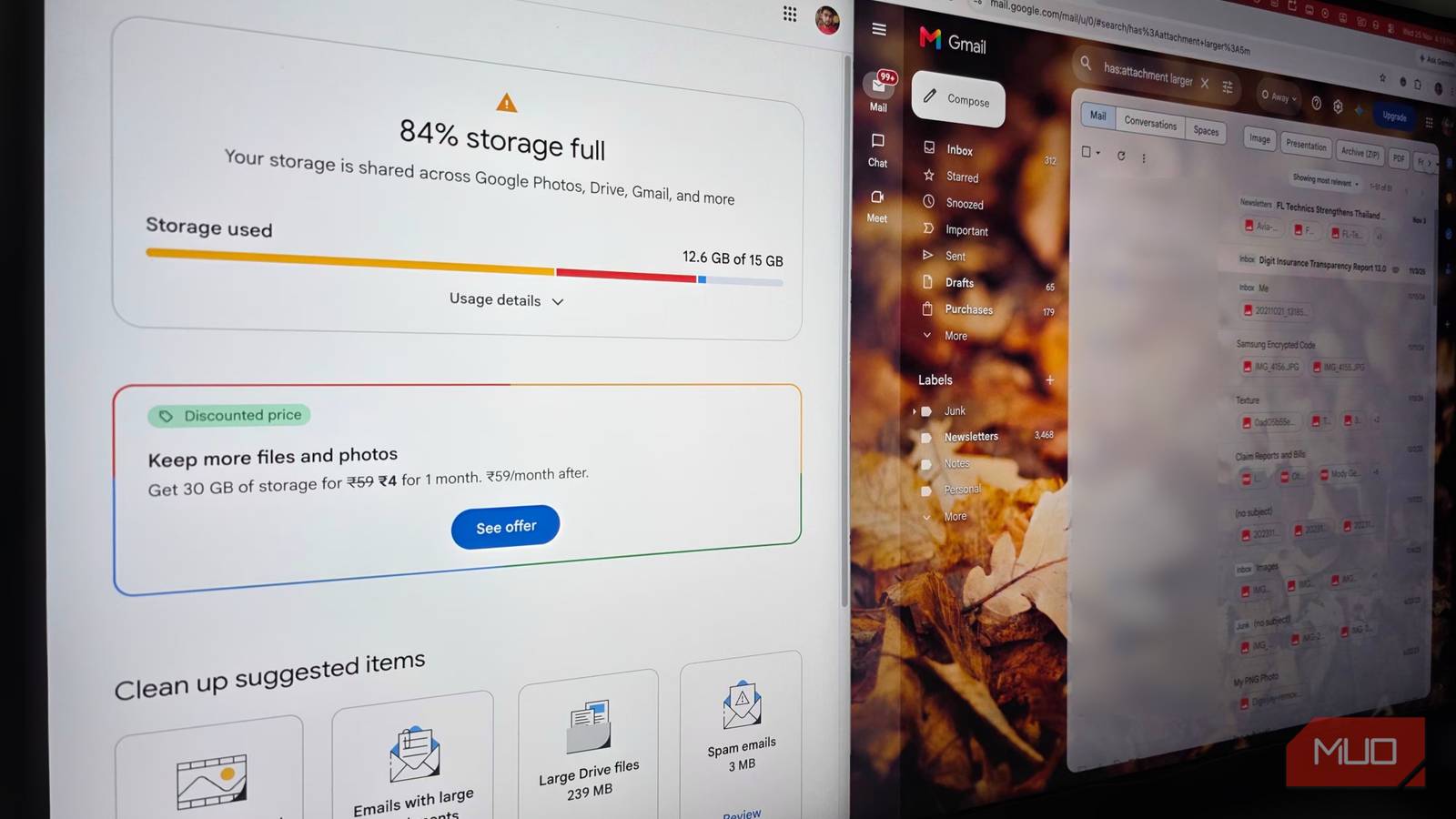

My Google account ran out of storage, and the first thing I did was open Photos and start deleting old pictures. I tried Drive after that, clearing out forgotten PDFs and slide decks. After weeks of picking through files and removing anything I didn’t need, my storage bar had barely moved. Whatever was taking up my 15GB, it wasn’t in Photos or Drive. The real problem was hiding in a place I’d never thought to check.
How Gmail buries gigabytes of forgotten attachments
Old files quietly eat your free quota

When your Google storage fills up, Gmail is probably the last place you’ll look. Photos and Drive feel like the obvious targets because you save files there on purpose. Gmail just collects messages in the background, and emails on their own barely take up any space.
Attachments are where the real damage happens, though. That PDF a colleague sent four years ago is still embedded inside a thread you’ll never reopen. So is the batch of vacation photos your friend shared over email. Gmail keeps every attachment as part of the message itself, so those files pile up across hundreds of threads and never show up in any storage view you’d normally check. Your Sent folder is just as bad. Every large file you’ve ever attached to an outgoing email stays in your account unless you go in and remove it.
Google does offer a storage management page that flags large items for cleanup, but it tends to miss the bulk of what’s buried in email attachments. One account holding over 5GB in Gmail showed roughly 667MB worth of cleanup suggestions. The remaining gigabytes were all locked inside emails the tool never even surfaced.
Clearing space with a search bar trick
Gmail’s built-in operators replace hours of scrolling
Gmail’s search bar works fine for finding emails by keyword, but it also accepts operators that filter by things like file size. Type has:attachment larger:10M into the search box, and Gmail returns every email larger than 10MB that contains an attachment. On my account, the results included photos friends had shared years ago and old college files I’d emailed to myself as backups. Even a few claim documents I hadn’t opened since filing them turned up.
That’s just the first pass. Drop to has:attachment larger:5M, then to larger:2M, and even more emails show up. Files in the 2-5MB range can add up to a surprising amount because there are so many more of them. Adding older_than:1y keeps recent emails safe while focusing on anything received over a year ago. Throwing in from:me surfaces attachments you’ve sent yourself, which rarely get a second look.
Gmail sorts incoming mail into tabs like Promotions and Social, and those categories quietly accumulate thousands of messages. Searching category:promotions older_than:6m or category:social older_than:1y pulls up months of automated emails you’ll never reread. There’s a catch worth knowing here. Gmail can’t strip an attachment while preserving the message, so download anything important like tax records or signed contracts before you hit delete.
Why your storage barely moves after cleanup
Not every file is actually using your storage

Even after clearing out hundreds of emails, my storage gauge stayed stuck at first. Gmail doesn’t permanently delete anything right away. Removed messages go straight to Trash, where they keep counting against your 15GB quota for 30 days until Google purges them automatically. Drive and Photos work the same way, each requiring a separate manual purge if you want that capacity back immediately.
While you wait for the number to update, check the quota page in Google Drive. It lists every file you own sorted from largest to smallest and often surfaces things the Gmail search can’t reach, like hidden app data in Google Drive, old device backups, and files you may not even remember saving.
Some files aren’t worth deleting at all. Google Photos changed its storage policy on June 1, 2021, and any photos backed up in Storage Saver quality before that date don’t count against your 15GB limit, so deleting them frees up nothing. Emails with files over 25MB work differently, too. Gmail converts those into Drive links stored on the sender’s account, so wiping those messages won’t recover any space either.
Keep your storage clean going forward
If you share large files regularly, sending them as Drive links instead of direct attachments keeps them visible in your Drive, not buried in old email threads. Check the quota page in Drive alongside your Gmail search, too, because it picks up storage you won’t find through Gmail alone. Once every few months, run a quick has:attachment larger:5M search to catch new buildup before it becomes a problem.
