

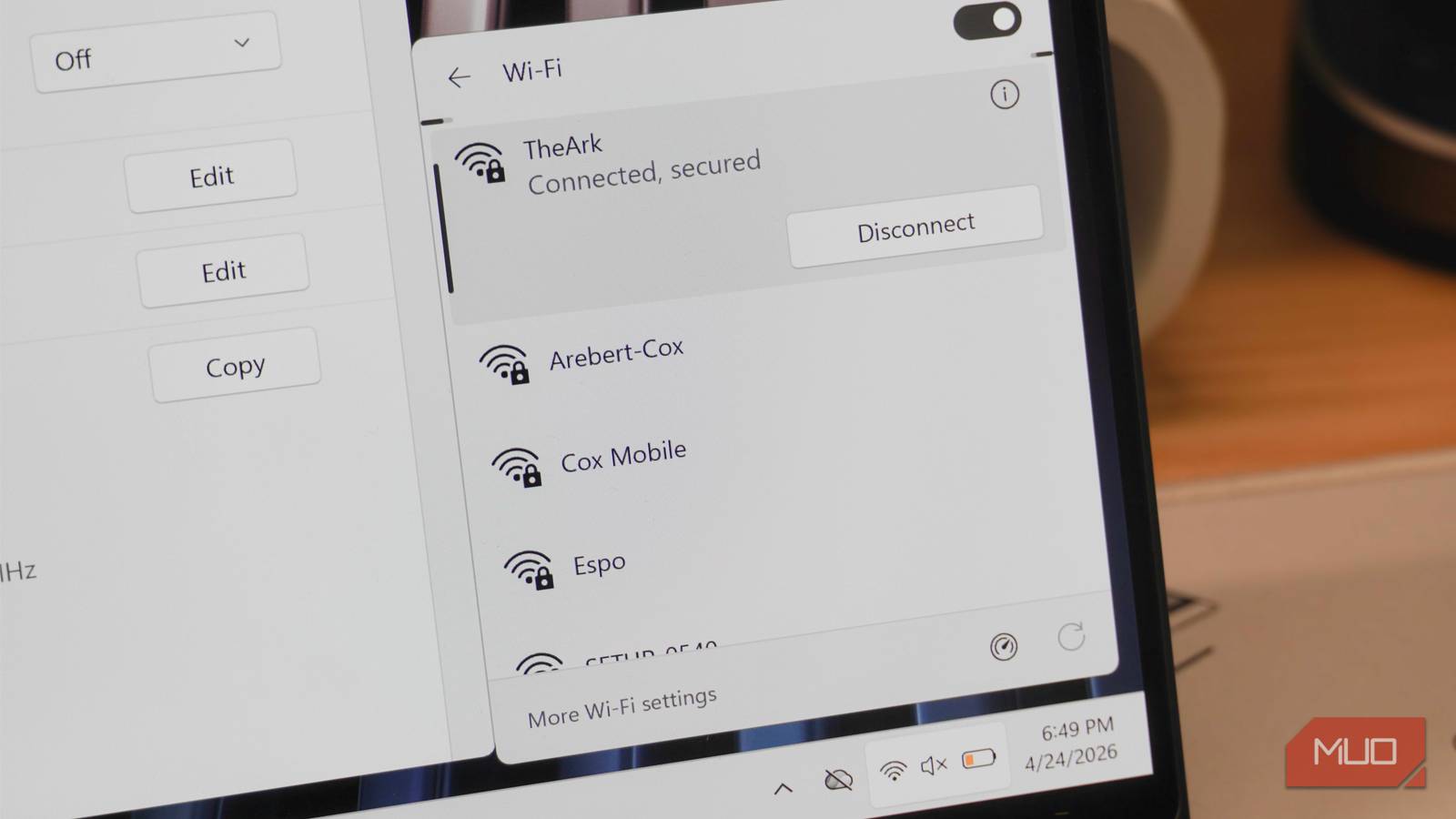

Most people either pick a quirky name for their home Wi-Fi network or never change the one that came with their router in the first place. However, the name you choose for your Wi-Fi network matters, and Microsoft and Apple give completely different advice on how to pick one. Your Wi-Fi network’s name is technically called a Service Set Identifier (SSID), and you can customize it using your router’s admin panel. A router uses multiple Wi-Fi bands — 2.4GHz and 5GHz for most routers, plus a 6GHz band for Wi-Fi 6E and Wi-Fi 7 routers — but you might never see them.
Routers can be configured with a unified SSID or split bands. With a unified SSID, your 2.4GHz, 5GHz, and 6GHz bands all appear as the same network name, and band-switching is automatically handled by your connected devices. By comparison, a router with split bands has unique SSIDs for the 2.4GHz, 5GHz, and 6GHz bands, making it easy to manually select which band a device is connecting to. The configuration you choose can affect the speed and reliability of your network, but Apple and Microsoft can’t agree on which one you should pick.
Apple says you should use one SSID for everything
Apple devices will view your network as having limited compatibility otherwise

To optimize your home network for iPhones, iPads, and Macs, you should use a unified SSID for all available Wi-Fi bands. Apple recommends you use the same Wi-Fi name for the 2.4GHz, 5GHz, and 6GHz bands. This allows the Apple products in your home to handle the handoff, and they’ll choose the best band for the situation on their own. Apple explains as much in a support document:
For best performance with Apple devices, the Wi-Fi router providing the network should use a single network name (SSID) across all of its Wi-Fi bands: the 2.4 GHz band, the 5 GHz band, and the 6 GHz band.
If you decide to split the bands on your Wi-Fi network, Apple devices will view the network as offering “limited compatibility.” They’ll try to find the SSID for the 5GHz band that corresponds to the 2.4GHz or 6GHz bands you’re currently connected to, and prompt you to join it. The catch is, if you follow Apple’s suggestion and join the SSID for the 5GHz band, you’ll lose some of the benefits of Wi-Fi 6E and Wi-Fi 7.
You’ll end up getting subpar performance compared to if you connected to the SSID for the 6GHz band, or used a unified SSID. However, you may enjoy better compatibility on Apple devices. The company adds:
Make sure that all routers on your network use the same name for every band they support. If you give your 2.4 GHz, 5 GHz, or 6 GHz bands different names, devices might not connect reliably to your network, to all routers on your network, or to all available bands of your routers. If your router is providing a Wi-Fi 6E network that isn’t using the same name for all bands, Apple devices that support Wi-Fi 6E will identify the network as having limited compatibility.
So, Apple’s guidance is clear: use the same SSID for every Wi-Fi band your router supports. But what about Microsoft’s recommendation?
Microsoft thinks each band should get its own SSID
It makes finding the 2.4GHz, 5GHz, and 6GHz networks easy
Microsoft takes the opposite approach, and recommends that you use a separate SSID for each Wi-Fi band your router supports. So, if you have a Wi-Fi 6E or Wi-Fi 7 router with support for the 2.4GHz, 5GHz, and 6GHz bands, you should have separate SSIDs for each. Microsoft says this distinction will help you confirm which band your devices are connected to. Some bands are better than others — the 2.4GHz band is notorious for congestion, as things like microwaves and cordless phones also use it — and with split SSIDs, you can avoid the bad ones.
Although Windows will try to choose the best band if your router broadcasts a single SSID, Microsoft’s guidance doesn’t recommend it. Here’s exactly what the company says in a support document:
If your router is broadcasting at a 2.4 GHz, 5 GHz, 6 GHz network band, you should use different network names (also called SSIDs). This way you’ll know which network you’re connected to. You can make this change using the software for your access point. Some networks only show one name but contain different bands. Windows will automatically connect to the best band that’s available on the network.
Using split bands makes sense in a few situations. Sometimes, your device doesn’t select the fastest and least-congested band. I had to manually force my Windows 11 laptop to use the 6GHz band on a network with a unified SSID, and that wouldn’t have been necessary using split SSIDs. Additionally, some devices won’t work on the 5GHz or 6GHz band. Being able to visually differentiate between Wi-Fi bands might not hurt compatibility, but actually improve it. That way, you can see which band you’re connecting to.
Microsoft’s Wi-Fi naming advice makes more sense
But if you use Apple devices on your network, you’ll need to do this

Apple and Microsoft offer two different recommendations for Wi-Fi network naming. If you use a mix of Apple, Android, and Windows devices, that might leave you puzzled as to how to choose your home network’s SSID. There’s clearly two different schools of thought here, but I know which one I subscribe to. Microsoft’s advice makes the most sense, as long as you know when to use the 2.4GHz, 5GHz, and 6GHz bands. Splitting the bands on your Wi-Fi router into separate SSIDs distinguishes them better, and puts you in control of which one your devices connect to.
This is crucial for ensuring compatibility. Some smart home devices, such as certain smart plugs and smart lightbulbs, won’t connect to the 5GHz and 6GHz band. You need to connect to the 2.4GHz band manually, and that’s only possible with separate SSIDs. Since the 6GHz band requires WPA3 security, older devices may not be able to connect to it, and you’ll need to manually choose the 2.4GHz or 5GHz bands. Again, it’s much easier to guide devices to the band best suited to their needs with separate SSIDs. I can leave the 6GHz band as a “fast lane” for my work laptop and desktop PC, and direct everything else to the 2.4GHz and 5GHz bands.
Apple treats networks with split bands as having limited compatibility, so you’ll need to think carefully about whether it’s worthwhile if you use iPhones, iPads, and Macs. If you go against Apple’s suggestion, watch out for your devices trying to connect to the 5GHz band’s SSID anyway. If you approve the switch, you’ll get better compatibility at the expense of Wi-Fi 6E or Wi-Fi 7 performance.
