


There’s a certain kind of Windows annoyance that isn’t serious enough to justify hunting down an app for it. Maybe I want a shortcut that turns down whatever program I’m currently using. Maybe I want my PC to yell at me after I’ve been sitting at it for an hour. Maybe I want to know when a webpage changes without keeping a tab open all day.
Windows already has plenty of free tools for automating a PC. The irritating part is figuring out which corner of Windows, PowerToys, Task Scheduler, or Power Automate I’m supposed to visit for each job.
Then I stumbled across a tiny tool that has been approaching the same problem the other way around since 2002. Instead of giving every automation its own home, Toolfish treats them all as variations of the same basic idea. Something happens, and your PC responds.
The fish has aged better than its wardrobe
Twenty-four years old and still pulling new tricks

Seth Robinson originally released Toolfish commercially in 2002, made it freeware in 2015, and opened the source in February 2026. It’s also still being actively worked on — its latest release as of the time of writing came with fixes for disappearing hotkeys and tray recovery, while features such as active-app volume controls and dark-mode actions were added this year.
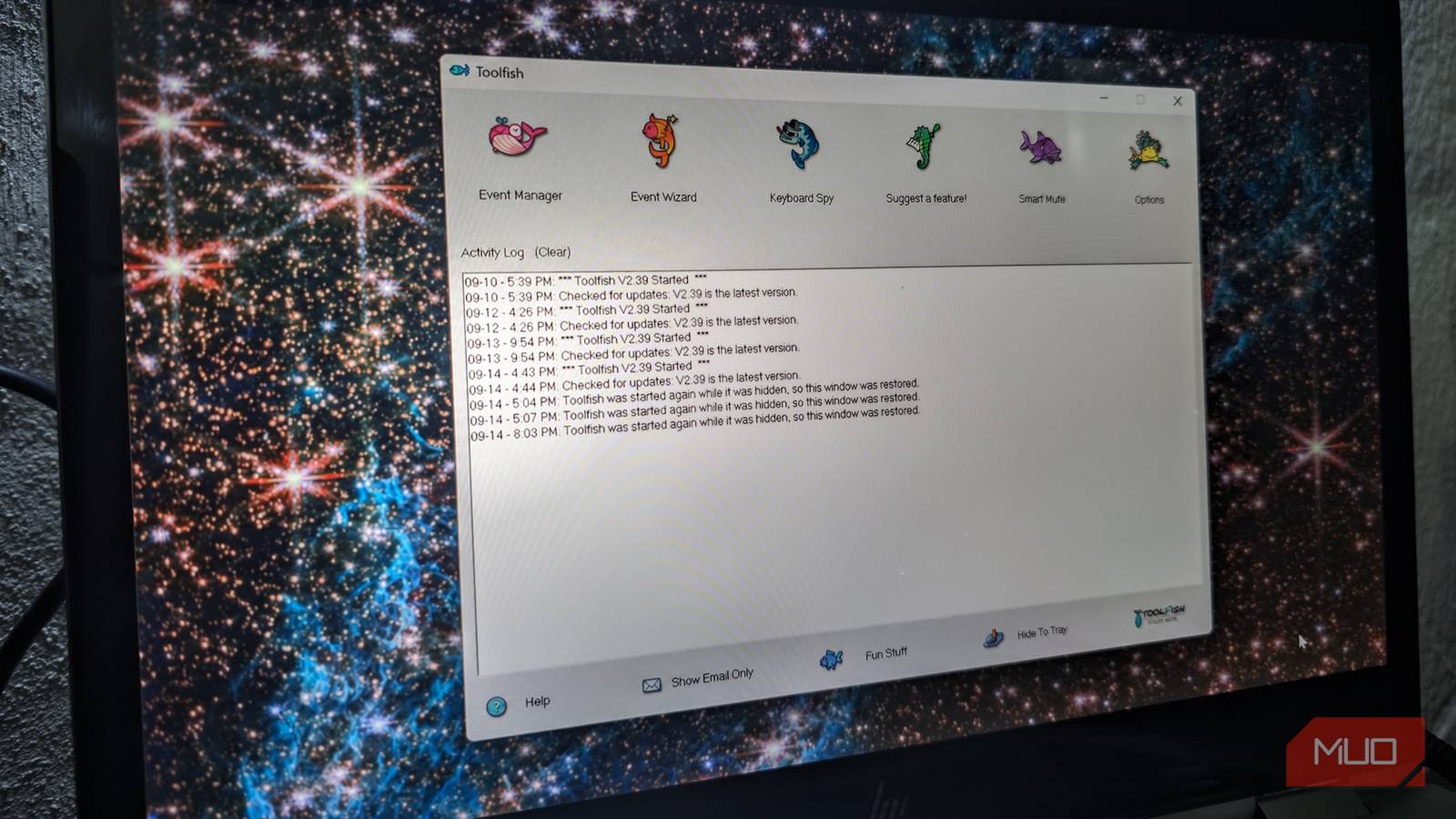
The interface, admittedly, looks like it remembers all 24 of those years. Toolfish lives in the notification area, and opening it gives you a collection of cartoon fish buttons sitting above an Activity Log. I’m not sure anyone will mistake it for a Windows 11 app.
Underneath that artwork, Toolfish works around a pretty nice idea. Automations are built from triggers and actions, and several triggers can be stacked so an event only runs when all of them line up. A hotkey can launch something, a timer can fire a notification, and one event can run multiple actions in sequence.
Some assembly required, fish included
Things get more interesting after setup
The GitHub repository points to Robinson’s digitally signed Windows installer, which is only a few megabytes and installs Toolfish under the current user’s AppData folder by default. Launch it and the app takes up residence in the system tray.
I started with Event Wizard, which covers the simpler automations. You can create one-time or recurring reminders that pop up on screen, read text aloud, or do both. That part didn’t grab me much because Windows has never lacked ways to nag me about an appointment.
Web Compare is a lot more interesting. There are plenty of dedicated tools for detecting website changes, but Toolfish folds that job into the same event system as everything else. Give Toolfish a URL, tell it how often to check the page, and set how much of a change should trigger an alert. There’s also a Test button that shows exactly what Toolfish retrieved, and I’d use that before relying on it for a complicated page. Sites requiring cookies or logins can behave unpredictably, while raising the change threshold can stop rotating ads and other minor page changes from bombarding you with alerts.

Now to the Event Manager: I can pair an hourly schedule with a working-hours window, then add another trigger that checks whether I’ve used the computer recently. My break reminder only fires when all three triggers line up. The reminder itself is nothing special, but assembling that logic in one editor is far more flexible than setting an hourly alarm and hoping I happen to be sitting there when it goes off.
Toolfish includes other examples that push the same idea further. One shortcut uses Ctrl+Alt+Minus to drop the active application’s volume by 10 percent, so I can rein in an obnoxiously loud game or video without touching the rest of the system. Another takes whatever is on the clipboard and types it as simulated keystrokes, which can get around fields that block normal pasting.
There are a few rough edges I’d want to know about before leaving Toolfish running all day. Keyboard Spy can log keystrokes, and I have zero interest in turning that on. Toolfish can also contact RTsoft for update checks and external-IP lookup, though both can be disabled. I’d be just as conservative about administrator mode, which is only needed if I want hotkeys and inactivity detection to keep working while an elevated app has focus. None of my current automations require that, so I leave Toolfish running with normal user privileges.
Windows has the parts scattered around
Microsoft has everything except the one box I want
Windows and Microsoft’s utilities can already cover most of these jobs. The problem is how many different places I have to visit to make them happen.
Windows 11 has per-app volume controls and lets you route individual programs to different output devices. PowerToys itself is packed with single-purpose utilities, including Keyboard Manager for remapping shortcuts and Light Switch for scheduling or hotkeying theme changes.
Task Scheduler has been around for ages, but it can still automate plenty of boring PC chores using triggers such as startup, logon, scheduled times, and idle periods. Add a few scripts and it can automate a ridiculous amount of Windows.
Then there’s Power Automate, which is by far Microsoft’s closest answer. It can record desktop workflows, automate browsers, handle conditions, move data between applications, and trigger desktop flows from keyboard shortcuts. In raw capability, Toolfish isn’t even competing in the same weight class.
That extra power also changes what Power Automate feels like to use. It’s built for workflows, so it makes plenty of sense when I’m automating a tedious business process, scraping information from an app, or chaining several desktop actions together. If all I want is Ctrl+Alt+Minus to lower the volume of whatever program I’m using, opening a full workflow automation platform feels like reaching for a toolbox when a screwdriver would do.
Volume Mixer handles audio, PowerToys covers shortcuts and system tweaks, Task Scheduler handles timing, and Power Automate takes care of heavier workflows. Even a simple webpage-change alert becomes another setup entirely.
Toolfish folds those little desktop jobs into one event system. Once you understand how its triggers and actions fit together, you don’t have to figure out which Microsoft utility owns the next tiny annoyance you want to automate. You can just build another event.
I guess the fish gets to stay
I’m still keeping the fish in my system tray. Twenty-four years later, Windows can reproduce nearly every trick Toolfish knows, but Microsoft still hasn’t given me one lightweight place to bring all of those little automations together.
